
1. Device Management#
1.1. How to get a managed device OID?#
Some API calls require to pass the OID of a managed device rather than a
symbolic device name. The following example shows how to get the OID of the
dev_001 managed device:
{
  "id": 3,
  "method": "get",
  "params": [
    {
      "fields": [
        "name"
      ],
      "filter": [
        "name",
        "==",
        "dev_001"
      ],
      "option": [
        "no loadsub"
      ],
      "url": "/dvmdb/device"
    }
  ],
  "session": "{{session}}",
  "verbose": 1
}
Note
You could avoid the filter block by using the
/dvmdb/device/dev_001 URL.
{
  "id": 3,
  "result": [
    {
      "data": [
        {
          "name": "dev_001",
          "oid": 276
        }
      ],
      "status": {
        "code": 0,
        "message": "OK"
      },
      "url": "/dvmdb/device"
    }
  ]
}
Note
The OID of the dev_001 managed device is 276.
1.2. How to rename a managed device?#
Warning
This section is describing how to change the device name used by FortiManager.
Changing the device’s hostname is a different topic (even though most of the time, for ease of operations, both are identical).
You can use two endpoints:
/dvmdb/device/<device>/dvmdb/adom/<adom>/device/<device>
1.2.1. Using /dvmdb/device/<device>#
To rename the fgt-741-001 device to fgt-742-001 in the dc_emea ADOM:
{
  "id": 3,
  "method": "set",
  "params": [
    {
      "data": {
        "name": "fgt-742-001"
      },
      "url": "/dvmdb/device/fgt-741-001"
    }
  ],
  "session": "{{session}}"
}
{
  "id": 3,
  "result": [
    {
      "data": {
        "name": "fgt-742-001"
      },
      "status": {
        "code": 0,
        "message": "OK"
      },
      "url": "/dvmdb/device/foobar"
    }
  ]
}
1.2.2. Using /dvmdb/adom/<adom>/device/<device>#
To rename the fgt-741-001 device to fgt-742-001 in the dc_emea ADOM:
{
  "id": 3,
  "method": "update",
  "params": [
    {
      "data": {
        "name": "fgt-742-001"
      },
      "url": "/dvmdb/adom/dc_emea/device/fgt-741-001"
    }
  ],
  "session": "{{session}}"
}
Note
You can also use the
setmethod
{
  "id": 3,
  "result": [
    {
      "data": {
        "name": "fgt-742-001"
      },
      "status": {
        "code": 0,
        "message": "OK"
      },
      "url": "/dvmdb/adom/dc_emea/device/fgt-741-001"
    }
  ]
}
1.3. Device status#
Captured in #462768.
This section is about getting the Config Status, Policy Package Status, Provisioning Templates status, ADOM membership, cluster member status, etc. for the managed devices.
This is more or less the information showing up int the Device Manager > Device & Groups page of the FortiManager GUI:

It is now possible to get these different status when getting the list of
devices with the Fortimanager API URL /dvmdb/device[/<device>].
You just have to pass the two options extra info and assignment info.
The following example shows how to get these status for a single managed
cluster; cluster_001 in this case:
{
  "id": 3,
  "method": "get",
  "params": [
    {
      "option": [
        "extra info",
        "assignment info"
      ],
      "url": "/dvmdb/device/cluster_001"
    }
  ],
  "session": "{{session}}",
  "verbose": 1
}
  1{
  2  "id": 3,
  3  "result": [
  4    {
  5      "data": {
  6        "adm_pass": [
  7          "ENC",
  8          "g9ZrdUj7gIqEKVU6aI9Azk8+hXo8BUUpRXFzN++KBvjfXH+dcK90agrchqFtsr2WH/nkbeLDxeS/jhmlnXKAg5/q+D6nYsrMDudW1SHLBWLgYzJccx9ja5tZOOwvYoYm1ac+txELl+U/XCIarQHlRB0AEO5syVKzfWAye8akyCNqVwGs"
  9        ],
 10        "adm_usr": "admin",
 11        "app_ver": "",
 12        "assignment info": [
 13          {
 14            "name": "system_template_001",
 15            "status": "installed",
 16            "type": "devprof"
 17          }
 18        ],
 19        "...": "...",
 20        "conf_status": "insync",
 21        "conn_mode": "passive",
 22        "conn_status": "up",
 23        "db_status": "nomod",
 24        "dev_status": "auto_updated",
 25        "extra info": {
 26          "adom": "demo"
 27        },
 28        "ha_slave": [
 29          {
 30            "did": "cluster_001",
 31            "flags": null,
 32            "idx": 0,
 33            "name": "dev_001",
 34            "obj ver": -1,
 35            "oid": 1463,
 36            "prio": 200,
 37            "role": "master",
 38            "sn": "FGVMULREDACTED61",
 39            "status": 1
 40          },
 41          {
 42            "did": "cluster_001",
 43            "flags": null,
 44            "idx": 2147483647,
 45            "name": "dev_002",
 46            "obj ver": -1,
 47            "oid": 1464,
 48            "prio": 100,
 49            "role": "slave",
 50            "sn": "FGVMULREDACTED60",
 51            "status": 2
 52          }
 53        ],
 54        "...": "...",
 55        "hostname": "dev_001",
 56        "...": "..."
 57        "vdom": [
 58          {
 59            "assignment info": [
 60              {
 61                "name": "ppkg_001",
 62                "status": "installed",
 63                "type": "policy"
 64              },
 65              {
 66                "name": "1375-3",
 67                "status": "installed",
 68                "type": "wtp"
 69              },
 70              {
 71                "name": "sdwan_template_001",
 72                "status": "installed",
 73                "type": "wanprof"
 74              },
 75              {
 76                "name": "1375-3",
 77                "status": "installed",
 78                "type": "fsp"
 79              },
 80              {
 81                "name": "1375-3",
 82                "status": "imported",
 83                "type": "fext"
 84              },
 85              {
 86                "name": "cli_template_group_001",
 87                "status": "installed",
 88                "type": "cli"
 89              },
 90              {
 91                "name": "ipsec_tunnel_template_001",
 92                "status": "installed",
 93                "stype": "_ipsec",
 94                "type": "template"
 95              },
 96              {
 97                "name": "static_route_template_001",
 98                "status": "installed",
 99                "stype": "_router_static",
100                "type": "template"
101              },
102              "...": "...",
103            ],
104            "...": "...",
105            "extra info": {
106              "adom": "demo"
107            },
108            "...": "..."
109            "name": "root",
110            "...": "..."
111          }
112        ],
113        "...": "..."
114      },
115      "status": {
116        "code": 0,
117        "message": "OK"
118      },
119      "url": "/dvmdb/device/cluster_site_1"
120    }
121  ]
122}
Note
This output is showing a lot of information:
- Lines 12-18
This is showing that the device (global scope) is assigned to a system template (
devprof) namedsystem_template_001and that it is in sync (installed). It means the content of the system template has been applied to real managed device.The system template is not at the VDOM level. That’s the only template that need to be applied against the global scope.
- Lines 20-24
Those are the device status.
- Lines 25-27
The device (global scope) belongs to ADOM
demo.One of its VDOMs could belong to other ADOMs.
- Lines 28-53
It indicates this is a cluster and with two members:
dev_001anddev_002. Thestatusindicates the status of the member.1means the member is up while2means it is down.- Lines 57-101
The
vdomblock gives the status information for all VDOMs. Lines 61-65 gives the policy package name (ppkg_001) and status (installed), lines 71-75 gives the SD-WAN Template name (sdwan_template_001) and status (installed), etc.- Lines 105-109
It gives the ADOM name (
demo) the VDOM belongs to along with the VDOM name (root).
The following example shows how to get these status for the root VDOM of
the dev_001 managed device:
{
  "id": 1,
  "method": "get",
  "params": [
    {
      "option": [
        "extra info",
        "assignment info"
      ],
      "url": "/dvmdb/device/dev_001/vdom/root"
    }
  ],
  "session": "{{session}}"
}
{
  "id": 1,
  "result": [
    {
      "data": {
        "assignment info": [
          {
            "name": "ppkg_001",
            "status": "installed",
            "type": "policy"
          },
          {
            "name": "3565-3",
            "status": "installed",
            "type": "wtp"
          }
        ],
        "comments": "",
        "devid": "dev_001",
        "ext_flags": 1,
        "extra info": {
          "adom": "demo"
        },
        "flags": 0,
        "name": "root",
        "node_flags": 4,
        "obj ver": -1,
        "oid": 3,
        "opmode": 1,
        "rtm_prof_id": 0
      },
      "status": {
        "code": 0,
        "message": "OK"
      },
      "url": "/dvmdb/device/dev_001/vdom/root"
    }
  ]
}
The following example shows how to get these status for all managed devices:
{
  "id": 3,
  "method": "get",
  "params": [
    {
      "option": [
        "extra info",
        "assignment info"
      ],
      "url": "/dvmdb/device"
    }
  ],
  "session": "{{session}}",
  "verbose": 1
}
Starting with FortiManager 7.4.8, 7.6.5 and 8.0.0 (#1192521), you can also use the new _vdom/status API request. as shown below:
{
  "id": 3,
  "method": "get",
  "params": [
    {
      "url": "/pm/config/adom/demo/_vdom/status"
    }
  ],
  "session": "{{session}}",
  "verbose": 1
}
{
  "id": 3,
  "result": [
    {
      "data": [
        {
          "auto update": 1,
          "conf_status": "in sync",
          "db_status": "not modified",
          "dev": "dev_001"
        },
        {
          "auto update": 0,
          "dev": "dev_001",
          "status": "not modified",
          "vdom": "root"
        },
        {
          "auto update": 1,
          "conf_status": "in sync",
          "db_status": "not modified",
          "dev": "dev_002"
        },
        {"...": "..."},
        {
          "auto update": 0,
          "dev": "dev_009",
          "status": "modified",
          "vdom": "root"
        },
        {
          "auto update": 0,
          "conf_status": "unknown",
          "db_status": "modified",
          "dev": "dev_010"
        },
        {
          "auto update": 0,
          "dev": "dev_010",
          "status": "modified",
          "vdom": "root"
        }
      ],
      "status": {
        "code": 0,
        "message": "OK"
      },
      "url": "/pm/config/adom/demo/_vdom/status"
    }
  ]
}
1.3.1. Policy Package Status for Managed devices#
It’s an alternative to obtain the Policy Package Status only.
It’s a bit similar to what has been documented in section Policy Package Status.
Goal is to get the Policy Package Status of a specific device or vdom.
The output should return the policy package status (installed for instance)
along with the name of the corresponding Policy Package.
If the Policy Package isn’t in the root folder, then the complete or
absolute path should be returned.
We need to use the following method and url:
Method |
get
|
URL |
/pm/config/adom/<adom>/_package/status/<device>/<vdom>
|
The following example shows how to get the status of the Policy Package assigned
to the dev_001 managed device and its root VDOM in the demo ADOM:
{
  "id": 1,
  "method": "get",
  "params": [
    {
      "url": "/pm/config/adom/demo/_package/status/dev_001/root"
    }
  ],
  "session": "{{session}}",
  "verbose": 1
}
{
  "id": 1,
  "result": [
    {
      "data": {
        "dev": "dev_001",
        "pkg": "emea/spain/ppkg_001",
        "status": "installed",
        "vdom": "root"
      },
      "status": {
        "code": 0,
        "message": "OK"
      },
      "url": "/pm/config/adom/demo/_package/status/dev_001/root"
    }
  ]
}
Note
In the above output, you can see that the status of Policy Package
ppkg_001 assigned to the root VDOM of the dev_001 managed
device in the demo ADOM is installed.
Furthermore, you can see it is not in the root folder but in the
emea/spain folder.
1.4. How to refresh a device?#
It’s about using API to reproduce the GUI Refresh Device action available when you right click a managed device from the Device Manager > Device & Groups page.
1.4.1. Refresh one device#
REQUEST:
{
  "method": "exec",
  "params": [
    {
      "data": {
        "adom": "{{adom}}",
        "device": "fgt_1",
        "flags": [
          "create_task",
          "nonblocking"
        ]
      },
      "url": "/dvm/cmd/update/device"
    }
  ],
  "session": "{{session_id}}",
  "id": 1
}
RESPONSE:
{
  "id": 1,
  "result": [
    {
      "data": {
        "pid": 6665,
        "taskid": 4
      },
      "status": {
        "code": 0,
        "message": "OK"
      },
      "url": "/dvm/cmd/update/device"
    }
  ]
}
1.4.2. Refresh multiple devices#
REQUEST:
{
  "id": 1,
  "session": "{{session_id}}",
  "params": [
    {
      "url": "/dvm/cmd/update/dev-list",
      "data": {
        "adom": "{{adom}}",
        "flags": [
          "create_task",
          "nonblocking"
        ],
        "update-dev-member-list": [
          {
            "name": "fgt_1"
          },
          {
            "name": "hub_1"
          },
          {
            "name": "hub_2"
          }
        ]
      }
    }
  ]
}
RESPONSE:
{
  "id": 1,
  "result": [
    {
      "data": {
        "taskid": 100
      },
      "status": {
        "code": 0,
        "message": "OK"
      },
      "url": "/dvm/cmd/update/dev-list"
    }
  ]
}
1.5. Device timezone#
1.5.1. How to get the list of available timezones?#
Caught in #1018335.
The following example shows how to obtain the list of available timezones for
the dev_001 managed device:
{
  "id": 3,
  "method": "get",
  "params": [
    {
      "option": "get reserved",
      "url": "/pm/config/device/demo_dev_001/global/system/timezone"
    }
  ],
  "session": "{{session}}"
}
{
  "id": 3,
  "result": [
    {
      "data": [
        {
          "name": "Africa/Abidjan",
          "obj description": "",
          "oid": 0
        },
        {
          "name": "Africa/Accra",
          "obj description": "",
          "oid": 0
        },
        {
          "name": "Africa/Addis_Ababa",
          "obj description": "",
          "oid": 0
        },
        {"...": "..."},
        {
          "name": "W-SU",
          "obj description": "",
          "oid": 0
        },
        {
          "name": "WET",
          "obj description": "",
          "oid": 0
        },
        {
          "name": "Zulu",
          "obj description": "",
          "oid": 0
        }
      ],
      "status": {
        "code": 0,
        "message": "OK"
      },
      "url": "/pm/config/device/demo_dev_001/global/system/timezone"
    }
  ]
}
Note
Yes! You can check using your FortiGate CLI, but the config system
timezome does exist.
1.6. Device coordinates#
You can configure the device coordinates in the device CMDB using the FMG JSON
RPC API url:
/pm/config/device/<device>/global/system/global
by touching the gui-device-latitude and gui-device-longitude
attributes.
You can also set the coordinates in the device’s metadata using the FMG JSON
RPC API url:
/dvmdb/device/<device>
by touching the latidude and longitude attributes.
According to #0708937, FMG is saving the method used to change the coordinates in the attribute location_from from device’s metadata.
This attribute could have value like gui, json, config or
unset. It helps FMG to figure out how to set the coordinates. It helps to
figure out how the coordinates synchronization is performed between device
configuration and metadata…
In the below example, we can see that the coordinates were existing in devices configuration before their on-boarding in FMG:
REQUEST:
{
  "id": 1,
  "jsonrpc": "1.0",
  "method": "get",
  "params": [
    {
      "fields": [
        "name",
        "location_from"
      ],
      "loadsub": 0,
      "url": "/dvmdb/device"
    }
  ],
  "session": "9US6WwzjEQ/ktSRPInyURpuhjleLsrLvAk/kPo8rgFTAo/AAoLFTNywA666X7j65u1UoKd1EBDu0TdA8plmCyA==",
  "verbose": 1
}
RESPONSE:
{
  "id": 1,
  "result": [
    {
      "data": [
        {
          "location_from": "config",
          "name": "fgt_00_1",
          "oid": 161
        },
        {
          "location_from": "config",
          "name": "fgt_01_1",
          "oid": 170
        },
        {
          "location_from": "config",
          "name": "fgt_02_1",
          "oid": 174
        },
        {
          "location_from": "config",
          "name": "fgt_03_1",
          "oid": 172
        },
        {
          "location_from": "config",
          "name": "fgt_04_1",
          "oid": 176
        },
        {
          "location_from": "config",
          "name": "fgt_05_1",
          "oid": 182
        },
        {
          "location_from": "config",
          "name": "fgt_06_1",
          "oid": 184
        },
        {
          "location_from": "config",
          "name": "fgt_07_1",
          "oid": 186
        },
        {
          "location_from": "config",
          "name": "fgt_08_1",
          "oid": 189
        }
      ],
      "status": {
        "code": 0,
        "message": "OK"
      },
      "url": "/dvmdb/device"
    }
  ]
}
1.7. How to get the full device database syntax?#
Caught in #0607071.
The following example shows how to get the full device database syntax for the
dev_001 manage device:
{
  "id": 1,
        "method": "get",
        "params": [
          {
            "url": "/pm/config/device/dev_001/global/_syntax/cli_only"
            "option": "syntax"
          }
        ]
}
1.8. How to get the list of devices?#
You can ask for the list of all managed devices using the following API endpoint:
/dvmdb/device
Alternatively, you can ask for the list of managed devices in a specific ADOM using the following endpoint:
/dvmdb/adom/{{adom}}/device
A third form that allows to get list of managed devices per ADOM can be used by combining the following endpoint with the expand member attribute:
/dvmdb/adom
1.8.1. How to get all managed devices?#
The following example shows how to get all managed devices:
{
  "id": 3,
  "method": "get",
  "params": [
    {
      "fields": [
        "name",
        "sn"
      ],
      "loadsub": 0,
      "url": "/dvmdb/device"
    }
  ],
  "session": "{{session}}",
  "verbose": 1
}
Note
The
loadsubandfieldsattributes have been used to reduce the volume of the returned data"loadsub": 0will prevent to return sub-tables (like thevdomtable)The
fieldsattribute instructs FortiManager to only return thenameand thesninformation for each managed device
{
  "id": 3,
  "result": [
    {
      "data": [
        {
          "name": "dev_001",
          "oid": 36012,
          "sn": "FGVMMLTM00000001"
        },
        {
          "name": "dev_002",
          "oid": 36013,
          "sn": "FGVMMLTM00000002"
        },
        {
          "name": "dev_003",
          "oid": 36014,
          "sn": "FGVMMLTM00000003"
        }
      ],
      "status": {
        "code": 0,
        "message": "OK"
      },
      "url": "/dvmdb/device"
    }
  ]
}
Note
This FortiManager manages three devices:
dev_001,dev_002anddev_003You don’t have the ADOM information exposed in the output
You can try without the
fieldsattribute, you won’t see the ADOM information
1.8.2. How to get managed devices for a specific ADOM?#
The following example shows how to get managed devices for the demo_001
ADOM:
{
  "id": 3,
  "method": "get",
  "params": [
    {
      "fields": [
        "name",
        "sn"
      ],
      "option": [
        "no loadsub"
      ],
      "url": "/dvmdb/adom/demo_001/device"
    }
  ],
  "session": "{{session}}",
  "verbose": 1
}
Note
The
no loadsuboption andfieldsattributes have been used to reduce the volume of the returned data"no loadsubwill prevent to return sub-tables (like thevdomtable)The
fieldsattribute instructs FortiManager to only return thenameand thesninformation for each managed device
{
  "id": 3,
  "result": [
    {
      "data": [
        {
          "name": "dev_001",
          "oid": 36012,
          "sn": "FGVMMLTM00000001"
        },
        {
          "name": "dev_002",
          "oid": 36013,
          "sn": "FGVMMLTM00000002"
        }
      ],
      "status": {
        "code": 0,
        "message": "OK"
      },
      "url": "/dvmdb/adom/demo_001/device"
    }
  ]
}
Note
The
demo_001ADOM manages two devices:dev_001anddev_002
1.8.3. How to get list of managed devices for all ADOMs?#
Section How to get all managed devices? described how to get all managed devices, but it was lacking the ADOM information.
Section How to get managed devices for a specific ADOM? described how to get managed devices for a specific ADOM, but it was not for all ADOMs.
What if you want to get the list of all managed devices and also expose the ADOM information?
The following example shows how to get the list of managed devices for all ADOMs using the expand member mechanism:
{
  "id": 3,
  "method": "get",
  "params": [
    {
      "expand member": [
        {
          "fields": [
            "name",
            "sn"
          ],
          "url": "device"
        }
      ],
      "fields": [
        "name",
      ],
      "filter": [
        "restricted_prds",
        "==",
        "fos"
      ],
      "option": [
        "no loadsub"
      ],
      "url": "/dvmdb/adom/"
    }
  ],
  "session": "{{session}}",
  "verbose": 1
}
Note
The
no loadsuboption,fieldsandfilterattributes have been used to reduce the volume of the returned data"no loadsubwill prevent to return sub-tables (like thevdomtable)There are two
fieldsattributes!The first one is for the
/dvmdb/adomcontext and will only return the ADOM nameThe second one is within the
expand memberblock and is for the/dvm/adom/{{adom}}/devicecontext (look at theurlattribute also in theexpand memberblock).It will only return the
nameand thesnof the returned managed devices.
{
  "id": 3,
  "result": [
    {
      "data": [
        {
          "expand member": {
            "device": [
              {
                "name": "dev_001",
                "oid": 36012,
                "sn": "FGVMMLTM00000001"
              },
              {
                "name": "dev_002",
                "oid": 36013,
                "sn": "FGVMMLTM00000002"
              }
            ]
          },
          "name": "demo_001",
          "oid": 204
        },
        {
          "expand member": {
            "device": [
              {
                "name": "dev_003",
                "oid": 36014,
                "sn": "FGVMMLTM00000003"
              }
            ]
          },
          "name": "demo_002",
          "oid": 311
        },
        {
          "name": "root",
          "oid": 3
        },
        {
          "name": "rootp",
          "oid": 10
        }
      ],
      "status": {
        "code": 0,
        "message": "OK"
      },
      "url": "/dvmdb/adom/"
    }
  ]
}
Note
The
demo_001ADOM manages two devices:dev_001anddev_002The
demo_002ADOM manages two devices:dev_003
1.9. Real Device#
1.9.1. How to add a real device?#
The following example shows how to add the dev_001 in the demo ADOM:
{
  "id": 3,
  "method": "exec",
  "params": [
    {
      "data": {
        "adom": "demo",
        "device": {
          "adm_pass": "fortinet",
          "adm_usr": "admin",
          "ip": "10.210.34.51",
          "mgmt_mode": "fmg",
          "name": "dev_001"
        },
        "flags": [
          "create_task"
        ]
      },
      "url": "/dvm/cmd/add/device"
    }
  ],
  "session": "{{session}}"
}
Note
This API request will be blocking
You will get a response only once the device will be added within FortiManager
The
create_taskflag is a good practice; FortiManager creates a task that you can refer to in case the add device operation failsTo get a non-blocking operation, you can add the
nonblockingflag:"flags": [ "create_task", "nonblocking" ]
In that case, FortiManager will return immediately while still creating a task that this time you should monitor to follow its progress
The
noneflag will just do the add device operation, without creating a task; task will be blocking
Warning
If you use the nonblocking flag, then you have to keep the API session up till the end of the add device operation
The add device operation takes time; if your program logs out right after the API call, but while the add device operation is still in progress, then FortiManager will return a message (visible in the task, provided you used the
create_taskflag) similar to:Failed to update device information.
It is recommended to combine the
nonblockingwith thecreate_taskflag in order to monitor the task progress and logs out from the API session only once the add operation is successfully completed
{
"id": 3,
"result": [
{
"data": {
"device": {
"adm_pass": "fortinet",
"adm_usr": "admin",
"av_ver": "1.00000(2018-04-09 18:07)",
"beta": -1,
"branch_pt": 523,
"build": 523,
"conn_mode": 1,
"conn_status": 1,
"dev_status": 1,
"flags": 2097169,
"hostname": "dev_001",
"ip": "10.210.34.51",
"ips_ver": "6.00741(2015-12-01 02:30)",
"last_checked": 1711025724,
"maxvdom": 11,
"mgmt.__data[0]": 3870643,
"mgmt.__data[4]": 2105184256,
"mgmt.__data[6]": 1,
"mgmt_mode": 3,
"mgmt_uuid": "1981351328",
"mr": 0,
"name": "dev_111",
"oid": 34835,
"opts": 256,
"os_type": 0,
"os_ver": 7,
"patch": 12,
"platform_id": 159,
"platform_str": "FortiGate-VM64",
"relver_info": "GA",
"sn": "FGVMMLREDACTED33",
"source": 1,
"tab_status": "<unknown>",
"version": 700,
"vm_cpu": 1,
"vm_cpu_limit": 1,
"vm_mem": 2007,
"vm_mem_limit": 2147483647,
"vm_status": 3
},
"taskid": 752
},
"status": {
"code": 0,
"message": "OK"
},
"url": "/dvm/cmd/add/device"
}
]
}
Note
If you’re using the following list of flags:
"flags": [
  "create_task",
  "nonblocking"
]
You will get this shorter response:
{ "id": 3, "result": [ { "data": { "pid": 31637, "taskid": 754 }, "status": { "code": 0, "message": "OK" }, "url": "/dvm/cmd/add/device" } ] }
1.9.2. How to add a real device in a Fabric of FortiManager?#
Caught in #1190999.
The following example shows how to add the dev_001 device to a FortiManager Fabric Member:
{
"id": 16,
"method": "exec",
"params": [
{
"data": {
"adom": "vpn_mgmt76",
"device": {
"adm_pass": "v",
"adm_usr": "admin",
"cluster_worker": "FMG-VMREDACTED69",
"ip": "10.8.71.31",
"latitude": "5.61402118544992",
"location_from": "GUI",
"longitude": "-0.179085731506348",
"mgmt_mode": "fmgfaz",
"name": "vlan171_0031"
},
"flags": [
  "create_task",
  "nonblocking"
]
},
"url": "/dvm/cmd/add/device"
}
],
"session": "..."
}
Note
This request is sent to the FortiManager Fabric Supervisor.
TBD
1.10. How to change the serial number of a managed device?#
This is for the case where the former device failed and a new one was shipped to replace it.
FortiManager is still having the configuration of the failed device linked to a managed device whose serial number doesn’t correspond to the new shipped device.
It is possible to fix the wrong serial number maintained by FortiManager using
the following FortiManager JSON RPC API. The following example shows how to change/replace the
serial number of the dev_001 managed device:
{
  "id": 3,
  "method": "exec",
  "params": [
    {
      "data": {
        "sn": "FGVMULREDACTED11"
      },
      "url": "/dvmdb/device/replace/sn/dev_001"
    }
  ],
  "session": "{{session}}"
}
Note
This API request is functionally equivalent to the following FortiManager CLI command:
execute device replace sn dev_001 FGVMULREDACTED11
{
  "id": 3,
  "result": [
    {
      "status": {
        "code": 0,
        "message": "OK"
      },
      "url": "/dvmdb/device/replace/sn/dev_001"
    }
  ]
}
Warning
Once FortiManager detects a real device with a matching serial number, it will reconnect to the new device.
However, if FortiManager is in auto-update mode (which is the default operating mode), it will retrieve the blank configuration from the new real device, overwriting the production configuration stored for the failed managed device.
To avoid this, disable the auto-update mode before proceeding:
config system admin setting
    set auto-update disable
end
Alternatively, use the new FortiManager RMA feature for managed devices. More details can be found in section How to RMA a managed device?.
1.12. Model Device#
1.12.1. How to obtain the list of supported Model Device?#
Caught in #0380729.
You can use this FortiManager JSON RPC API call:
{
  "id": 3,
  "method": "get",
  "params": [
    {
      "url": "/pm/config/adom/root/_data/dvm/device/model"
    }
  ],
  "session": "{{session}}",
  "verbose": 1
}
{
  "id": 3,
  "result": [
    {
      "data": [
        {
          "ostype": "FortiGate",
          "platform_id": 0,
          "platform_name": "FortiGate-30D"
        },
        {
          "ostype": "FortiGate",
          "platform_id": 1,
          "platform_name": "FortiGate-30D-POE"
        },
        {
          "ostype": "FortiGate",
          "platform_id": 2,
          "platform_name": "FortiGate-30E"
        },
        "<truncated>",
        {
          "ostype": "FortiPAM",
          "platform_id": 7,
          "platform_name": "FortiPAM-VM64"
        },
        {
          "ostype": "FortiCASB",
          "platform_id": 0,
          "platform_name": "FortiCASB-VM"
        },
        {
          "ostype": "FortiToken",
          "platform_id": 0,
          "platform_name": "FortiToken-Cloud"
        }
      ],
      "status": {
        "code": 0,
        "message": "OK"
      },
      "url": "/pm/config/adom/root/_data/dvm/device/model"
    }
  ]
}
It is possible to ask for a specific model by specifying the ostype as shown below to get all possible FortiADC Model Devices:
{
  "id": 3,
  "method": "get",
  "params": [
    {
      "ostype": "FortiADC",
      "url": "/pm/config/adom/root/_data/dvm/device/model"
    }
  ],
  "session": "{{session}}",
  "verbose": 1
}
{
  "id": 3,
  "result": [
    {
      "data": [
        {
          "ostype": "FortiADC",
          "platform_id": 0,
          "platform_name": "FortiADC-100F"
        },
        {
          "ostype": "FortiADC",
          "platform_id": 1,
          "platform_name": "FortiADC-120F"
        },
        {
          "ostype": "FortiADC",
          "platform_id": 2,
          "platform_name": "FortiADC-200D"
        },
        "<truncated>",
        {
          "ostype": "FortiADC",
          "platform_id": 18,
          "platform_name": "FortiADC-4200F"
        },
        {
          "ostype": "FortiADC",
          "platform_id": 19,
          "platform_name": "FortiADC-5000F"
        },
        {
          "ostype": "FortiADC",
          "platform_id": 20,
          "platform_name": "FortiADC-VM"
        }
      ],
      "status": {
        "code": 0,
        "message": "OK"
      },
      "url": "/pm/config/adom/root/_data/dvm/device/model"
    }
  ]
}
Possible values for the ostype attributes:
fosorFortiGatefocorFortiCarrierfmgorFortiManageretc.
1.12.2. How to create a Model Device?#
1.12.2.1. Stop using the flags attribute#
To determine the correct structure for your API call, you might be tempted to capture the API request triggered when creating a Model Device via the FortiManager GUI.
You can do this from the FortiManager console:
First activate the debug from a FortiManager console:
diagnose debug service dvmcmd 255
diagnose debug enable
Then from the FortiManager GUI, create a new Model Device named
dev_001in thedemoADOM. The debug output should be similar to the following:[...] { "client": "gui webforward:10720", "keep_session_idle": 1, "method": "exec", "params": [{ "data": { "adom": "demo", "device": { "adm_usr": "admin", "cluster_worker": null, "device blueprint": { "auth-template": "fat_001", "dev-group": ["branches"], "download_from_fgd": true, "enforce-device-config": 1, "folder": "\/", "linked-to-model": true, "pkg": "ppkg_001", "platform": "FortiGate-40F", "port-provisioning": 1, "prefer-img-ver": "7.6.3-b3510|8", "prerun-cliprof": "bootstrap", "prov-type": "template-group", "sdwan-management": 1, "split-switch-port": true, "template-group": "template_group_001", "templates": [], "vm-log-disk": 0}, "faz.perm": 15, "faz.quota": 0, "flags": 262176, "meta variables": {}, "mgmt_mode": 3, "mr": 6, "name": "dev_001", "os_type": 0, "os_ver": 7, "sn": "FGT40F1234567890", "version": 700}, "flags": ["create_task", "nonblocking"], "groups": [{ "adom": "demo", "name": "branches"}]}, "target start": 2, "url": "dvm\/cmd\/add\/device"}], "session": 20107} [...]Once formatted, it gives you this:
{
  "client": "gui webforward:10720",
  "keep_session_idle": 1,
  "method": "exec",
  "params": [
    {
      "data": {
        "adom": "demo",
        "device": {
          "adm_usr": "admin",
          "cluster_worker": null,
          "device blueprint": {
            "auth-template": "fat_001",
            "dev-group": ["branches"],
            "download_from_fgd": true,
            "enforce-device-config": 1,
            "folder": "/",
            "linked-to-model": true,
            "pkg": "ppkg_001",
            "platform": "FortiGate-40F",
            "port-provisioning": 1,
            "prefer-img-ver": "7.6.3-b3510|8",
            "prerun-cliprof": "bootstrap",
            "prov-type": "template-group",
            "sdwan-management": 1,
            "split-switch-port": true,
            "template-group": "template_group_001",
            "templates": [],
            "vm-log-disk": 0
          },
          "faz.perm": 15,
          "faz.quota": 0,
          "flags": 262176,
          "meta variables": {},
          "mgmt_mode": 3,
          "mr": 6,
          "name": "dev_001",
          "os_type": 0,
          "os_ver": 7,
          "sn": "FGT40F1234567890",
          "version": 700
        },
        "flags": ["create_task", "nonblocking"],
        "groups": [{ "adom": "demo", "name": "branches" }]
      },
      "target start": 2,
      "url": "dvm/cmd/add/device"
    }
  ],
  "session": 20107
}
What changed and why flags should be avoided?
In earlier FortiManager versions, the device blueprint block was not
available. As a result, many configuration options were encoded using a numeric
flags value. You can still see this in the debug output above, as shown in
the snippet below:
"flags": 262176,
In this case, 262176 likely signifies that a Model Device is being added.
However, in modern FortiManager versions, this can (and should) be replaced with
a more explicit directive:
"device action": "add_model",
Note
A Model Device created with "device action": "add_model" will have
Auto-Link Status (i.e., linked_to_model attribute) enabled by default.
Now replace flags with device blueprint!
Historically, parameters like linked_to_model were encoded within the
cryptic flags attribute. As shown in the above debug capture, this can now
be clearly expressed using the device blueprint:
"device blueprint": {
  "linked-to-model": true,
}
There’s a special case with the need_reset flag. To indicate that a device
requires a factory reset (ZTP Factory Reset in FortiManager GUI), you can
still use the flags field, but with symbolic values. See
How to enable the need_reset flag on a model device?.
Ultimately, if you don’t want to use the explicit "device action":
"add_model" and keep using the flags attribute, then at least use symbolic
values to combine multiple options as shown below:
"flags": [
"is_model",
"need_reset",
"linked_to_model",
"override_management_intf",
],
where in this specific example:
is_model: indicates that you’re adding a Model Deviceneed_reset: indicates that the real device will require a factory reset (ZTP Factory Reset option)linked_to_model: indicates that the device is with Auto-Link Status enabled.override_management_intf: enable the Enforce Device Configuration option.
1.12.2.2. For a virtual appliance#
For a virtual appliance, the platform_str attribute is required:
REQUEST:
{
"id": 1,
"jsonrpc": "1.0",
"method": "exec",
"params": [
{
"data": {
"adom": "root",
"device": {
"device action": "add_model",
"mgmt_mode": "fmg",
"mr": 4,
"name": "foo_003",
"os_type": "fos",
"os_ver": "6.0",
"platform_str": "FortiGate-VM64-KVM",
"sn": "FGVMUL0000000001"
},
"flags": [
"create_task"
]
},
"url": "/dvm/cmd/add/device"
}
],
"session": "mY/2nnbRWCY9ec1kYLwc5eeA39iKVFldjyG3jWiDARXF4CJ3ujoRLkbRZ023GZaCNcAagWK8a78TGRqyQpIOlQ==",
"verbose": 1
}
RESPONSE:
{
  "id": 1,
  "result": [
    {
      "data": {
        "device": {
          "beta": -1,
          "branch_pt": 1878,
          "build": 1878,
          "conn_mode": 1,
          "dev_status": 1,
          "flags": 2359296,
          "hostname": "FGVMUL0000000001",
          "maxvdom": 10,
          "mgmt_id": 2049095076,
          "mgmt_mode": 3,
          "mr": 4,
          "name": "foo_003",
          "oid": 848,
          "os_type": 0,
          "os_ver": 6,
          "patch": -1,
          "platform_id": 134,
          "platform_str": "FortiGate-VM64-KVM",
          "sn": "FGVMUL0000000001",
          "source": 1,
          "tab_status": "<unknown>",
          "version": 600,
          "vm_cpu": 255,
          "vm_cpu_limit": 255,
          "vm_mem": 2147483647,
          "vm_mem_limit": 2147483647,
          "vm_status": 3
        },
        "taskid": 2837
      },
      "status": {
        "code": 0,
        "message": "OK"
      },
      "url": "/dvm/cmd/add/device"
    }
  ]
}
1.12.2.3. For a hardware appliance#
We need to use use the device action (with a space) attribute set
with value add_model.
REQUEST:
{
  "id": 1,
  "jsonrpc": "1.0",
  "method": "exec",
  "params": [
    {
      "data": {
        "adom": "TEST",
        "device": {
          "device action": "add_model",
          "mgmt_mode": "fmg",
          "mr": 2,
          "name": "device_001",
          "os_type": "fos",
          "os_ver": "6.0",
          "sn": "FGT61E0000000001"
        },
        "flags": [
          "none"
        ]
      },
      "url": "/dvm/cmd/add/device"
    }
  ],
  "session": "YZpf77hyDY7IIh29q6V6ncBcyEES3NrdIcgoHjxSzT5ox3ESkDk+A+907nHsQslvB4CPL3/75kRndrO9+el80ru95oErvMap",
  "verbose": 1
}
RESPONSE:
{
  "id": 1,
  "result": [
    {
      "data": {
        "device": {
          "beta": -1,
          "branch_pt": 1063,
          "build": 1063,
          "conn_mode": 1,
          "dev_status": 1,
          "flags": 262144,
          "hostname": "FGT61E0000000001",
          "maxvdom": 10,
          "mgmt_id": 1927314280,
          "mgmt_mode": 3,
          "mr": 2,
          "name": "device_001",
          "oid": 138,
          "os_type": 0,
          "os_ver": 6,
          "patch": -1,
          "platform_id": 18,
          "platform_str": "FortiGate-61E",
          "sn": "FGT61E0000000001",
          "source": 1,
          "tab_status": "<unknown>",
          "version": 600
        }
      },
      "status": {
        "code": 0,
        "message": "OK"
      },
      "url": "/dvm/cmd/add/device"
    }
  ]
}
For a FGT-VM platform, it is mandatory to add the platform_str
attribute in the device block. For instance, when we add a FGT-VM
with serial number FGVM080000000001, are we adding a XEN or KVM
VM? If we use:
"device": {
  [...]
  "platform_str": "FortiGate-VM64-KVM",
  [...]
}
there is no longer any ambiguity.
1.12.3. How to create a Model Device and add in in a group with a single request?#
REQUEST:
{
  "id": 1,
  "jsonrpc": "1.0",
  "method": "exec",
  "params": [
    {
      "data": {
        "adom": "root",
        "device": {
          "device action": "add_model",
          "mgmt_mode": "fmg",
          "mr": 2,
          "name": "device_001",
          "os_type": "fos",
          "os_ver": "6.0",
          "sn": "FGT61E0000000001"
        },
        "flags": [
          "none"
        ],
        "groups": [
          {
            "name": "SDWANsites"
          }
        ]
      },
      "url": "/dvm/cmd/add/device"
    }
  ],
  "session": "MEm0R40M6JF+IVHZcE8U/Bdl38Id6MX58Sib3E929MkPS1yyjUEv87XB3ZrvDfbISZJfdYT83r8UZCbLJIKCrA==",
  "verbose": 1
}
RESPONSE:
{
  "id": 1,
  "result": [
    {
      "data": {
        "device": {
          "beta": -1,
          "branch_pt": 1140,
          "build": 1140,
          "conn_mode": 1,
          "dev_status": 1,
          "flags": 262144,
          "hostname": "FGT61E0000000001",
          "maxvdom": 10,
          "mgmt_id": 1989012988,
          "mgmt_mode": 3,
          "mr": 2,
          "name": "device_001",
          "oid": 195,
          "os_type": 0,
          "os_ver": 6,
          "patch": -1,
          "platform_id": 20,
          "platform_str": "FortiGate-61E",
          "sn": "FGT61E0000000001",
          "source": 1,
          "tab_status": "<unknown>",
          "version": 600
        }
      },
      "status": {
        "code": 0,
        "message": "OK"
      },
      "url": "/dvm/cmd/add/device"
    }
  ]
}
1.12.4. How to add a Model Device assigned to a Policy Package?#
For ZTP use case, you’re usually looking at creating a Model Device linked to a Policy Package.
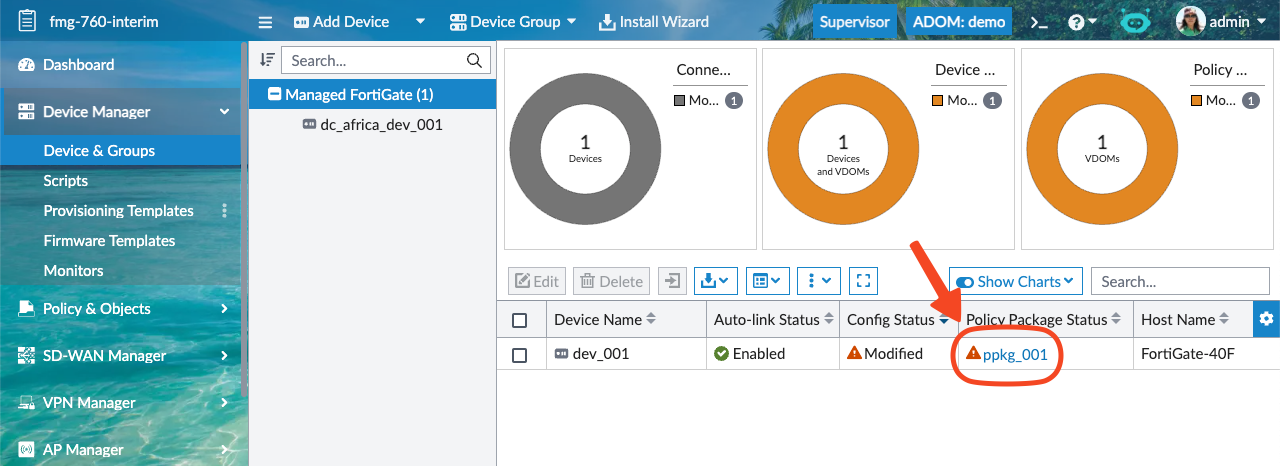
FortiManager GUI is allowing this operation and the outcome is that you get a Model Device assigned to a Policy Package whose status is Modified.
This status is perfect because it will force FortiManager to trigger a Policy Package Install automatically during the onboarding of the FortiGate device.
Unfortunately, there’s no API endpoint to create a Model Device assigned to a Policy Package with the Modified status.
Of course, you could:
Add a Model Device
Assign it to a Policy Package
Update one policy of this Policy Package to have it in the Modified status
but this will require three API calls.
Instead, this section will suggest workarounds using the Device Blueprint system.
First, define the sites_BRANCH_DBP Device Blueprint using this CLI Script
run against your ADOM database:
sites_BRANCH_DBP Device Blueprint#config fmg device blueprint
edit SITES_BRANCH_DBP
set platform "FortiGate-40F"
set folder-oid 0
set pkg "ppkg_001"
set prov-type none
next
end
Note
This Device Blueprint is just making sure that if you add a Model Device for the FortiGate-40F, then it will be assigned to the
ppkg_001Policy Package
Now you can add your Model Device by refering to this sites_BRANCH_DBP:
{
  "id": 3,
  "method": "exec",
  "params": [
    {
      "data": {
        "adom": "demo",
        "device": {
          "device action": "add_model",
          "device blueprint": "sites_BRANCH_DBP",
          "mgmt_mode": "fmgfaz",
          "mr": 0,
          "name": "dev_001",
          "os_type": "fos",
          "os_ver": "7.0",
          "platform_str": "FortiGate-40F",
          "sn": "FGT4000000000001"
        },
        "flags": [
          "create_task"
        ]
      },
      "url": "/dvm/cmd/add/device"
    }
  ],
  "session": "{{session}}",
}
{
  "id": 3,
  "result": [
    {
      "data": {
        "device": {
          "beta": -1,
          "branch_pt": 623,
          "build": 623,
          "conn_mode": 1,
          "dev_status": 1,
          "flags": 67371008,
          "hostname": "FortiGate-40F",
          "maxvdom": 10,
          "mgmt_mode": 3,
          "mgmt_uuid": "1892445766",
          "mr": 0,
          "name": "dev_001",
          "oid": 976,
          "os_type": 0,
          "os_ver": 7,
          "patch": -1,
          "platform_id": 8,
          "platform_str": "FortiGate-40F",
          "sn": "FGT40F0000000001",
          "source": 1,
          "tab_status": "<unknown>",
          "version": 700
        },
        "taskid": 89
      },
      "status": {
        "code": 0,
        "message": "OK"
      },
      "url": "/dvm/cmd/add/device"
    }
  ]
}
You can now observe your FortiManager GUI, you should have a new Model Device linked to a Policy Package with a Modified status:

Alternatively, if you don’t want to create a Device Blueprint, you can, somehow, add a Model Device with an embedded Device Blueprint as shown in the below example:
{
  "id": 3,
  "method": "exec",
  "params": [
    {
      "data": {
        "adom": "demo",
        "device": {
          "device action": "add_model",
          "device blueprint": {
            "pkg": "ppkg_001",
            "prov-type": "template-group",
            "template-group": null,
            "templates": null
          },
          "mgmt_mode": "fmgfaz",
          "mr": 2,
          "name": "dev_001",
          "os_type": "fos",
          "os_ver": "7.0",
          "platform_str": "FortiGate-40F",
          "sn": "FGT40F0000000001"
        },
        "flags": [
          "create_task"
        ]
      },
      "url": "/dvm/cmd/add/device"
    }
  ],
  "session": "{{session}}",
}
You can now observe your FortiManager GUI, you should have a new Model Device linked to a Policy Package with a Modified status:
Warning
This seems to work only starting with FortiManager 7.6.0
1.12.5. How to add a Model Device with firmware enforcement enabled?#
Firmware Enforcement is a mechanism triggered by FortiManager when an existing Model Device matches a new device connection request: FortiManager will check for the firmware of the real device and if it doesn’t match the specified one, it ill trigger an upgrade.
The following example shows how to add a Model Device named dev_001, with
firmware enforcement enabled, in the demo ADOM:
{
  "id": 2,
  "method": "exec",
  "params": [
    {
      "data": {
        "adom": "demo",
        "device": {
          "device action": "add_model",
          "mgmt_mode": "fmg",
          "mr": 2,
          "name": "root_dev_005",
          "os_type": "fos",
          "os_ver": "7.0",
          "platform_str": "FortiGate-40F",
          "prefer_img_ver": "7.2.9-b1688",
          "psk": "FGT40FREDACTED05"
        },
        "flags": [
          "create_task"
        ]
      },
      "url": "/dvm/cmd/add/device"
    }
  ],
  "session": "{{session}}"
}
Note
Firmware Enforcement is enable when you speficy a firmware version.
Here 7.2.9-b1688.
When you upgrade a managed device, you have the option to ask FortiManager to send the new firmware or to ask the managed device to download it from the FortiGuard servers.
During ZTP, the firmware is always sent by FortiManager.
There’s a new option available to instruct the device to obtain the firmware
from the FortiGuard servers. You set the option in the prefer_img_ver
attribute directly as described below.
Use this when you want your want FortiManager to send the firmware to the device:
{
  "prefer_img_ver": "7.2.9-b1688"
}
or:
{
  "prefer_img_ver": "7.2.9-b1688|0",
}
Use this when you want the device to download the firmware from the FortiGuard servers:
{
  "prefer_img_ver": "7.2.9-b1688|8",
}
1.12.6. How to add a Model Device with the backup_mode flag enabled?#
Note
Captured in #1097450.
When a real FortiGate device onboards against a Model Device, FortiManager
normally pushes the provisioning configuration (Provisioning Templates and
Policy Package) to it straight away. Enabling the backup_mode flag
changes this behaviour: FortiManager first triggers a retrieve of the
real device’s existing configuration before pushing the configuration
prepared on FortiManager. This is useful when you want to preserve or
inspect the device’s current state before any provisioning takes place.
Currently, you can’t set the backup_mode atomically when adding the Model Device — unlike other flags such as need_reset which are applied
immediately. A second set call against the created Model Device is therefore required.
Add the Model Device
Send an
execrequest to/dvm/cmd/add/deviceto create the Model Device. You may includebackup_modein theflagsarray at this point, but it will be silently ignored by FortiManager.{ "id": 3, "method": "exec", "params": [ { "data": { "adom": "demo", "device": { "device action": "add_model", "device blueprint": { "auth-template": "fabric_authorization_template_001", "dev-group": ["device_group_001"], "enforce-device-config": "enable", "folder": "/", "linked-to-model": true, "pkg": "pkg_001", "platform": "FortiGate-VM64", "port-provisioning": 10, "prerun-cliprof": "pre_run_cli_template_001", "prov-type": "template-group", "sdwan-management": "enable", "split-switch-port": true, "template-group": "template_group_001" }, "flags": [ "need_reset", "backup_mode" ], "mgmt_mode": "fmg", "mr": 6, "name": "dev_001", "os_type": "fos", "os_ver": "7.0", "platform_str": "FortiGate-VM64", "psk": "a_psk_for_dev_001" }, "flags": ["create_task"] }, "url": "/dvm/cmd/add/device" } ], "session": "{{session}}" }
{
  "cid": 256,
  "id": 3,
  "result": [
    {
      "data": {
        "device": {
          "beta": -1,
          "branch_pt": 3645,
          "build": 3645,
          "cluster_worker": [],
          "conn_mode": 1,
          "dev_status": 1,
          "flags": 3332964089856,
          "hostname": "FortiGate-VM64",
          "maxvdom": 10,
          "mgmt_mode": 3,
          "mgmt_uuid": "1fb17fac-5aa6-51f1-00f7-c15f4fd3ca57",
          "mr": 6,
          "name": "dev_001",
          "oid": 2513,
          "os_type": 0,
          "os_ver": 7,
          "patch": -1,
          "platform_id": 181,
          "platform_str": "FortiGate-VM64",
          "psk": "a_psk_for_dev_001",
          "source": 1,
          "tab_status": "<unknown>",
          "version": 700,
          "vm_cpu": 1,
          "vm_cpu_limit": 1,
          "vm_mem": 1024,
          "vm_mem_limit": 1024,
          "vm_status": 3
        },
        "taskid": 239
      },
      "status": {
        "code": 0,
        "message": "OK"
      },
      "url": "/dvm/cmd/add/device"
    }
  ]
}
Set the
backup_modeflagIssue a
setcall against the created Model Device, providing the full current flag list plusbackup_mode.Warning
Always re-specify every existing flag. The API replaces the entire flag bitmask — any flag omitted from the list will be silently cleared.
To get the list of existing flags, you can do a
getcall on the Model Device right after its creation and check theflagsattribute in the response.{ "id": 5, "method": "get", "params": [ { "fields": [ "name", "flags" ], "loadsub": 0, "url": "dvmdb/adom/demo/device/dev_001" } ], "session": "{{session}}", "verbose": 1 }
{
  "cid": 258,
  "id": 5,
  "result": [
    {
      "data": {
        "flags": [
          "has_hdd",
          "is_model",
          "linked_to_model",
          "need_reset",
          "override_management_intf",
          "sdwan_management"
        ],
        "name": "dc_emea_dev_009",
        "oid": 2513
      },
      "status": {
        "code": 0,
        "message": "OK"
      },
      "url": "dvmdb/adom/demo/device/dev_001"
    }
  ]
}
{
  "id": 6,
  "method": "set",
  "params": [
    {
      "data": {
        "flags": [
          "has_hdd",
          "is_model",
          "linked_to_model",
          "need_reset",
          "override_management_intf",
          "sdwan_management",
          "backup_mode"
        ]
      },
      "url": "dvmdb/adom/demo/device/dev_001"
    }
  ],
  "session": "{{session}}"
}
{
  "cid": 259,
  "id": 6,
  "result": [
    {
      "data": {
        "name": "dc_emea_dev_009"
      },
      "status": {
        "code": 0,
        "message": "OK"
      },
      "url": "dvmdb/adom/dc_emea/device/dc_emea_dev_009"
    }
  ]
}
The Model Device is now configured. When the real FortiGate connects and onboards, FortiManager will retrieve its existing configuration first, before applying the Provisioning Templates and Policy Package.
1.12.7. How to add a SD-WAN Model Device?#
It’s a new feature from FortiManager 7.6.0.
It is now possible to flag a managed device as a SD-WAN device and have it moved in a a new SD-WAN Manager page where all SD-WAN Central Management operations have been consolidated.
You can add a SD-WAN Model Device using the sdwan_management flag.
The following example shows how to add the dev_001 SD-WAN Model Device into
the demo ADOM:
{
  "id": 3,
  "method": "exec",
  "params": [
    {
      "data": {
        "adom": "demo",
        "device": {
          "device action": "add_model",
          "flags": [
            "sdwan_management"
          ],
          "mgmt_mode": "fmg",
          "mr": 2,
          "name": "dev_001",
          "os_type": "fos",
          "os_ver": "7.0",
          "platform_str": "FortiGate-40F",
          "psk": "FGT40F2100000004"
        },
        "flags": [
          "create_task"
        ]
      },
      "url": "/dvm/cmd/add/device"
    }
  ],
  "session": "{{session}}"
}
{
  "id": 3,
  "result": [
    {
      "data": {
        "device": {
          "beta": -1,
          "branch_pt": 1628,
          "build": 1628,
          "conn_mode": 1,
          "dev_status": 1,
          "flags": 2199090626560,
          "hostname": "FortiGate-40F",
          "maxvdom": 10,
          "mgmt_mode": 3,
          "mgmt_uuid": "26bf3002-48bd-51ef-bfd6-94907540de43",
          "mr": 2,
          "name": "dev_001",
          "oid": 36578,
          "os_type": 0,
          "os_ver": 7,
          "patch": -1,
          "platform_id": 8,
          "platform_str": "FortiGate-40F",
          "psk": "FGT40F2100000004",
          "source": 1,
          "tab_status": "<unknown>",
          "version": 700
        },
        "taskid": 1374
      },
      "status": {
        "code": 0,
        "message": "OK"
      },
      "url": "/dvm/cmd/add/device"
    }
  ]
}
Note
You could also have envisaged to enable the Managed by SD-WAN Manager option in a Device Blueprint and to add your Model Device by referencing this Device Blueprint!
1.12.8. How to add a list of Model Device?#
The following example shows how to add a list of Model Devices in the demo
ADOM. It showcases using a Device Blueprint and the new meta variables block
(see How to add a Model HA Cluster with Device Blueprint and Metadata?) used to initialize the metadata.
{
  "id": 3,
  "method": "exec",
  "params": [
    {
      "data": {
        "add-dev-list": [
          {
            "device action": "add_model",
            "device blueprint": "dbp_001",
            "meta variables": {
              "var_001": "val_001_dev_001",
              "var_002": "val_002_dev_001",
              "var_003": "val_003_dev_001"
            },
            "mgmt_mode": "fmg",
            "mr": 4,
            "name": "dev_001",
            "os_type": "fos",
            "os_ver": "7.0",
            "sn": "FGT40F0000000001"
          },
          {
            "device action": "add_model",
            "device blueprint": "dpb_001",
            "meta variables": {
              "var_001": "val_001_dev_002",
              "var_002": "val_002_dev_002",
              "var_003": "val_003_dev_002"
            },
            "mgmt_mode": "fmg",
            "mr": 4,
            "name": "dev_002",
            "os_type": "fos",
            "os_ver": "7.0",
            "sn": "FGT40F0000000002"
          },
          {
            "device action": "add_model",
            "device blueprint": "dbp_001",
            "meta variables": {
              "var_001": "val_001_dev_003",
              "var_002": "val_002_dev_003",
              "var_003": "val_003_dev_003"
            },
            "mgmt_mode": "fmg",
            "mr": 4,
            "name": "dev_003",
            "os_type": "fos",
            "os_ver": "7.0",
            "sn": "FGT40F0000000003"
          }
        ],
        "adom": "demo",
        "flags": [
          "create_task"
        ]
      },
      "url": "/dvm/cmd/add/dev-list"
    }
  ],
  "session": "{{session}}"
}
{
  "id": 3,
  "result": [
    {
      "data": {
        "taskid": 1956
      },
      "status": {
        "code": 0,
        "message": "OK"
      },
      "url": "/dvm/cmd/add/dev-list"
    }
  ]
}
1.12.9. Auto-link management#
Starting with FortiManager 7.0.3, the auto-link capability is enabled by default when adding a Model Device (Ref: #605560). This means no additional configuration is required during model device creation.
For FortiManager versions prior to 7.0.3: due to limitation #0605560, it is not possible to create a Model Device and enable auto-link in a single API call. Instead, you must perform two separate API calls:
Create the Model Device (see How to create a Model Device?)
Enable the auto-link capability on the already created model device (see How to enable the auto-link flag on a Model Device? below).
1.12.9.1. How to enable the auto-link flag on a Model Device?#
Note that the auto-link flag is referred to by a different name -
linked_to_model - in the FortiManager API.
It is important to preserve the original is_model flag, along with any
other flags that were set prior to this call. As a best practice, you should
first perform a get operation on the device, then append the linked_to_model flag to the existing flags list.
For instance, to get the existing
flags:{ "id": 3, "method": "get", "params": [ { "fields": [ "name", "flags" ], "option": [ "no loadsub" ], "url": "/dvmdb/adom/demo/device/dev_001" } ], "session": "{{session}}", "verbose": 1 }
{
  "id": 3,
  "result": [
    {
      "data": {
        "flags": [
          "is_model",
          "need_reset"
        ],
        "name": "dev_001",
        "oid": 2551
      },
      "status": {
        "code": 0,
        "message": "OK"
      },
      "url": "/dvmdb/adom/demo/device/dev_001"
    }
  ]
}
Now you can append the
linked_to_modelflag to the existingflags:{ "id": 4, "method": "set", "params": [ { "data": { "flags": [ "is_model", "need_reset", "linked_to_model" ] }, "url": "/dvmdb/adom/demo/device/dev_001" } ], "session": "{{session}}" }
{
  "id": 4,
  "result": [
    {
      "data": {
        "name": "dev_001"
      },
      "status": {
        "code": 0,
        "message": "OK"
      },
      "url": "/dvmdb/adom/demo/device/dev_001"
    }
  ]
}
1.12.9.2. How to disable the auto-link flag on a Model Device?#
It is important to preserve the original is_model flag, along with any
other flags that were set prior to this call. As a best practice, you should
first perform a get operation on the device to get the list of existing flags.
For instance, to get the existing
flags:{ "id": 3, "method": "get", "params": [ { "fields": [ "name", "flags" ], "option": [ "no loadsub" ], "url": "/dvmdb/adom/demo/device/dev_001" } ], "session": "{{session}}", "verbose": 1 }
{
  "id": 3,
  "result": [
    {
      "data": {
        "flags": [
          "is_model",
          "linked_to_model",
          "need_reset"
        ],
        "name": "dev_001",
        "oid": 2551
      },
      "status": {
        "code": 0,
        "message": "OK"
      },
      "url": "/dvmdb/adom/demo/device/dev_001"
    }
  ]
}
Now you can just remove the
linked_to_modelflag from the existingflags:{ "id": 4, "method": "set", "params": [ { "data": { "flags": [ "is_model", "need_reset" ] }, "url": "/dvmdb/adom/demo/device/dev_001" } ], "session": "{{session}}" }
{
  "id": 4,
  "result": [
    {
      "data": {
        "name": "dev_001"
      },
      "status": {
        "code": 0,
        "message": "OK"
      },
      "url": "/dvmdb/adom/demo/device/dev_001"
    }
  ]
}
1.12.9.3. Multiplexing example#
Before FortiManager 7.0.3, you had to enable the linked_to_model by using a
second API request. You were doing this, usually, right after the Model Device creation.
FortiManager API allows to create multiple Model Devices in one single API call
using the /dvm/cmd/add/dev-list endpoint.
However, there’s no url to enable the linked_to_model using a single API
call.
You can still do it by multiplexing multiple data blocks as shown below:
{
  "method": "set",
  "params": [
    {
      "data": {
        "flags": [
          "is_model",
          "linked_to_model"
        ]
      },
      "url": "/dvmdb/adom/root/device/dev_001"
    },
    {
      "data": {
        "flags": [
          "is_model",
          "linked_to_model"
        ]
      },
      "url": "/dvmdb/adom/root/device/dev_002"
    }
  ],
  "session": "{{session_id}}",
  "id": 1
}
{
  "id": 1,
  "result": [
    {
      "data": {
        "name": "dev_001"
      },
      "status": {
        "code": 0,
        "message": "OK"
      },
      "url": "/dvmdb/adom/root/device/dev_001"
    },
    {
      "data": {
        "name": "dev_002"
      },
      "status": {
        "code": 0,
        "message": "OK"
      },
      "url": "/dvmdb/adom/root/device/dev_002"
    }
  ]
}
1.12.9.4. How to get the list of Model Devices which are ready for auto-link?#
A Model Device that is ready for auto-link is a Model Device added to FortiManager without the linked_to_model flag. In this case, when the actual device connects to FortiManager, the auto-link process does not start automatically. Instead, the FortiManager administrator will see the Model Device with the Ready for Auto-link status, as shown below:

The actual device is also placed in the list of Unregistered Devices in the
root ADOM.
To start the auto-link process, the FortiManager administrator must hover the mouse over the yellow triangle and then click the Auto-link Now button:

To get the list of Model Devices that are ready for auto-link, use a get
request with a filter on the flags and mgmt_mode attributes. The goal is
to return devices where flags is set to is_model and mgmt_mode is
unreg as shown in the example below:
{
  "id": 3,
  "method": "get",
  "params": [
    {
      "fields": [
        "name",
        "mgmt_mode",
        "flags"
      ],
      "filter": [
        [
          "flags",
          "&",
          "is_model",
          "is_model"
        ],
        "&&",
        [
          "mgmt_mode",
          "==",
          "unreg"
        ]
      ],
      "loadsub": 0,
      "url": "/dvmdb/device"
    }
  ],
  "session": "{{session}}",
  "verbose": 1
}
Note
The
filterattribute uses a bitwise AND operator&to check if theis_modelflag is set in theflagsattribute.If you consider the following syntax:
"filter": [ <source>, <operator>, <target1>, <target2>, ... ]
then it tests if:
(source & target1) = target2
The
filterattribute also checks if themgmt_modeis set tounreg.
{
  "id": 3,
  "result": [
    {
      "data": [
        {
          "flags": [
            "has_hdd",
            "is_model"
          ],
          "mgmt_mode": "unreg",
          "name": "FGVMMLREDACTED64",
          "oid": 867
        }
      ],
      "status": {
        "code": 0,
        "message": "OK"
      },
      "url": "/dvmdb/device"
    }
  ]
}
1.12.9.5. How to get the list of Model Devices which are not ready for auto-link?#
Captured in #0947988.
The following examples shows how to get the list of Model Device with the
linked_to_model flag disabled (in the GUI, Automatically Link to Real
Device is toggled off):
{
  "id": 3,
  "method": "get",
  "params": [
    {
      "fields": [
        "name",
        "flags"
      ],
      "filter": [
        [
          "!",
          "flags",
          "&",
          "linked_to_model"
        ],
        "&&",
        [
          "flags",
          "&",
          "is_model"
        ]
      ],
      "loadsub": 0,
      "url": "/dvmdb/device"
    }
  ],
  "session": "{{session}}",
  "verbose": 1
}
{
  "id": 3,
  "result": [
    {
      "data": [
        {
          "flags": [
            "has_hdd",
            "is_model"
          ],
          "name": "dev_001",
          "oid": 1621
        }
      ],
      "status": {
        "code": 0,
        "message": "OK"
      },
      "url": "/dvmdb/device"
    }
  ]
}
1.12.10. How to enable VDOM on a Model Device?#
There is an vdom_enable option that you could be attempted to add in the
flags attribute of a Model Device.
It doesn’t seem to work: when you add it, it doesn’t auto-create the global objects that should be placed in global scope.
Hence, to enable the VDOM mode on a Model Device, better to review section How to enable VDOM?
1.12.11. How to enable the need_reset flag on a model device?#
This flag has been introduced in FortiManager 7.0.5/7.2.2 with #773777.
It instructs FortiManager to factory reset the real device being onboarded.
The following example shows how to set the need_reset flag for the
dev_001 Model Device:
{
  "id": 3,
  "method": "set",
  "params": [
    {
      "data": {
        "flags": [
          "is_model",
          "linked_to_model",
          "need_reset"
        ]
      },
      "url": "/dvmdb/device/dev_001"
    }
  ],
  "session": "{{session}}"
}
{
  "id": 3,
  "result": [
    {
      "data": {
        "name": "dev_001"
      },
      "status": {
        "code": 0,
        "message": "OK"
      },
      "url": "/dvmdb/device/dev_001"
    }
  ]
}
It is possible to set the need_reset option at the time you add the Model
Device. The following example shows how to add the dev_001 Model Device with the need_reset option, in the demo ADOM:
{
  "id": 3,
  "method": "exec",
  "params": [
    {
      "data": {
        "adom": "demo",
        "device": {
          "device action": "add_model",
          "flags": [
            "need_reset"
          ],
          "mgmt_mode": "fmg",
          "mr": 6,
          "name": "dev_001",
          "os_type": "fos",
          "os_ver": "7.0",
          "sn": "FG100FREDACTED01"
        },
        "flags": [
          "create_task"
        ]
      },
      "url": "/dvm/cmd/add/device"
    }
  ],
  "session": "{{session}}"
}
{
  "id": 3,
  "result": [
    {
      "data": {
        "device": {
          "beta": -1,
          "branch_pt": 3454,
          "build": 3454,
          "conn_mode": 1,
          "dev_status": 1,
          "flags": 34427109376,
          "hostname": "FG100FREDACTED01",
          "maxvdom": 10,
          "mgmt_mode": 3,
          "mgmt_uuid": "4177fb9e-d40f-51ef-f6c8-f8cd016a0c58",
          "mr": 6,
          "name": "dev_001",
          "oid": 40147,
          "os_type": 0,
          "os_ver": 7,
          "patch": -1,
          "platform_id": 65,
          "platform_str": "FortiGate-100F",
          "sn": "FG100FREDACTED01",
          "source": 1,
          "tab_status": "<unknown>",
          "version": 700
        },
        "taskid": 2568
      },
      "status": {
        "code": 0,
        "message": "OK"
      },
      "url": "/dvm/cmd/add/device"
    }
  ]
}
1.12.12. How to add a model device linked to a pre-Run CLI Template?#
Add Model Device wizard used in FortiManager GUI allows to tick a Pre-Run CLI Template option to select an existing Pre-Run CLI Template. It gives the feeling that FortiManager is able to create a Model Device and assign it to the selected Pre-Run CLI Template with a single GUI action.
However, in the backend that’s still two separate actions:
Add Model Device (see How to create a Model Device?)
Assign a CLI Template (see How to assign a Pre-Run CLI Template to a device?)
1.12.13. How to get the list of Model Devices?#
It’s not as straightforward as it might seem at first glance.
First, retrieve your list of managed devices by using:
{
  "id": 3,
  "method": "get",
  "params": [
    {
      "fields": [
        "name",
        "sn",
        "flags"
      ]
    }
  ],
  "loadsub": 0,
  "url": "/dvmdb/device"
  "session": "{{session}}",
  "verbose": 1
}
{
  "result": [
    {
      "data": [
        {
          "flags": [
            "has_hdd",
            "linked_to_model"
          ],
          "name": "FGVMMLREDACTED08",
          "oid": 4503,
          "sn": "FGVMMLREDACTED08"
        },
        {
          "flags": null,
          "name": "FGVMMLREDACTED55",
          "oid": 4440,
          "sn": "FGVMMLREDACTED55"
        },
        {
          "flags": null,
          "name": "FGVMPGREDACTED02",
          "oid": 3758,
          "sn": "FGVMPGREDACTED02"
        },
        {"..."},
        {
          "flags": [
            "is_model",
            "linked_to_model"
          ],
          "name": "test_dev_003",
          "oid": 4607,
          "sn": "FGT61F0000000003"
        }
      ],
      "status": {
        "code": 0,
        "message": "OK"
      },
      "url": "/dvmdb/device"
    }
  ],
  "id": 1
}
Note
You can observe that sometimes the returned
flagsattribute is a list of keywords likehas_hdd,is_model,linked_to_model, etc.
If you are asked to retrieve the list of Model Devices only, you could be attempted to use a request with the filter attribute:
{
  "id": 3,
  "method": "get",
  "params": [
    {
      "fields": [
        "name",
        "sn",
        "flags"
      ],
      "filter": [
        "flags",
        "contain",
        "is_model"
      ],
      "loadsub": 0,
      "url": "/dvmdb/device"
    }
  ],
  "session": "{{session}}",
  "verbose": 1
}
{
  "id": 3,
  "result": [
    {
      "data": [],
      "status": {
        "code": 0,
        "message": "OK"
      },
      "url": "/dvmdb/device"
    }
  ]
}
Note
As you can see, it doesn’t work because the flags attribute isn’t a
table but rather an integer, where flags are combined using bitwise
AND operations.
When the verbose attribute is specified in the get request,
FortiManager conveniently returns the flags attribute as a list.
However, this can create confusion when filtering its content is required.
To retrieve all Model Devices, you need to use the bitwise AND operator in the filter, as demonstrated below:
{
  "id": 3,
  "method": "get",
  "params": [
    {
      "fields": [
        "name",
        "sn",
        "flags"
      ],
      "filter": [
        "flags",
        "&",
        262176,
        262176
      ],
      "loadsub": 0,
      "url": "/dvmdb/device"
    }
  ],
  "session": "{{session}}",
  "verbose": 1
}
Tip
Where is this
262176value from?This is the integer version of the
is_modelsymbolic name plus32!Warning
Don’t forget to add
32!You can get the integer version of the
is_modelsymbolic from the FortiManager CLI:Enter the shell:
execute shellThen get the integer version of the
is_modelsymbolic name using those commands:cd /var/dm/syntax grep is_model *json
You will get the following output:
fmg_dvm_syntax.json:                      "is_model": 262144,
[...]
Alternatively, you can
getan existing managed device using thesyntaxoption and look at the returnedflagsattributes:{ "id": 3, "method": "get", "params": [ { "option": [ "syntax" ], "url": "/dvmdb/device/dev_001" } ], "session": "{{session}}", }
{
  "...": "...",
  "flags": {
    "excluded": false,
    "opts": {
      "azure_vwan_nva": 8589934592,
      "backup_mode": 131072,
      "cnf_mode": 68719476736,
      "deny_api_access": 4398046511104,
      "discover": 8,
      "faz-autosync": 536870912,
      "fgsp_configured": 17179869184,
      "fips_mode": 524288,
      "has_hdd": 1,
      "interim_build": 1024,
      "ip-conflict": 268435456,
      "is_model": 262144,
      "linked_to_model": 67108864,
      "need_reset": 34359738368,
      "offline_mode": 4096,
      "override_management_intf": 1099511627776,
      "reload": 16,
      "sdwan_management": 2199023255552,
      "vdom_enabled": 2
    },
    "sz": 8,
    "type": "uint64"
  },
  "...": "..."
}
{
  "result": [
    {
      "data": [
        {
          "flags": [
            "is_model",
            "linked_to_model"
          ],
          "name": "adom_edeka_dev_001",
          "oid": 4623,
          "sn": "FGT40F1100000001"
        },
        {"..."},
        {
          "flags": [
            "is_model",
            "linked_to_model"
          ],
          "name": "test_dev_003",
          "oid": 4607,
          "sn": "FGT61F0000000003"
        }
      ],
      "status": {
        "code": 0,
        "message": "OK"
      },
      "url": "/dvmdb/device"
    }
  ],
  "id": 1
}
Now you can see that FortiManager only returns the Model Devices: the
devices where is_model keyword is used in the flags attribute.
Note
You understand that you could also combine more device capabilities.
For intance if you want all Model Devices (symbolic name is_model,
numerical value 262144) with a log disk (symbolic name has_hdd,
numerical value 1), you can use following filter attribute:
"filter": [
  "flags",
  "&&",
  262177,
  262177,
]
where 262177 is the sum of the numerical values for is_model,
has_hdd + 32!
You can also use this more complex form:
"filter": [
  [
    "flags",
    "&&",
    262176,
    262176,
  ],
  "&&"
  [
    "flags",
    "&&",
    33,
    33,
  ],
]
where:
262176is the sum of the numerical values foris_model+32!33is the sum of the numerical values forhas_hdd+32!
Note
You could also have envisaged to reference your Pre-RUN CLI Template in a Device Blueprint and to add your Model Device by referencing this Device Blueprint!
1.13. How to get the ADOM a device belongs to?#
There are three methods:
Combine
object masterwithfilterUse the
extra infooptionUse the _is_member attribute`
1.13.1. How to get the ADOM a device belongs to using object master with filter?#
Caught in #0414003.
You can append the object master to the /dvmdb/device/<device>/
endpoint.
But in this case, you also have to use the filter in an unusual as shown below.
To get the ADOM details the fgt-742-001 belongs to:
{
  "id": 3,
  "method": "get",
  "params": [
    {
      "filter": [
        "adom"
      ],
      "url": "/dvmdb/device/fgt-742-001/object master"
    }
  ],
  "session": "{{session}}",
  "verbose": 1
}
{
  "id": 3,
  "result": [
    {
      "data": [
        {
          "create_time": 1700207435,
          "desc": "",
          "flags": "no_vpn_console",
          "lock_override": 0,
          "log_db_retention_hours": 1440,
          "log_disk_quota": 0,
          "log_disk_quota_alert_thres": 90,
          "log_disk_quota_split_ratio": 70,
          "log_file_retention_hours": 8760,
          "logview_customize": "",
          "mig_mr": 0,
          "mig_os_ver": "0.0",
          "mode": "gms",
          "mr": 4,
          "name": "dc_emea",
          "obj_customize": "",
          "oid": 165,
          "os_ver": "7.0",
          "restricted_prds": "fos",
          "state": 1,
          "tab_status": "",
          "tz": 2,
          "uuid": "210ecfa4-baed-51ee-a551-2efcb4f9a788",
          "workspace_mode": 0
        }
      ],
      "status": {
        "code": 0,
        "message": "OK"
      },
      "url": "/dvmdb/device/fgt-742-001/object master"
    }
  ]
}
Note
The
fgt-742-001device belongs to thedc_emeaADOM
1.13.2. How to get the ADOM a device belongs to using the extra info option?#
Since #0462768, we can use just the option extra info as shown below.
To get the ADOM details the fgt-742-001 belongs to:
{
  "id": 4,
  "method": "get",
  "params": [
    {
      "fields": [
        "name",
        "extra info"
      ],
      "option": [
        "extra info",
        "no loadsub"
      ],
      "url": "/dvmdb/device/fgt-742-001"
    }
  ],
  "session": "{{session}}",
  "verbose": 1
}
{
  "id": 4,
  "result": [
    {
      "data": {
        "extra info": {
          "adom": "dc_emea"
        },
        "name": "fgt-742-001",
        "obj ver": -1,
        "oid": 596
      },
      "status": {
        "code": 0,
        "message": "OK"
      },
      "url": "/dvmdb/device/fgt-742-001"
    }
  ]
}
Note
The
fgt-742-001device belongs to thedc_emeaADOM
1.13.3. How to get the ADOM a device belongs to using _is_master attribute?#
Caught in #1182782 (FortiManager 8.0.0).
The following example shows how to check if the dev_001 device and its
root VDOM belongs to the demo ADOM:
{
  "id": 3,
  "method": "get",
  "params": [
    {
      "data": {
        "name": "dev_001",
        "vdom": "root"
      },
      "url": "/dvmdb/_is_member/adom/demo"
    }
  ],
  "session": "{{session}}",
  "verbose": 1
}
{
  "cid": 36,
  "id": 3,
  "result": [
    {
      "data": {
        "is member": 1
      },
      "status": {
        "code": 0,
        "message": "OK"
      },
      "url": "/dvmdb/_is_member/adom/demo"
    }
  ]
}
Note
The is member attribute is set to 1, meaning that the
dev_001 device and its root VDOM belongs to the demo
ADOM. 0 would mean it doesn’t belong to the demo ADOM.
You can also check for a device group. The following examples show how to check
if the dev_grp_001 device group belongs to the demo ADOM:
{
  "id": 3,
  "method": "get",
  "params": [
    {
      "data": {
        "name": "dev_grp_001"
      },
      "url": "/dvmdb/_is_member/adom/demo"
    }
  ],
  "session": "{{session}}",
  "verbose": 1
}
{
  "cid": 40,
  "id": 3,
  "result": [
    {
      "data": {
        "is member": 1
      },
      "status": {
        "code": 0,
        "message": "OK"
      },
      "url": "/dvmdb/_is_member/adom/demo"
    }
  ]
}
1.14. How to trigger an Install Device Settings?#
To install Device Settings againt devices branch1 and branch2 from the
demo ADOM:
{
  "id": 1,
  "method": "exec",
  "params": [
    {
      "data": {
        "adom": "demo",
        "dev_rev_comments": "sr_01233",
        "flags": [
          "none"
        ],
        "scope": [
          {
            "name": "branch1",
            "vdom": "root"
          },
          {
            "name": "branch2",
            "vdom": "root"
          }
        ]
      },
      "url": "/securityconsole/install/device"
    }
  ],
  "session": "{{session}}"
}
Note
dev_rev_commentswill be used as the comment for the created Device Revision (see section Device revisions)
{
  "id": 1,
  "result": [
    {
      "data": {
        "task": 462
      },
      "status": {
        "code": 0,
        "message": "OK"
      },
      "url": "/securityconsole/install/device"
    }
  ]
}
1.15. How to trigger a Quick Install?#
Quick Install is a GUI tool that internally calls the same API as Install Device Settings. For details, see section How to trigger an Install Device Settings?.
The following example shows how to trigger a Quick Install against the
dev_001 device in the demo ADOM:
{
  "id": 3,
  "method": "exec",
  "params": [
    {
      "data": {
        "adom": "demo",
        "dev_rev_comments": "A device revision comment",
        "flags": [
          "none"
        ],
        "scope": [
          {
            "name": "dev_001",
            "vdom": "global"
          },
          {
            "name": "dev_001",
            "vdom": "root"
          }
        ]
      },
      "url": "/securityconsole/install/device"
    }
  ],
  "session": "{{session}}"
}
Note
The install covers the root VDOM as well as the global scope
of the dev_001 device.
{
  "id": 3,
  "result": [
    {
      "data": {
        "task": 2681
      },
      "status": {
        "code": 0,
        "message": "OK"
      },
      "url": "/securityconsole/install/device"
    }
  ]
}
1.16. Device Groups#
1.16.1. How to install device settings against a device group?#
We have device group france.
Goal is to install device settings against device group france.
REQUEST:
TODO
RESPONSE:
TODO
For the moment, it is not supported (#0617705).
1.16.2. How to create a device group?#
To add group Spokes in ADOM DEMO:
{
  "id": 1,
  "method": "add",
  "params": [
    {
      "data": {
        "name": "Spokes",
        "os_type": "fos",
        "type": "normal"
      },
      "url": "/dvmdb/adom/DEMO/group"
    }
  ],
  "session": "{{session}}"
}
{
  "id": 1,
  "result": [
    {
      "status": {
        "code": 0,
        "message": "OK"
      },
      "url": "/dvmdb/adom/DEMO/group"
    }
  ]
}
1.16.3. How to add a device in a device group?#
REQUEST:
{
  "id": 1,
  "jsonrpc": "1.0",
  "method": "add",
  "params": [
    {
      "data": {
        "name": "branch2_fgt",
        "vdom": "root"
      },
      "url": "/dvmdb/adom/DEMO/group/branches/object member"
    }
  ],
  "session": "KOxfoeLVHkkmSwbyuAQ7pDU8uU5WoCFJH0k3p2WlFCU0jlaBMpd0zvzN69P31WBDy1vMNWHJpZed71xkce6edw==",
  "verbose": 1
}
RESPONSE
{
  "id": 1,
  "result": [
    {
      "status": {
        "code": 0,
        "message": "OK"
      },
      "url": "/dvmdb/adom/DEMO/group/branches/object member"
    }
  ]
}
1.16.4. How to add multiple devices in a device group?#
We can also add multiple devices at once.
To add devices peer22 and peer23 in device group Spokes from ADOM
DEMO:
{
  "id": 1,
  "method": "add",
  "params": [
    {
      "data": [
        {
          "name": "peer22",
          "vdom": "root"
        },
        {
          "name": "peer23",
          "vdom": "root"
        }
      ],
      "url": "/dvmdb/adom/DEMO/group/Spokes/object member"
    }
  ],
  "session": "{{session}}"
}
{
  "id": 1,
  "result": [
    {
      "status": {
        "code": 0,
        "message": "OK"
      },
      "url": "/dvmdb/adom/DEMO/group/Spokes/object member"
    }
  ]
}
1.16.5. How to add a device group into a device group?#
To add the brasil device group into the amer device group, the
tenant_01 ADOM:
{
  "id": 36,
  "method": "add",
  "params": [
    {
      "data": {
        "name": "brasil"
      },
      "url": "/dvmdb/adom/tenant_01/group/amer/object member"
    }
  ],
  "session": "{{session}}"
}
Note
If you don’t specify the vdom attribute, FortiManager will consider
the name attribute as the name of a device group
{
  "id": 36,
  "result": [
    {
      "status": {
        "code": 0,
        "message": "OK"
      },
      "url": "/dvmdb/adom/tenant_01/group/amer/object member"
    }
  ]
}
1.16.6. How to get the device group members?#
The following example shows how to get the list of devices belonging to a the
device group dev_grp_001 in the ADOM demo:
{
  "id": 3,
  "method": "get",
  "params": [
    {
      "option": [
        "object member"
      ],
      "url": "/dvmdb/adom/demo/group/dev_grp_001"
    }
  ],
  "session": "{{session}}",
  "verbose": 1
}
{
  "id": 3,
  "result": [
    {
      "data": {
        "desc": "",
        "name": "dev_grp_001",
        "object member": [
          {
            "name": "dev_001",
            "oid": 1483,
            "vdom": "root",
            "vdom_oid": 3
          },
          {
            "name": "dev_002",
            "oid": 1506,
            "vdom": "root",
            "vdom_oid": 3
          },
          {
            "name": "dev_003",
            "oid": 1552,
            "vdom": "root",
            "vdom_oid": 3
          }
        ],
        "oid": 1743,
        "os_type": "fos",
        "type": "normal"
      },
      "status": {
        "code": 0,
        "message": "OK"
      },
      "url": "/dvmdb/adom/demo/group/dev_grp_001"
    }
  ]
}
Starting with FortiManager 7.6.4 (#1184580), you can also use the expand
member form which is giving more details about the vdom.
The following example shows how to get the members for the group_001 device
group in the demo ADOM:
{
  "id": 3,
  "method": "get",
  "params": [
    {
      "expand member": [
        {
          "fields": [
            "name",
            "oid"
          ],
          "url": "group"
        },
        {
          "fields": [
            "name",
            "oid"
          ],
          "url": "device"
        }
      ],
      "fields": [
        "name",
        "oid"
      ],
      "filter": [
        "name",
        "==",
        "grp_001"
      ],
      "url": "/dvmdb/adom/demo/group"
    }
  ],
  "session": "{{session}}"
}
{
  "id": 3,
  "result": [
    {
      "data": [
        {
          "expand member": {
            "device": [
              {
                "name": "dev_001",
                "oid": 8114,
                "vdom": {
                  "comments": "",
                  "devid": "dev_001",
                  "ext_flags": 1,
                  "flags": 0,
                  "name": "root",
                  "node_flags": 4,
                  "oid": 3,
                  "opmode": 1,
                  "rtm_prof_id": 0,
                  "status": null,
                  "tab_status": null,
                  "vdom_type": 1,
                  "vpn_id": 0
                }
              },
              {
                "name": "dev_002",
                "oid": 8122,
                "vdom": {
                  "comments": "",
                  "devid": "dev_002",
                  "ext_flags": 1,
                  "flags": 0,
                  "name": "root",
                  "node_flags": 4,
                  "oid": 3,
                  "opmode": 1,
                  "rtm_prof_id": 0,
                  "status": null,
                  "tab_status": null,
                  "vdom_type": 1,
                  "vpn_id": 0
                }
              },
              {
                "name": "dev_003",
                "oid": 8146,
                "vdom": {
                  "comments": "",
                  "devid": "dev_003",
                  "ext_flags": 1,
                  "flags": 0,
                  "name": "root",
                  "node_flags": 4,
                  "oid": 3,
                  "opmode": 1,
                  "rtm_prof_id": 0,
                  "status": null,
                  "tab_status": null,
                  "vdom_type": 1,
                  "vpn_id": 0
                }
              }
            ]
          },
          "name": "grp_001",
          "oid": 8483
        }
      ],
      "status": {
        "code": 0,
        "message": "OK"
      },
      "url": "/dvmdb/adom/demo/group"
    }
  ]
}
1.16.7. How to get all device groups a device belongs to?#
There is no direct API endpoint to retrieve all device groups that a specific device belongs to.
Instead, you must retrieve all device groups and then filter the results to find which ones include the device.
The following example demonstrates how to identify the device groups in the
demo ADOM that include the device dev_001.
First you need to get all device groups in the demo ADOM:
{
  "id": 3,
  "method": "get",
  "params": [
    {
      "fields": [
        "name",
        "object member"
      ],
      "option": [
        "object member"
      ],
      "url": "/dvmdb/adom/demo/group"
    }
  ],
  "session": "{{session}}",
  "verbose": 1
}
{
  "id": 3,
  "result": [
    {
      "data": [
        {
          "name": "All_FortiGate",
          "object member": [
            {
              "name": "dev_001",
              "vdom": "root"
            },
            {
              "name": "dev_002",
              "vdom": "root"
            },
            {
              "name": "dev_003",
              "vdom": "root"
            },
            {
              "name": "dev_004",
              "vdom": "root"
            }
          ],
          "oid": 2515
        },
        {
          "name": "dev_grp_001",
          "object member": [
            {
              "name": "dev_001",
              "vdom": "root"
            },
            {
              "name": "dev_002",
              "vdom": "root"
            }
          ],
          "oid": 5833
        },
        {
          "name": "dev_grp_002",
          "object member": [
            {
              "name": "dev_grp_003"
            }
          ],
          "oid": 5529
        },
        {
          "name": "dev_grp_003",
          "object member": [
            {
              "name": "dev_001",
              "vdom": "root"
            }
          ],
          "oid": 5908
        }
      ],
      "status": {
        "code": 0,
        "message": "OK"
      },
      "url": "/dvmdb/adom/demo/group"
    }
  ]
}
Then, to determine which device groups the device dev_001 belongs to, you
must loop over each returned device group and:
Check if the group has an
object memberattribute.Inspect each
obejct memberentry to see if itsnamematchesdev_001.
1.16.8. How to delete a device from a device group?#
REQUEST:
{
  "id": 1,
  "jsonrpc": "1.0",
  "method": "delete",
  "params": [
    {
      "data": {
        "name": "branch2_fgt",
        "vdom": "root"
      },
      "url": "/dvmdb/adom/DEMO/group/branches/object member"
    }
  ],
  "session": "v8scVv8nccmO0JNHIIj1KTMtorqsxXDwYf4BrdWac9syWHDH4zQaLuYhOZKWaPtwWKZKM3IEVaBBOwz9RPMHmg==",
  "verbose": 1
}
RESPONSE:
{
  "id": 1,
  "result": [
    {
      "status": {
        "code": 0,
        "message": "OK"
      },
      "url": "/dvmdb/adom/DEMO/group/branches/object member"
    }
  ]
}
1.16.9. How to delete multiple devices from a device group?#
We can also delete multiple devices at once.
To delete devices peer22 and peer23 from device group Spokes from
ADOM DEMO:
REQUEST:
{
  "id": 1,
  "jsonrpc": "1.0",
  "method": "delete",
  "params": [
    {
      "data": [
        {
          "name": "peer21",
          "vdom": "root"
        },
        {
          "name": "peer22",
          "vdom": "root"
        }
      ],
      "url": "/dvmdb/adom/DEMO/group/Spokes/object member"
    }
  ],
  "session": "OozQ3Nuj4p2VTmivkfSlsgLrWZmCT3SwRPMpujFV7DE1aaVLhn+jpcJhecsPKNmulfkX4b0d557iIBW7sRANzg==",
  "verbose": 1
}
RESPONSE:
{
  "id": 1,
  "result": [
    {
      "status": {
        "code": 0,
        "message": "OK"
      },
      "url": "/dvmdb/adom/DEMO/group/Spokes/object member"
    }
  ]
}
1.16.10. How to delete a device group?#
REQUEST:
{
  "id": 1,
  "jsonrpc": "1.0",
  "method": "delete",
  "params": [
    {
      "url": "/dvmdb/adom/DEMO/group/Spokes"
    }
  ],
  "session": "OSz5aOlsNe10S5Op5i4J3Wu1dR7BCe+V+06Ktthtl3JOh82oyFTdAvOG8b0JRLZd26oHpO5w1X+1/165QMjZ5g==",
  "verbose": 1
}
RESPONSE:
{
  "id": 1,
  "result": [
    {
      "status": {
        "code": 0,
        "message": "OK"
      },
      "url": "/dvmdb/adom/DEMO/group/Spokes"
    }
  ]
}
1.17. How to delete a device?#
REQUEST:
{
  "id": 1,
  "jsonrpc": "1.0",
  "method": "exec",
  "params": [
    {
      "data": {
        "adom": "root",
        "device": "FGVMUL0000138718",
        "flags": [
          "none"
        ]
      },
      "url": "/dvm/cmd/del/device"
    }
  ],
  "session": "HDUilklPi9ik9UlI3ViL7CviROjqqNyF21PaaYRIfrIsiYwNYVzkzWKIE/bX0Pkj+ejQVE2Il7TMi/XrVxqGwA==",
  "verbose": 1
}
RESPONSE:
{
"id": 1,
"result": [
        {
        "status": {
                "code": 0,
                "message": "OK"
        },
        "url": "/dvm/cmd/del/device"
        }
]
}
You might face situations where some devices don’t belong to any ADOMs (which isn’t normal). Following FortiManager CLI command output illustrates this behavior:
fmg_720_interim # diagnose dvm device list
--- There are currently 2 devices/vdoms managed ---
--- There are currently 1 devices/vdoms count for license ---

TYPE            OID    SN               HA      IP              NAME                                             ADOM                                             IPS                FIRMWARE
unregistered    3853   FGVMULTM21001357 -       10.210.35.102   FGVMULTM21001357                                 root                                             N/A                7.0 MR0 (157)
                |- STATUS: dev-db: unknown; conf: unknown; cond: unregistered; dm: none; conn: unknown; FMGC
                |- vdom:[3]root flags:0 adom:root pkg:[never-installed]
fmgfaz-model    3795                    -                       root_dev_005                                     ???                                              N/A                7.0 MR0 (296)
                |- STATUS: dev-db: unknown; conf: unknown; cond: unknown; dm: unknown; conn: unknown
                |---- warning: device is not assigned to an adom, please delete and add this device again
[...]
You can see that device root_dev_005 is missing its ADOM information.
To delete such a device, just use an empty adom value:
REQUEST:
{
  "id": 3,
  "method": "exec",
  "params": [
    {
      "data": {
        "adom": "",
        "device": "root_dev_005",
        "flags": [
          "create_task"
        ]
      },
      "url": "/dvm/cmd/del/device"
    }
  ],
  "session": "DHfvd10txF6O7Uwciw+6Q4dOm6OQb3E5IukQV/eNVI+uGVK3j3Guqi523eViEkZpgbJ8vgjXBHCajESRmn7XBQ=="
}
RESPONSE:
{
  "id": 3,
  "result": [
    {
      "data": {
        "taskid": 4476
      },
      "status": {
        "code": 0,
        "message": "OK"
      },
      "url": "/dvm/cmd/del/device"
    }
  ]
}
1.18. How to get device meta fields?#
Meta fields are not returned when getting the list of devices or when getting the details of a specific device.
You have to add the option get meta.
You can also use the fields parameter to only return the now exposed meta
fields.
The following example shows how to get the meta fields for all devices managed
in the demo ADOM:
{
  "id": 1,
  "method": "get",
  "params": [
    {
      "fields": [
        "name",
        "meta fields"
      ],
      "loadsub": 0,
      "option": [
        "get meta"
      ],
      "url": "/dvmdb/adom/demo/device"
    }
  ],
  "session": "{{session}}",
  "verbose": 1
}
{
  "id": 1,
  "result": [
    {
      "data": [
        {
         "meta fields": {
           "Address": "",
           "Company/Organization": "",
           "Contact Email": "",
           "Contact Phone Number": "",
           "branch_id": "",
           "branch_latitude": "",
           "branch_longitude": "",
           "branch_timezone": "",
           "lan_netmask": "",
           "lan_network": ""
         },
         "name": "dev_001",
         "oid": 1152
       },
       {
         "meta fields": {
           "Address": "",
           "Company/Organization": "",
           "Contact Email": "",
           "Contact Phone Number": "",
           "branch_id": "1",
           "branch_latitude": "48.85",
           "branch_longitude": "2.34",
           "branch_timezone": "28",
           "lan_netmask": "",
           "lan_network": ""
         },
         "name": "dev_002",
         "oid": 1117
       },
       {
         "meta fields": {
           "Address": "",
           "Company/Organization": "",
           "Contact Email": "",
           "Contact Phone Number": "",
           "branch_id": "2",
           "branch_latitude": "40.71",
           "branch_longitude": "-74.00",
           "branch_timezone": "12",
           "lan_netmask": "",
           "lan_network": ""
         },
         "name": "dev_003",
         "oid": 1144
       },
       {
         "meta fields": {
           "Address": "",
           "Company/Organization": "",
           "Contact Email": "",
           "Contact Phone Number": "",
           "branch_id": "",
           "branch_latitude": "",
           "branch_longitude": "",
           "branch_timezone": "",
           "lan_netmask": "",
           "lan_network": ""
         },
         "name": "dev_004",
         "oid": 1111
       }
      ],
      "status": {
        "code": 0,
        "message": "OK"
      },
      "url": "/dvmdb/adom/demo/device"
    }
  ]
}
1.19. Devce Meta Fields#
1.19.1. How to get specific device meta fields?#
Caught in #1068409.
As you can see in How to get device meta fields?, the list of meta fields could be a bit large and if you’re also having a large list of devices, it could take time to obtain your response.
To optimize the overlall process, you can ask for specific meta fields.
The following example shows how to get the mf_001 and mf_002 meta fields
for all devices managed in the demo ADOM:
{
  "id": 3,
  "method": "get",
  "params": [
    {
      "fields": [
        "name",
        "meta fields"
      ],
      "loadsub": 0,
      "meta fields": [
        "mf_001",
        "mf_002"
      ],
      "option": [
        "get meta"
      ],
      "url": "/dvmdb/adom/demo/device"
    }
  ],
  "session": "{{session}}",
  "verbose": 1
}
{
  "id": 3,
  "result": [
    {
      "data": [
        {
          "meta fields": {
            "mf_001": "",
            "mf_002": ""
          },
          "name": "dev_001",
          "oid": 1152
        },
        {
          "meta fields": {
            "mf_001": "",
            "mf_002": ""
          },
          "name": "dev_002",
          "oid": 1117
        },
        {
          "meta fields": {
            "mf_001": "",
            "mf_002": ""
          },
          "name": "dev_003",
          "oid": 1144
        },
        {
          "meta fields": {
            "mf_001": "",
            "mf_002": ""
          },
          "name": "dev_004",
          "oid": 1111
        }
      ],
      "status": {
        "code": 0,
        "message": "OK"
      },
      "url": "/dvmdb/adom/demo/device"
    }
  ]
}
This meta fields attribute isn’t enforced when you want to get specific meta
fields for a specific device. For instance, if you try the following example, to
get specific meta fields for the dev_001 device in the demo ADOM, then
all meta fields will be returned:
{
  "id": 3,
  "method": "get",
  "params": [
    {
      "fields": [
        "name",
        "meta fields"
      ],
      "loadsub": 0,
      "meta fields": [
        "mf_001",
        "mf_002"
      ],
      "option": [
        "get meta"
      ],
      "url": "/dvmdb/adom/demo/device/dev_001"
    }
  ],
  "session": "{{session}}",
  "verbose": 1
}
{
  "id": 3,
  "result": [
    {
      "data": {
        "meta fields": {
          "Address": "",
          "Company/Organization": "",
          "Contact Email": "",
          "Contact Phone Number": "",
          "mf_001": "val_001",
          "mf_002": "val_002"
        },
        "name": "dev_001",
        "oid": 1152
      },
      "status": {
        "code": 0,
        "message": "OK"
      },
      "url": "/dvmdb/adom/demo/device/dev_001"
    }
  ]
}
If you want to get specific meta fields for one device, then use the workaround
consists in using the filter attribute while you keep getting the entire
list of device as shown below:
{
  "id": 3,
  "method": "get",
  "params": [
    {
      "fields": [
        "name",
        "meta fields"
      ],
      "filter": [
        "name",
        "==",
        "dev_001"
      ],
      "loadsub": 0,
      "meta fields": [
        "mf_001",
        "mf_002"
      ],
      "option": [
        "get meta"
      ],
      "url": "/dvmdb/adom/demo/device"
    }
  ],
  "session": "{{session}}",
  "verbose": 1
}
{
  "id": 3,
  "result": [
    {
      "data": [
        {
          "meta fields": {
            "mf_001": "val_001",
            "mf_002": "val_002"
          },
          "name": "dev_001",
          "oid": 1152
        }
      ],
      "status": {
        "code": 0,
        "message": "OK"
      },
      "url": "/dvmdb/adom/demo/device"
    }
  ]
}
1.19.2. How to set device’s meta fields?#
The following example shows how to set some meta fields for the dev_001
device:
{
  "id": 1,
  "method": "set",
  "params": [
    {
      "data": {
        "meta fields": {
          "branch_id": "2",
          "branch_latitude": "48.892449",
          "branch_longitude": "2.240228",
          "branch_mgmt_ip": "192.168.0.120",
          "branch_tz": "28",
          "region_id": "18"
        }
      },
      "url": "/dvmdb/device/dev_001"
    }
  ],
  "session": "{{session}}",
  "verbose": 1
}
Note
Don’t use integer for setting a meta field. All meta fields are strings!
For instance, for the
branch_idmeta field, the"2"has been used instead of the more intuitive2integer.
{
  "id": 1,
  "result": [
    {
      "data": {
        "name": "dev_001"
      },
      "status": {
        "code": 0,
        "message": "OK"
      },
      "url": "/dvmdb/device/dev_001"
    }
  ]
}
1.20. VDOM operations#
1.20.1. How to enable VDOM?#
We enable VDOM on device peer34.
REQUEST:
{
  "id": 1,
  "jsonrpc": "1.0",
  "method": "set",
  "params": [
    {
      "data": {
        "vdom-mode": "multi-vdom"
      },
      "url": "/pm/config/device/peer34/global/system/global"
    }
  ],
  "session": "prIFGW9BKSVUPg98E4SREDBuxQ7IBT9gcjalREZYlyEjBML9FI6vfQtHBGgcHrrFmHcHM1/6CV0URsgY8+eLqA==",
  "verbose": 1
}
RESPONSE:
{
  "id": 1,
  "result": [
    {
      "status": {
        "code": 0,
            "message": "OK"
      },
      "url": "/pm/config/device/peer34/global/system/global"
    }
  ]
}
1.20.2. How to add a NAT VDOM?#
1.20.2.1. Using /dvmdb/device endpoint#
Create the VDOM
The following example shows how to add the
vd_001VDOM to thedev_001managed device:{ "id": 3, "method": "add", "params": [ { "data": { "comments": "VDOM #001", "name": "vd_001", "opmode": "nat", "vdom_type": "traffic" }, "url": "/dvmdb/device/dev_001/vdom" } ], "session": "{{session}}" }
{
  "id": 3,
  "result": [
    {
      "data": {
        "name": "vd_001"
      },
      "status": {
        "code": 0,
        "message": "OK"
      },
      "url": "/dvmdb/device/dev_001/vdom"
    }
  ]
}
Note
The
vd_001VDOM gets created in the ADOM where is located the management VDOM (usually root) of thedev_001managed device
If you need to move the newly created VDOM in a different ADOM, see How to assign a VDOM to an ADOM?
1.20.2.2. Using /dvmdb/adom endpoint#
Create the VDOM
The following example shows how to add the
vd_001VDOM in thedev_001managed device from thedemoADOM:{ "id": 3, "method": "add", "params": [ { "data": { "name": "vd_001", "opmode": "nat" }, "url": "/dvmdb/adom/demo/device/dev_001/vdom" } ], "session": "{{session}}" }
{
  "id": 3,
  "result": [
    {
      "data": {
        "name": "vd_001"
      },
      "status": {
        "code": 0,
        "message": "OK"
      },
      "url": "/dvmdb/adom/demo/device/vd_001/vdom"
    }
  ]
}
Note
Using the
/dvmdb/adomendpoint, the VDOM gets created and placed in the destination ADOM with a single API request! (see Using /dvmdb/device endpoint - two API requests are required)
Add a new interface in the newly created VDOM
The following example shows how to create the
vl_1001VLAN interface in thevd_001VDOM of thedev_001managed device:{ "id": 3, "method": "add", "params": [ { "data": { "interface": "port1", "ip": [ "10.2.0.99", "255.255.255.0" ], "name": "vl_1001", "vdom": "vd_001", "vlanid": 1001 }, "url": "/pm/config/device/dev_001/global/system/interface" } ], "session": "{{session}}" }
Note
Note that the
urlattribute needs to reference theglobalscope
{
  "id": 3,
  "result": [
    {
      "data": {
        "name": "vl_1001"
      },
      "status": {
        "code": 0,
        "message": "OK"
      },
      "url": "/pm/config/device/dev_001/global/system/interface"
    }
  ]
}
If you want to assign an existing interface, just change its VDOM
In the following example, the
vl_1002VLAN interface already exists in therootVDOM of thedev_001managed device.The following request moves it in the
vd_001VDOM:{ "id": 3, "method": "set", "params": [ { "data": { "vdom": "vd_001" }, "url": "/pm/config/device/dev_001/global/system/interface/vl_1002" } ], "session": "{{session}}" }
{
  "id": 3,
  "result": [
    {
      "data": {
        "name": "vl_1002"
      },
      "status": {
        "code": 0,
        "message": "OK"
      },
      "url": "/pm/config/device/dev_001/global/system/interface/vl_1002"
    }
  ]
}
1.20.3. How to add a TP VDOM?#
Caught in #1107568.
NOTE: to be reviewed.
Create the VDOM.
The following example shows how to add the
tp_vd_001VDOM to thedev_001managed device in thedemoADOM:{ "method": "add", "params": [ { "url": "/dvmdb/adom/demo/device/dev_001/vdom", "data": { "name": "tp_vd_001", "vdom_type": 1, "opmode": "transparent", "comments": "", "meta fields": {} } } ], "id": "5c9e5c02-9e1a-4e9c-bb9e-7f3dc4b8219e" }
Update the VDOM settings.
{
    "method": "update",
    "params": [
        {
            "url": "pm/config/device/dev_001/vdom/tp_vdom_001/system/settings",
            "data": {
                "opmode": 2,
                "inspection-mode": 0,
                "ngfw-mode": 0,
                "central-nat": 0,
                "manageip": [
                    "1.2.3.4/255.255.255.0"
                ],
                "comments": "",
                "status": 1
            }
        }
    ],
    "id": "66a9891d-4888-4d0f-8d48-b656377da236"
}
Add the network interfaces.
{
    "method": "update",
    "params": [
        {
            "url": "pm/config/device/dev_001/global/system/interface/port7",
            "data": {
                "vdom": "tp_vd_001"
            }
        },
        {
            "url": "pm/config/device/dev_001/global/system/interface/port6",
            "data": {
                "vdom": "tp_vd_001"
            }
        }
    ],
    "id": "eacb3f06-e6bd-41e7-8f85-6bc29440aa2e"
}
1.20.4. How to assign a VDOM to an ADOM?#
The following example how to assign the vd_001 VDOM in the dev_001 managed device to the root ADOM:
{
  "id": 3,
  "method": "set",
  "params": [
    {
      "data": {
        "name": "dev_001",
        "vdom": "vd_001"
      },
      "url": "/dvmdb/adom/root/object member"
    }
  ],
  "session": "{{session}}"
}
{
  "id": 3,
  "result": [
    {
      "status": {
        "code": 0,
        "message": "OK"
      },
      "url": "/dvmdb/adom/root/object member"
    }
  ]
}
1.20.5. How to assign an interface to a VDOM?#
The following example shows how to assign the port1 interface to the
vd_001 VDOM of the dev_001 managed device:
{
  "id": 3,
  "method": "set",
  "params": [
    {
      "data": {
        "vdom": "vd_001"
      },
      "url": "/pm/config/device/dev_001/global/system/interface/port1"
    }
  ],
  "session": "{{session}}"
}
{
  "id": 3,
  "result": [
    {
      "data": {
        "name": "port1"
      },
      "status": {
        "code": 0,
        "message": "OK"
      },
      "url": "/pm/config/device/dev_001/global/system/interface/port1"
    }
  ]
}
You could also have used a more subtile method where you just assign a VDOM to
the interface matching your criteria. The following example shows how to assign
the vd_001 VDOM of the dev_001 managed device to the interface matching
the name port2:
{
  "id": 3,
  "method": "update",
  "params": [
    {
      "data": {
        "name": "port2",
        "vdom": "vd_001"
      },
      "filter": [
        "name",
        "==",
        "port2"
      ],
      "url": "/pm/config/device/dev_001/global/system/interface"
    }
  ],
  "session": "{{session}}"
}
{
  "id": 3,
  "result": [
    {
      "status": {
        "code": 0,
        "message": "OK"
      },
      "url": "/pm/config/device/dev_001/global/system/interface"
    }
  ]
}
1.20.6. How to get the interfaces assigned to a VDOM?#
You have to consider the global settings. This is the only way to get full list of interfaces, whatever is the assigned VDOM.
In below example, We want to get all interfaces assigned to VDOM vd_004 for
device peer34.
REQUEST:
{
  "id": 1,
  "jsonrpc": "1.0",
  "method": "get",
  "params": [
    {
      "fields": [
        "name",
        "type",
        "ip"
      ],
      "filter": [
        "vdom",
        "==",
        "vd_004"
      ],
      "loadsub": 0,
      "url": "/pm/config/device/peer34/global/system/interface"
    }
  ],
  "session": "hnusL2J6Asvbyt9HBOy6Fn64ARWUtby3wLELb8HyyRk0ktcY/aJxWspjdY0qck8sYYbP3wpGLiEacSa5J/d1zw==",
  "verbose": 1
}
RESPONSE:
{
  "id": 1,
  "result": [
    {
      "data": [
        {
          "ip": [
            "0.0.0.0",
            "0.0.0.0"
          ],
          "name": "ssl.vd_004",
          "type": "tunnel"
        },
        {
          "ip": [
            "10.1.0.99",
            "255.255.255.0"
          ],
          "name": "internal.1001",
          "type": "vlan"
        },
        {
          "ip": [
            "10.2.0.99",
            "255.255.255.0"
          ],
          "name": "internal.1002",
          "type": "vlan"
        }
      ],
      "status": {
        "code": 0,
        "message": "OK"
      },
      "url": "/pm/config/device/peer34/global/system/interface"
    }
  ]
}
1.20.7. How to create a VDOM link?#
It’s a three steps process:
First you need to create the VDOM link object; for instance VDOM link
vdl_003_Then you have to set the first auto-generated system interface named
vdl_003_0Finally you have to set the second auto-generated system interface named
vdl_003_1
1.20.7.1. Create the VDOM link object#
We create the VDOM link vdl_003_ for device FGT:abbr:
REQUEST:
{
  "id": 1,
  "method": "add",
  "params": [
    {
      "url": "pm/config/device/FGT/global/system/vdom-link",
      "data": {
        "name": "vdl_003_"
      }
    }
  ],
  "session": "{{ session_id }}"
1.20.7.2. Set the first auto-generated system interface#
We set the details of the first auto-generated system interface for the root
VDOM of device FGT:
REQUEST:
{
  "id": 1,
  "method": "set",
  "params": [
    {
      "url": "pm/config/device/FGT/global/system/interface",
      "data": {
        "name": "vdl_003_0",
        "vdom": "root",
        "type": "vdom-link",
        "ip": [
          "10.3.1.2",
          "255.255.255.0"
        ],
        "description": "VDOM Link Internet Customer #3",
        "allowaccess": ["http", "https", "ping", "ssh"]
      }
    }
  ],
  "session": "{{ session_id }}"
}
1.20.7.3. Set the second auto-generated system interface#
We set the details of the second auto-generated system interface for the
root VDOM of device FGT:
REQUEST:
{
  "id": 1,
  "method": "set",
  "params": [
    {
      "url": "pm/config/device/FGT/global/system/interface",
      "data": {
        "name": "vdl_003_1",
        "vdom": "vd_003",
        "type": "vdom-link",
        "ip": [
          "10.3.1.1",
          "255.255.255.0"
        ],
        "description": "VDOM Link Lan Customer #3",
        "allowaccess": ["http", "https", "ping", "ssh"]
      }
    }
  ],
  "session": "{{ session_id }}"
}
1.20.8. How to delete a VDOM?#
Caught in #0617663.
REQUEST:
{
  "id": 101,
  "method": "delete",
  "params": [
    {
      "url": "/dvmdb/adom/root/device/FGVM08JZ00000044/vdom/j1",
      "flags": [
        "create_task",
        "nonblocking"
      ]
    },
    {
      "url": "/dvmdb/adom/root/device/FGVM08JZ00000044/vdom/j2",
      "flags": [
        "create_task",
        "nonblocking"
      ]
    }
  ]
}
Note
We’re deleting two VDOMs in a single FMG API call
Note the usage of the flags
create_taskandnonblocking
RESPONSE:
TODO
1.20.9. How to get the Device VDOM meta fields for all VDOMs of a device?#
We have to use the option get meta.
To get the Device VDOM metafields for all VDOMs from device mssp_device_001
in ADOM root:
REQUEST:
{
  "id": 3,
  "method": "get",
  "params": [
    {
      "fields": [
        "name",
        "meta fields"
      ],
      "option": [
        "get meta"
      ],
      "url": "/dvmdb/adom/root/device/mssp_device_001/vdom"
    }
  ],
  "session": "PvgSsvsJzjz6gGZvWLcj/YA0abJE1k0fO2Ob5iplAi5rHH2F/5dOlWLF40T5sU9Z5boVsJCO0qVmSDpwnRIi4w=="
}
RESPONSE:
{
  "id": 3,
  "result": [
    {
      "data": [
        {
          "devid": "mssp_device_001",
          "meta fields": {
            "cust_id": "1"
          },
          "name": "cust_001",
          "oid": 3185
        },
        {
          "devid": "mssp_device_001",
          "meta fields": {
            "cust_id": "2"
          },
          "name": "cust_002",
          "oid": 3897
        },
        {
          "devid": "mssp_device_001",
          "meta fields": {
            "cust_id": "0"
          },
          "name": "root",
          "oid": 3
        }
      ],
      "status": {
        "code": 0,
        "message": "OK"
      },
      "url": "/dvmdb/adom/root/device/mssp_device_001/vdom"
    }
  ]
}
1.20.10. How to get the Device VDOM meta fields for a single VDOM?#
We have to use the option get meta.
To get the Device VDOM metafields for VDOM cust_001 from device
mssp_device_001 in ADOM root:
REQUEST:
{
  "id": 3,
  "method": "get",
  "params": [
    {
      "fields": [
        "name",
        "meta fields"
      ],
      "option": [
        "get meta"
      ],
      "url": "/dvmdb/adom/root/device/mssp_device_001/vdom/cust_001"
    }
  ],
  "session": "mE4HcPM0mSwroLEI+ggr71CDXq7ABMrmxG4675iJUPgTb5BsT6zvD6h7otIHy2KpkqbI1Bf9owYqGutS4tipjg=="
}
RESPONSE:
{
  "id": 3,
  "result": [
    {
      "data": {
        "meta fields": {
          "cust_id": "1"
        },
        "name": "cust_001",
        "oid": 3185
      },
      "status": {
        "code": 0,
        "message": "OK"
      },
      "url": "/dvmdb/adom/root/device/mssp_device_001/vdom/cust_001"
    }
  ]
}
1.20.11. How to set the Device VDOM metafields for multiple VDOMs of a same device?#
To set the Device VDOM metafields for VDOMs cust_001 and cust_002 from
device mssp_device_001 in ADOM root:
REQUEST:
{
  "id": 3,
  "method": "set",
  "params": [
    {
      "data": {
        "vdom": [
          {
            "meta fields": {
              "cust_id": "1"
            },
            "name": "cust_001"
          },
          {
            "meta fields": {
              "cust_id": "2"
            },
            "name": "cust_002"
          }
        ]
      },
      "url": "/dvmdb/adom/root/device/mssp_device_001"
    }
  ],
  "session": "Fik6xQW6kVjmxoh3PjF3Gq5sZn6kWFZ3/T31mbpDWNSIxsnurdYhq9OUBTW+nwLgqTnxVm2QUf19hKS6cPVhOA=="
}
RESPONSE:
{
  "id": 3,
  "result": [
    {
      "data": {
        "name": "mssp_device_001"
      },
      "status": {
        "code": 0,
        "message": "OK"
      },
      "url": "/dvmdb/adom/root/device/mssp_device_001"
    }
  ]
}
1.20.12. How to set the Device VDOM metafields for a single VDOM?#
To set the Device VDOM metafields for VDOM cust_002 from device
mssp_device_001 in ADOM root:
REQUEST:
{
  "id": 3,
  "method": "set",
  "params": [
    {
      "data": {
        "meta fields": {
          "cust_id": "2"
        }
      },
      "url": "/dvmdb/adom/root/device/mssp_device_001/vdom/cust_002"
    }
  ],
  "session": "bCe2P5Qz0QBX1Vy/ywe3ELfJgbA+WJ1MYdbQib1kRICfwLo2nuB2FyK86O2r4Sr8IoLgsNZCmyTbQ6R9kNjlwQ=="
}
RESPONSE:
{
  "id": 3,
  "result": [
    {
      "data": {
        "name": "cust_002"
      },
      "status": {
        "code": 0,
        "message": "OK"
      },
      "url": "/dvmdb/adom/root/device/mssp_device_001/vdom/cust_002"
    }
  ]
}
1.20.13. How to get devices matching a specific VDOM name?#
The following example shows how to get the list of devices which have the
specific vd_005 VDOM in the demo ADOM:
{
  "id": 3,
  "method": "get",
  "params": [
    {
      "fields": [
        "name"
      ],
      "sub fetch": {
        "vdom": {
          "fields": [
            "name"
          ],
          "filter": [
            "name",
            "==",
            "vd_005"
          ]
        }
      },
      "url": "/dvmdb/adom/demo/device"
    }
  ],
  "session": "{{session}}",
  "verbose": 1
}
{
  "id": 80,
  "result": [
    {
      "data": [
        {
          "ha_slave": null,
          "name": "dev_017",
          "oid": 6806,
          "onboard_rule": null,
          "vdom": [
            {
              "devid": "dev_017",
              "name": "vd_005",
              "oid": 6717
            }
          ]
        },
        {
          "ha_slave": null,
          "name": "dev_018",
          "oid": 6819,
          "onboard_rule": null,
          "vdom": [
            {
              "devid": "dev_018",
              "name": "vd_005",
              "oid": 6717
            }
          ]
        },
        {
          "ha_slave": null,
          "name": "dev_019",
          "oid": 6832,
          "onboard_rule": null,
          "vdom": [
            {
              "devid": "dev_019",
              "name": "vd_005",
              "oid": 6717
            }
          ]
        },
        {
          "ha_slave": null,
          "name": "dev_020",
          "oid": 6845,
          "onboard_rule": null,
          "vdom": [
            {
              "devid": "dev_020",
              "name": "vd_005",
              "oid": 6717
            }
          ]
        }
      ],
      "status": {
        "code": 0,
        "message": "OK"
      },
      "url": "/dvmdb/adom/demo/device"
    }
  ]
}
1.20.14. How to create same VLAN in different devices/VDOMs?#
The following example shows how to create the same vl_1010 VLAN in different
devices/VDOMs using a single API call:
{
  "id": 4,
  "method": "add",
  "params": [
    {
      "data": {
        "interface": "port1",
        "name": "vl_1010",
        "vdom": "vd_005",
        "vlanid": "1010"
      },
      "url": "/pm/config/device/dev_017/global/system/interface"
    },
    {
      "data": {
        "interface": "port1",
        "name": "vl_1010",
        "vdom": "vd_005",
        "vlanid": "1010"
      },
      "url": "/pm/config/device/dev_018/global/system/interface"
    },
    {
      "data": {
        "interface": "port1",
        "name": "vl_1010",
        "vdom": "vd_005",
        "vlanid": "1010"
      },
      "url": "/pm/config/device/dev_019/global/system/interface"
    },
    {
      "data": {
        "interface": "port1",
        "name": "vl_1010",
        "vdom": "vd_005",
        "vlanid": "1010"
      },
      "url": "/pm/config/device/dev_020/global/system/interface"
    }
  ],
  "session": "{{sesssion}}"
}
{
"id": 109,
"result": [
{
"data": {
"name": "vl_1010"
},
"status": {
"code": 0,
"message": "OK"
},
"url": "/pm/config/device/dev_017/global/system/interface"
},
{
"data": {
"name": "vl_1010"
},
"status": {
"code": 0,
"message": "OK"
},
"url": "/pm/config/device/dev_018/global/system/interface"
},
{
"data": {
"name": "vl_1010"
},
"status": {
"code": 0,
"message": "OK"
},
"url": "/pm/config/device/dev_019/global/system/interface"
},
{
"data": {
"name": "vl_1010"
},
"status": {
"code": 0,
"message": "OK"
},
"url": "/pm/config/device/dev_020/global/system/interface"
}
]
}
1.21. How to get default config for a particular type of device?#
Caught in #0613941, #0953698 and #1026855.
Few FMG JSON API URLs are given:
"url": "pm/config/devicetemplate/{platform}/version/{ver}/mr/{mr}/global/system/interface"
"url": "pm/config/devicetemplate/{platform}/version/{ver}/mr/{mr}/vdom/root/firewall/address"
Note
Note the distinction between global and per-vdom settings.
devicetemplate is like a temporary Device DB db that could be used to serve default config for a specific FortiGate platform + version (definition is from #1026855)
The following example shows another simpler example to get the system.
global default config for the FortiGate-1000D platform with 6.2 firmware:
{
"id": 3,
"method": "get",
"params": [
{
"url": "/pm/config/devicetemplate/FortiGate-1000D/version/600/mr/2/global/system/global"
}
],
"session": "{{session}}",
"verbose": 1
}
{
"id": 3,
"result": [
{
"data": {
"admin-concurrent": "enable",
"admin-console-timeout": 0,
"admin-hsts-max-age": 15552000,
"admin-https-pki-required": "disable",
"admin-https-redirect": "enable",
"admin-https-ssl-versions": [
"tlsv1-1",
"tlsv1-2",
"tlsv1-3"
],
"admin-lockout-duration": 60,
"admin-lockout-threshold": 3,
"admin-login-max": 100,
"...": "..."
}
]
}
If you want to get the entre default config, you can just use the following example:
{
"id": 3,
"method": "get",
"params": [
{
"url": "/pm/config/devicetemplate/FortiGate-1000D/version/600/mr/2/global/"
}
],
"session": "{{session}}",
"verbose": 1
}
1.22. Device revisions#
1.22.1. How to get the list of device revisions for a particular device?#
Caught in #0392486.
To get the list of device revision for the hub2 managed device:
{
"id": 1,
"method": "exec",
"params": [
{
"data": {
"device": "hub2"
},
"url": "/deployment/get/device/revision"
}
],
"session": "{{session}}"
}
{
"id": 1,
"result": [
{
"data": {
"base_ver": 8,
"revinfo": [
{
"comments": "",
"error": "",
"extra_info": "From package(default), Install to vdom(root)",
"instime": "2020-03-13 10:49:41",
"instusr": "admin",
"modtime": "2020-03-13 10:49:41",
"modusr": "admin",
"revision": 8,
"status": 4,
"tag": "default"
},
{
"comments": "objects",
"error": "",
"extra_info": "No package related, Install to vdom(root)",
"instime": "2020-03-13 10:46:57",
"instusr": "ips-admin-001",
"modtime": "2020-03-13 10:46:57",
"modusr": "ips-admin-001",
"revision": 7,
"status": 4,
"tag": "objects"
},
]
}
"status": {
"code": 0,
"message": "OK"
},
"url": "/deployment/get/device/revision"
}
]
}
Note
The attribute
base_verindicate the revision ID of the device revision (or backup) created at the last installation, auto-update, retrieve or revert operationWe know that after such operation, device db is assumed in sync with real device configuration
It is possible to set the
commentsattribute when installing a Policy Package (see section How to install a Policy Package?) or triggering an Install Device Settings only (see section How to trigger an Install Device Settings?)
1.22.2. How to get a specific device revision for a particular device?#
Caught in #0392486.
To get the revision number 8 for the hub2 managed devices:
{
"id": 1,
"method": "exec",
"params": [
{
"data": {
"device": "hub2",
"revision": 8
},
"url": "/deployment/checkout/revision"
}
],
"session": "{{session}}"
}
Warning
The attribute
revisionshould hold an integer and not string.
Tip
Set the attribute
revisionwith-1if you just want to retrieve the latest device revision
{
"id": 1,
"result": [
{
"data": {
"content": "<device configuration here>",
"revision": 8
},
"status": {
"code": 0,
"message": "OK"
},
"url": "/deployment/checkout/revision"
}
]
}
1.22.3. How to get the current device database configuration for a particular device?#
Caught in #0392486.
REQUEST:
{
"id": 1,
"jsonrpc": "1.0",
"method": "exec",
"params": [
{
"data": {
"device": "hub2"
},
"url": "/deployment/export/config"
}
],
"session": "NLMdLZCfYS2JP7nVov25EpJXDqcUMNdfG9TAWVq9kGjg7cTsrw+VtT9DHgNd/FQeDAiVf8Lq7D6DQZN18OQ+mw==",
"verbose": 1
}
RESPONSE:
{
"id": 1,
"result": [
{
"data": {
"content": "<device database configuration here>"
},
"status": {
"code": 0,
"message": "OK"
},
"url": "/deployment/export/config"
}
]
}
1.22.4. How to revert to a specific device revision?#
Caught in #0563988.
We want to revert device foobar to its device revision #2:
REQUEST:
{
"id": 1,
"jsonrpc": "1.0",
"method": "exec",
"params": [
{
"data": {
"device": "foobar",
"revision": 2
},
"url": "/deployment/revert"
}
],
"session": "1M8bMiXLk1er7XZWPuMq8sr95FNDYSR0gdfXI1px5tYMJ9nhKMf3AOQURl2orAVKqtopxLu4vA8SxR/5JSrlJFduakw984Kb",
"verbose": 1
}
RESPONSE:
{
"id": 1,
"result": [
{
"status": {
"code": 0,
"message": "OK"
},
"url": "/deployment/revert"
}
]
}
1.22.5. How to import a device revision?#
Starting with FMG 7.0.3 (#0451960), it is possible to import a device revision.
REQUEST:
{
"id": 3,
"method": "exec",
"params": [
{
"data": {
"config": "#config-version=FGVMK6-7.00-FW-build157-000000:opm[...]",
"device": "dut_fgt_02"
},
"url": "deployment/import/config"
}
],
"session": "SGiB3LWthXfVT3uCwWUZ4nlzfUaWoBiEJFnVlIvMKTQzU6DjK91jAnI1BXWwwRwBGrbyYWc0s+t8dUprk252jeX6p6RHLSKz"
}
Note
The
configattribute is taking the cleartext version of the device revision file (no need to base64 encode it)
RESPONSE:
{
"id": 3,
"result": [
{
"data": {
"task": 3661
},
"status": {
"code": 0,
"message": "OK"
},
"url": "deployment/import/config"
}
]
}
1.23. How to trigger a retrieve operation?#
1.23.1. Against a single device#
We trigger a retrieve operation for device fgt_dut in ADOM adom_dut:
REQUEST:
{
"id": 1,
"jsonrpc": "1.0",
"method": "exec",
"params": [
{
"data": {
"adom": "adom_dut",
"flags": [
"none"
],
"reload-dev-member-list": [
{
"name": "fgt_dut"
}
]
},
"url": "/dvm/cmd/reload/dev-list"
}
],
"session": "P5Yk9twDAS+yPdcC0gkDu+Rk1q3LpNzAQ5Bg4UsvcpbjdQLl2EuBETew1iuqOSncJufexxD69KyaWwP/gCZ8Gg==",
"verbose": 1
}
RESPONSE:
{
"id": 1,
"result": [
{
"status": {
"code": 0,
"message": "OK"
},
"url": "/dvm/cmd/reload/dev-list"
}
]
}
1.23.2. Against multiple devices#
We retrieve from device apac-12-fgt-01 to apac-24-fgt-01 in ADOM
demo:
REQUEST:
{
"id": 3,
"method": "exec",
"params": [
{
"data": {
"adom": "demo",
"flags": [
"create_task",
"nonblocking"
],
"reload-dev-member-list": [
{
"name": "apac-12-fgt-01"
},
{
"name": "apac-13-fgt-01"
},
{
"name": "apac-14-fgt-01"
},
{
"name": "apac-15-fgt-01"
},
{
"name": "apac-16-fgt-01"
},
{
"name": "apac-17-fgt-01"
},
{
"name": "apac-18-fgt-01"
},
{
"name": "apac-19-fgt-01"
},
{
"name": "apac-20-fgt-01"
},
{
"name": "apac-21-fgt-01"
},
{
"name": "apac-22-fgt-01"
},
{
"name": "apac-23-fgt-01"
},
{
"name": "apac-24-fgt-01"
}
]
},
"url": "/dvm/cmd/reload/dev-list"
}
],
"session": "nv7+Daewp8QrUEIqPGfS3HXL/j4pWYwJNnOHHfh8Z1yd9VeNv1gwIybuqwls9XGRSrybgP2l+i6tu5iWOrYpbw=="
}
Note
The
create_taskflag will create a task that will allow you to follow the progress of the operation from FortiManager GUI (under System Settings > Task Monitor)The
nonblockingflag will make this API call to return immediately. But you still have to maintain the API session alive otherwise you won’t be able to review the task information.
RESPONSE:
{
"id": 3,
"result": [
{
"data": {
"pid": 23223,
"taskid": 600
},
"status": {
"code": 0,
"message": "OK"
},
"url": "/dvm/cmd/reload/dev-list"
}
]
}
1.24. Firmware upgrade#
Most of the information are available in #0375414.
To debug the upgrade firmware operations we can use following FortiManager CLI commands:
# diagnose debug application fdssvrd 255
# diagnose debug enable
# diagnose debug timestamp enable
1.24.1. How to get the upgrade path?#
This request gives the upgrade path for device hub1 in ADOM DEMO_008 for
an upgrade to fortios firmware 6.4.1:
{
"id": 1,
"method": "exec",
"params": [
{
"data": {
"adom": "demo",
"device": [
{
"name": "dev_001"
}
],
"flags": "f_preview",
"image": {
"release": "6.4.1"
}
},
"url": "/um/image/upgrade"
}
],
"session": "{{session}}",
}
{
"id": 1,
"result": [
{
"data": {
"upgrade_path": [
{
"name": "dev_001",
"oid": 662,
"path": [
"6.0.8-303",
"6.2.4-1112",
"6.4.1-1637"
]
}
]
},
"status": {
"code": 0,
"message": "OK"
},
"url": "/um/image/upgrade"
}
]
}
With the introduction of the new Firmware Template (starting with FortiManager 7.0.0), we’re seeing this form of request for getting the upgrade path:
{
"id": 1,
"method": "exec",
"params": [
{
"data": {
"devices": [
{
"image": "7.2.2",
"name": "dev_001"
}
],
"flags": 16
},
"url": "/um/image/upgrade/ext"
}
],
"session": "{{session}}"
}
{
"id": 1,
"result": [
{
"data": {
"upgrade_path": [
{
"name": "dev_001",
"oid": 183,
"path": [
"7.2.2-b1255-F"
]
}
]
},
"status": {
"code": 0,
"message": "OK"
},
"url": "\/um\/image\/upgrade\/ext"
}
]
}
Warning
Don’t use:
"flags": "f_preview"
but:
"flags": 16
when using the
/um/image/upgrade/exturl.Otherwise, it will trigger an upgrade instead of returning the upgrade path!
The upgrade path can change over time. For example, if one of the intermediate
firmwares is found to have a critical vulnerability, it will be removed from
the list, which could break the upgrade path. To avoid triggering an upgrade
along a path that has since been modified, always fetch the upgrade path
before triggering an upgrade, and make sure the response does not include the
no-path attribute. If the no-path attribute is present, it means there
is no upgrade path for your managed device.
The following example shows an attempt to retrieve an upgrade path for the
managed device dev_001 to reach a destination firmware that is no longer
available:
{
"id": 3,
"method": "exec",
"params": [
{
"data": {
"adom": "demo",
"devices": [
{
"image": "7.6.5",
"name": "dev_001"
}
],
"flags": 16
},
"url": "/um/image/upgrade/ext"
}
],
"session": "{{session}}"
}
{
"cid": 7,
"id": 3,
"result": [
{
"data": {
"upgrade_path": [
{
"name": "dev_001",
"no-path": 1,
"oid": 249,
"path": [
]
}
},
"status": {
"code": 0,
"message": "OK"
},
"url": "/um/image/upgrade/ext"
}
]
}
1.24.2. How to get list of available firmware for a specific platform?#
Caught in #0645390.
The FortiManager JSON RPC API URL /um/image/version/list will return all the available versions of firmwares for a certain platform.
It includes all the version in our FortiGuard servers (FDS servers) and all the versions from firmware files imported by FortiManager administrators.
REQUEST:
{
"id": 1,
"method": "exec",
"params": [
{
"data": {
"platform": "FortiGate-VM64-KVM",
"product": "FGT"
},
"url": "um/image/version/list"
}
],
"session": "<session_id>"
}
Note
We can omit the attribute
platform; in that case FortiManager will return FortiGate firmwares for all platforms!
RESPONSE:
{
"id": 1,
"result": [
{
"data": {
"status": "success",
"version_list": [
{
"platform": "FortiGate-VM64-KVM",
"product": "FGT",
"versions": [
{
"type": "GA",
"version": "5.6.2-b1486"
},
{
"type": "GA",
"version": "5.6.9-b1673"
},
[...]
{
"image_path": "/var/fwm/image/FGVMK6_6.4.6_b1852_FORTINET.out",
"type": "SPECIAL",
"version": "6.4.6-b1852"
},
{
"image_path": "/var/fwm/image/FGVMK6_6.4.6_b1851_FORTINET.out",
"type": "SPECIAL",
"version": "6.4.6-b1851"
}
]
}
]
},
"status": {
"code": 0,
"message": "OK"
},
"url": "um/image/version/list"
}
]
}
1.24.3. How to get list of firmwares available on FortiManager drive?#
Caught in #0645390.
FortiManager JSON RPC API URL /um/image/list, will return all the firmware files present on FortiManager local disk.
Those firmware files could be the ones imported by the FortiManager administrators and or the ones downloaded from FortiGuard servers (FDS servers).
REQUEST:
{
"id": 1,
"jsonrpc": "1.0",
"method": "exec",
"params": [
{
"data": {
},
"url": "/um/image/list"
}
],
"session": "hMgb/g807bB+Oy94gxC4X2hjbGN+eug9wNFsik9fvgnPjNhvMlcsFoJWaRZ1dA6RC4xUDLwCoDKcCClxzF2Efg==",
"verbose": 1
}
RESPONSE:
{
"id": 3,
"result": [
{
"data": {
"image_list": [
{
"build": "b0180",
"date": "211019",
"image_path": "/var/fwm/image/FMVM64_7.0.2_b180_FORTINET.out",
"image_size": 239100126,
"platform": "FortiManager-VM64",
"product": "FMG",
"version": "7.0.2-b0180"
}
],
"status": "success"
},
"status": {
"code": 0,
"message": "OK"
},
"url": "/um/image/list"
}
]
}
Note
In the above case, FortiManager is only having a single firmware file on its local disk.
1.24.4. How to get list of firmwares available on FortiManager drive for a specific product?#
We can add the attribute system set with a product code like FMG or
FGT.
REQUEST:
{
"id": 3,
"method": "exec",
"params": [
{
"data": {
"system": "FMG"
},
"url": "/um/image/list"
}
],
"session": "8/QnXQAREvjPWNqVEv2Qq/cvkLhpdZko8B14EYxTD/MMs8A3a66IFX6qTojKY9ojtPjOXBHIXv1pABZFHZ+zUQ=="
}
RESPONSE:
{
"id": 3,
"result": [
{
"data": {
"image_list": [
{
"build": "b0180",
"date": "211019",
"image_path": "/var/fwm/image/FMVM64_7.0.2_b180_FORTINET.out",
"image_size": 239100126,
"platform": "FortiManager-VM64",
"product": "FMG",
"version": "7.0.2-b0180"
}
],
"status": "success"
},
"status": {
"code": 0,
"message": "OK"
},
"url": "/um/image/list"
}
]
}
When there’s no match, FortiManager returns all available firmwares:
REQUEST:
{
"id": 3,
"method": "exec",
"params": [
{
"data": {
"system": "FGT"
},
"url": "/um/image/list"
}
],
"session": "8/QnXQAREvjPWNqVEv2Qq/cvkLhpdZko8B14EYxTD/MMs8A3a66IFX6qTojKY9ojtPjOXBHIXv1pABZFHZ+zUQ=="
}
RESPONSE:
{
"id": 3,
"result": [
{
"data": {
"image_list": [
{
"build": "b0180",
"date": "211019",
"image_path": "/var/fwm/image/FMVM64_7.0.2_b180_FORTINET.out",
"image_size": 239100126,
"platform": "FortiManager-VM64",
"product": "FMG",
"version": "7.0.2-b0180"
}
],
"status": "success"
},
"status": {
"code": 0,
"message": "OK"
},
"url": "/um/image/list"
}
]
}
1.24.5. How to upgrade a device?#
The following example shows how to upgrade the dev_001 device, located in
the demo ADOM, to firmware version 6.4.3:
{
"id": 3,
"method": "exec",
"params": [
{
"data": {
"adom": "demo",
"create_task": "enable",
"device": [
{
"name": "dev_001"
}
],
"flags": [
"none"
],
"image": {
"release": "6.4.3"
}
},
"url": "/um/image/upgrade"
}
],
"session": "{{session}}"
}
Note
flagsattribute could be a combination (hence a list) of the following flags:noneNo specific action required. This is the default value if
flagsattribute is omitted.f_boot_alt_partitionBoot from alternate partition after upgrade
f_skip_retrieveFMG won’t retrieve the device configuration after upgrade
f_skip_multi_stepsFMG will skip the multi-step upgrade process
f_skip_fortiguard_imgFMG will let the device downloading the firmware from FortiGuard
{
"id": 1,
"result": [
{
"data": {
"taskid": 869
},
"status": {
"code": 0,
"message": "OK"
},
"url": "/um/image/upgrade"
}
]
}
With the introduction of the new Firmware Template feature in FortiManager
7.0.0, a new type of device upgrade is available. During this process,
FortiManager automatically creates a temporary firmware template that exists
only for the duration of the upgrade. The following example shows how to upgrade
dev_001 and dev_002 from the demo ADOM, using this mechanism:
{
"id": 3,
"method": "exec",
"params": [
{
"data": {
"adom": "demo",
"create_task": "enable",
"devices": [
{
"image": "7.6.4-b3596-GA",
"name": "dev_001"
},
{
"image": "7.6.4-b3596-GA",
"name": "dev_002"
}
],
"flags": 900
},
"url": "/um/image/upgrade/ext"
}
],
"session": "{{session}}"
}
Note
The attribute
create_taskwill help in creating a task that could be used to monitor the progress of the upgrade process
{
"id": 3,
"result": [
{
"data": {
"key": "adom171_1764607120-1287129235",
"status": "success",
"taskid": 34
},
"status": {
"code": 0,
"message": "OK"
},
"url": "/um/image/upgrade/ext"
}
]
}
Note
The return key is the name of the auto-create firmware template
that you can expose using the following FortiManager CLI:
diagnose fwmanager profile list
You will get an output similar to the following one:
fwm profile files in adom root(3):
fwm profile files in adom FortiCarrier(104):
fwm profile files in adom demo(171):
adom171_1764607120-1287129235:
{
"adom_oid": 171,
"data": {
"enforced version": [
{
"flags": 104,
"platform": "FortiGate-VM64-KVM",
"product": 1,
"upgrade-path": 0,
"version": "7.6.4-b3596"
},
{
"flags": 104,
"platform": "FortiGate-VM64-KVM",
"product": 1,
"upgrade-path": 0,
"version": "7.6.4-b3596"
}
],
"image-source": 0,
"schedule-end-time": "2025-12-01 20:38",
"schedule-start-time": "2025-12-01 17:38",
"schedule-type": 9
},
"name": "1764607120-1287129235",
"scope member": [
{
"oid": 173,
"vdom_oid": 3
},
{
"oid": 181,
"vdom_oid": 3
}
]
}
1.24.6. How to get the upgrade history?#
Caught in #0919855.
TBD: It should be possible to get upgrade history by using URL
um/image/upgrade/report
1.24.7. How to get the Upgrade Report for managed devices?#
Caught in #0919211.
To get the upgrade reports for the fgt-741-001 in the dc_emea ADOM:
{
"id": 3,
"method": "get",
"params": [
{
"data": {
"adom": "dc_emea",
"devices": [
{
"name": "fgt-741-001"
}
],
"flags": 0,
"name": "fgt_to_740"
},
"url": "um/image/upgrade/report"
}
],
"session": "{{session}}",
"verbose": 1
}
{
"id": 3,
"result": [
{
"data": {
"report": [
[
{
"end-time": 1700776054,
"name": "fgt-741-001",
"oid": 175,
"package-status": 0,
"skip-path": 1,
"start-time": 1700775638,
"taskid": 9,
"tasks": [
{
"current_version": "7.4.1-b2463",
"health_check": [
{
"command": "get system status",
"result": "fgt-741-001 $ get system status\nVersion: FortiGate-VM64 v7.4.0,build2360,230509 (GA.F)\nSecurity Level: 1\nFirmware Signature: certified\nVirus-DB: 1.00000(2018-04-09 18:07)\nExtended DB: 1.00000(2018-04-09 18:07)\nExtreme DB: 1.00000(2018-04-09 18:07)\nAV AI/ML Model: 0.00000(2001-01-01 00:00)\nIPS-DB: 6.00741(2015-12-01 02:30)\nIPS-ETDB: 6.00741(2015-12-01 02:30)\nAPP-DB: 6.00741(2015-12-01 02:30)\nINDUSTRIAL-DB: 6.00741(2015-12-01 02:30)\nIPS Malicious URL Database: 1.00001(2015-01-01 01:01)\nIoT-Detect: 0.00000(2022-08-17 17:31)\nSerial-Number: FGVMMLTM22002647\nLicense Status: Valid\nLicense Expiration Date: 2026-05-25\nVM Resources: 1 CPU/4 allowed, 1994 MB RAM\nLog hard disk: Available\nHostname: fgt_001\nPrivate Encryption: Disable\nOperation Mode: NAT\nCurrent virtual domain: root\nMax number of virtual domains: 7\nVirtual domains status: 1 in NAT mode, 0 in TP mode\nVirtual domain configuration: disable\nFIPS-CC mode: disable\nCurrent HA mode: standalone\nBranch point: 2360\nRelease Version Information: GA\nFortiOS x86-64: Yes\nSystem time: Thu Nov 23 22:46:55 2023\nLast reboot reason: warm reboot\n"
},
{
"command": "diagnose sys flash list",
"result": "fgt-741-001 $ diagnose sys flash list\nPartition Image TotalSize(KB) Used(KB) Use% Active\n1 FGVM64-7.04-FW-build2360-230509 237536 119052 50% Yes \n2 EXDB-1.00000 1707856 163436 10% No \nImage was built at May 9 2023 17:10:46 for b2360\n"
},
{
"command": "diagnose debug config-error-log read",
"result": "fgt-741-001 $ diagnose debug config-error-log read\n>>> \"set\" \"gui-auto-upgrade-setup-warning\" \"disable\" @ global.system.global:command parse error (error -61)\n>>> \"end\" @ global.system.replacemsg.webproxy.ztna-invalid-cert:failed command (error -56)\n>>> \"end\" @ global.system.replacemsg.webproxy.ztna-empty-cert:failed command (error -56)\n>>> \"end\" @ global.system.replacemsg.webproxy.ztna-manageable-empty-cert:failed command (error -56)\n>>> \"end\" @ global.system.replacemsg.webproxy.ztna-no-api-gwy-matched:failed command (error -56)\n>>> \"end\" @ global.system.replacemsg.webproxy.ztna-cant-find-real-srv:failed command (error -56)\n>>> \"end\" @ global.system.replacemsg.webproxy.ztna-fqdn-dns-failed:failed command (error -56)\n>>> \"end\" @ global.system.replacemsg.webproxy.ztna-ssl-bookmark-failed:failed command (error -56)\n>>> \"end\" @ global.system.replacemsg.webproxy.ztna-no-policy-matched:failed command (error -56)\n>>> \"end\" @ global.system.replacemsg.webproxy.ztna-matched-deny-policy:failed command (error -56)\n>>> \"end\" @ global.system.replacemsg.webproxy.ztna-client-cert-revoked:failed command (error -56)\n>>> \"end\" @ global.system.replacemsg.webproxy.ztna-denied-by-matched-tags:failed command (error -56)\n>>> \"end\" @ global.system.replacemsg.webproxy.ztna-denied-no-matched-tags:failed command (error -56)\n>>> \"end\" @ global.system.replacemsg.webproxy.ztna-no-dev-info:failed command (error -56)\n>>> \"end\" @ global.system.replacemsg.webproxy.ztna-dev-is-offline:failed command (error -56)\n>>> \"end\" @ global.system.replacemsg.webproxy.casb-block:failed command (error -56)\n>>> \"end\" @ global.system.replacemsg.utm.virpatchblk-html:failed command (error -56)\n>>> \"set\" \"protocol\" \"https\" @ root.system.sdwan.health-check.Default_Office_365:failed command (error -160)\n>>> \"set\" \"protocol\" \"https\" @ root.system.sdwan.health-check.Default_Google Search:failed command (error -160)\n>>> \"set\" \"protocol\" \"https\" @ root.system.sdwan.health-check.Default_FortiGuard:failed command (error -160)\n>>> \"config\" \"virtual-patch\" \"profile\" @ root:command parse error (error -61)\n>>> \"set\" \"quic\" \"disable\" @ root.firewall.ssl-ssh-profile.deep-inspection.https:command parse error (error -61)\n>>> \"set\" \"quic\" \"disable\" @ root.firewall.ssl-ssh-profile.deep-inspection.dot:command parse error (error -61)\n>>> \"set\" \"quic\" \"disable\" @ root.firewall.ssl-ssh-profile.custom-deep-inspection.https:command parse error (error -61)\n>>> \"set\" \"quic\" \"disable\" @ root.firewall.ssl-ssh-profile.custom-deep-inspection.dot:command parse error (error -61)\n>>> \"set\" \"quic\" \"disable\" @ root.firewall.ssl-ssh-profile.no-inspection.https:command parse error (error -61)\n>>> \"set\" \"quic\" \"disable\" @ root.firewall.ssl-ssh-profile.no-inspection.dot:command parse error (error -61)\n>>> \"set\" \"quic\" \"disable\" @ root.firewall.ssl-ssh-profile.certificate-inspection.https:command parse error (error -61)\n>>> \"set\" \"quic\" \"disable\" @ root.firewall.ssl-ssh-profile.certificate-inspection.dot:command parse error (error -61)\n>>> \"config\" \"casb\" \"saas-application\" @ root:command parse error (error -61)\n>>> \"config\" \"casb\" \"user-activity\" @ root:command parse error (error -61)\n>>> \"config\" \"switch-controller\" \"ptp\" \"profile\" @ root:command parse error (error -61)\n>>> \"config\" \"switch-controller\" \"ptp\" \"interface-policy\" @ root:command parse error (error -61)\n"
},
{
"command": "diagnose hardware sysinfo memory",
"result": "fgt-741-001 $ diagnose hardware sysinfo memory\nMemTotal: 2042176 kB\nMemFree: 1066608 kB\nMemAvailable: 1047988 kB\nBuffers: 160 kB\nCached: 388312 kB\nSwapCached: 0 kB\nActive: 359264 kB\nInactive: 60800 kB\nActive(anon): 352908 kB\nInactive(anon): 45304 kB\nActive(file): 6356 kB\nInactive(file): 15496 kB\nUnevictable: 194172 kB\nMlocked: 0 kB\nSwapTotal: 0 kB\nSwapFree: 0 kB\nDirty: 0 kB\nWriteback: 0 kB\nAnonPages: 225808 kB\nMapped: 125624 kB\nShmem: 177536 kB\nSlab: 136612 kB\nSReclaimable: 8460 kB\nSUnreclaim: 128152 kB\nKernelStack: 3340 kB\nPageTables: 20560 kB\nNFS_Unstable: 0 kB\nBounce: 0 kB\nWritebackTmp: 0 kB\nCommitLimit: 1021088 kB\nCommitted_AS: 15306520 kB\nVmallocTotal: 34359738367 kB\nVmallocUsed: 0 kB\nVmallocChunk: 0 kB\nPercpu: 312 kB\nAnonHugePages: 0 kB\nShmemHugePages: 0 kB\nShmemPmdMapped: 0 kB\nCmaTotal: 0 kB\nCmaFree: 0 kB\nHugePages_Total: 0\nHugePages_Free: 0\nHugePages_Rsvd: 0\nHugePages_Surp: 0\nHugepagesize: 2048 kB\nHugetlb: 0 kB\nDirectMap4k: 22400 kB\nDirectMap2M: 2074624 kB\nDirectMap1G: 0 kB\n"
},
{
"command": "diagnose debug crash read",
"result": "fgt-741-001 $ diagnose debug crash read\n1: 2023-11-02 14:54:37 from=license sn=FGVMEVETVZR-YYF2 msg=Server replied error code:0\n2: 2023-11-02 14:54:41 the killed daemon is /bin/sflowd: status=0x0\n3: 2023-11-20 22:09:23 the killed daemon is /bin/sflowd: status=0x0\n4: 2023-11-20 22:11:14 the killed daemon is /bin/dhcpcd: status=0x0\n5: 2023-11-20 22:11:24 the killed daemon is /bin/sshd: status=0x100\n6: 2023-11-20 22:14:13 Interface port1 is brought down. process_id=2776, process_name=\"newcli\"\n7: 2023-11-20 22:14:13 Interface port2 is brought down. process_id=2776, process_name=\"newcli\"\n8: 2023-11-20 22:14:13 Interface port3 is brought down. process_id=2776, process_name=\"newcli\"\n9: 2023-11-20 22:14:13 Interface port4 is brought down. process_id=2776, process_name=\"newcli\"\n10: 2023-11-20 22:14:13 Interface port5 is brought down. process_id=2776, process_name=\"newcli\"\n11: 2023-11-20 22:14:13 Interface port6 is brought down. process_id=2776, process_name=\"newcli\"\n12: 2023-11-20 22:14:13 Interface port7 is brought down. process_id=2776, process_name=\"newcli\"\n13: 2023-11-20 22:14:13 Interface port8 is brought down. process_id=2776, process_name=\"newcli\"\n14: 2023-11-20 22:14:13 Interface port9 is brought down. process_id=2776, process_name=\"newcli\"\n15: 2023-11-20 22:14:13 Interface port10 is brought down. process_id=2776, process_name=\"newcli\"\n16: 2023-11-20 22:15:46 from=license sn=FGVMMLTM22002647 msg=License is in grace period\n17: 2023-11-20 22:15:46 the killed daemon is /bin/sflowd: status=0x0\n18: 2023-11-20 22:15:46 the killed daemon is /bin/sshd: status=0x100\n19: 2023-11-20 22:16:24 from=license sn=FGVMMLTM22002647 msg=License status changed to VALID\n20: 2023-11-21 07:21:51 the killed daemon is /bin/sflowd: status=0x0\n21: 2023-11-21 07:44:07 the killed daemon is /bin/csfd: status=0x0\n22: 2023-11-21 07:44:07 the killed daemon is /bin/eap_proxy: status=0x0\n23: 2023-11-23 17:46:53 Interface port1 is brought down. process_id=8008, process_name=\"smit\"\n24: 2023-11-23 17:46:53 Interface port2 is brought down. process_id=8008, process_name=\"smit\"\n25: 2023-11-23 17:46:53 Interface port3 is brought down. process_id=8008, process_name=\"smit\"\n26: 2023-11-23 17:46:53 Interface port4 is brought down. process_id=8008, process_name=\"smit\"\n27: 2023-11-23 17:46:53 Interface port5 is brought down. process_id=8008, process_name=\"smit\"\n28: 2023-11-23 17:46:53 Interface port6 is brought down. process_id=8008, process_name=\"smit\"\n29: 2023-11-23 17:46:53 Interface port7 is brought down. process_id=8008, process_name=\"smit\"\n30: 2023-11-23 17:46:53 Interface port8 is brought down. process_id=8008, process_name=\"smit\"\n31: 2023-11-23 17:46:53 Interface port9 is brought down. process_id=8008, process_name=\"smit\"\n32: 2023-11-23 17:46:53 Interface port10 is brought down. process_id=8008, process_name=\"smit\"\n33: 2023-11-23 18:19:25 the killed daemon is /bin/sflowd: status=0x0\n34: 2023-11-23 19:21:07 the killed daemon is /bin/sflowd: status=0x0\n35: 2023-11-23 22:41:12 Interface port1 is brought down. process_id=3071, process_name=\"httpsd\"\n36: 2023-11-23 22:41:12 Interface port2 is brought down. process_id=3071, process_name=\"httpsd\"\n37: 2023-11-23 22:41:12 Interface port3 is brought down. process_id=3071, process_name=\"httpsd\"\n38: 2023-11-23 22:41:12 Interface port4 is brought down. process_id=3071, process_name=\"httpsd\"\n39: 2023-11-23 22:41:12 Interface port5 is brought down. process_id=3071, process_name=\"httpsd\"\n40: 2023-11-23 22:41:12 Interface port6 is brought down. process_id=3071, process_name=\"httpsd\"\n41: 2023-11-23 22:41:12 Interface port7 is brought down. process_id=3071, process_name=\"httpsd\"\n42: 2023-11-23 22:41:12 Interface port8 is brought down. process_id=3071, process_name=\"httpsd\"\n43: 2023-11-23 22:41:12 Interface port9 is brought down. process_id=3071, process_name=\"httpsd\"\n44: 2023-11-23 22:41:12 Interface port10 is brought down. process_id=3071, process_name=\"httpsd\"\n45: 2023-11-23 22:42:28 the killed daemon is /bin/telnetd: status=0xf\n46: 2023-11-23 22:42:28 the killed daemon is /bin/sflowd: status=0x0\n47: 2023-11-23 22:44:14 the killed daemon is /bin/csfd: status=0x0\n48: 2023-11-23 22:44:14 the killed daemon is /bin/cloudapid: status=0x0\n49: 2023-11-23 22:44:14 the killed daemon is /bin/fsvrd: status=0x0\n50: 2023-11-23 22:44:14 the killed daemon is /bin/uploadd: status=0x0\n51: 2023-11-23 22:44:14 the killed daemon is /bin/fnbamd: status=0x0\n52: 2023-11-23 22:44:14 the killed daemon is /bin/forticron: status=0x0\n53: 2023-11-23 22:44:14 the killed daemon is /bin/snmpd: status=0x0\n54: 2023-11-23 22:44:14 the killed daemon is /bin/eap_proxy: status=0x0\n55: 2023-11-23 22:44:14 the killed daemon is /bin/quard: status=0xf\n56: 2023-11-23 22:44:14 the killed daemon is /bin/autod: status=0x0\n57: 2023-11-23 22:44:14 the killed daemon is /bin/authd: status=0x0\n58: 2023-11-23 22:44:14 the killed daemon is /bin/radvd: status=0x0\n59: 2023-11-23 22:44:14 the killed daemon is /bin/merged_daemons: status=0x0\n60: 2023-11-23 22:44:14 the killed daemon is /bin/clearpass: status=0x0\n61: 2023-11-23 22:44:14 the killed daemon is /bin/ipsmonitor: status=0x0\n62: 2023-11-23 22:44:14 the killed daemon is /bin/foauthd: status=0x0\n63: 2023-11-23 22:44:14 the killed daemon is /bin/fas: status=0x0\n64: 2023-11-23 22:44:14 the killed daemon is /bin/updated: status=0x0\n65: 2023-11-23 22:44:14 the killed daemon is /bin/lldptx: status=0xf\n66: 2023-11-23 22:44:14 the killed daemon is /bin/ntpd: status=0xf\n67: 2023-11-23 22:44:14 the killed daemon is /bin/wad: status=0x0\n68: 2023-11-23 22:44:17 the killed daemon is /bin/fgfmd: status=0x0\n69: 2023-11-23 22:45:51 the killed daemon is /bin/sflowd: status=0x0\nCrash log interval is 3600 seconds\nMax crash log line number: 16384\n"
}
],
"package-status": 0,
"platform": "FortiGate-VM64",
"product": 1,
"profile_name": "fgt_to_740",
"result": 0,
"serial": "FGVMMLTM22002647",
"sub_tasks": [
{
"config": {
"change": 1,
"diff": "config system global\nunset gui-auto-upgrade-setup-warning\nend\nconfig firewall ssl-ssh-profile\nedit \"custom-deep-inspection\"\nconfig https\nunset quic\nend\nconfig dot\nunset quic\nend\nnext\nend\nconfig system sdwan\nconfig health-check\nedit \"Default_FortiGuard\"\nunset protocol\nnext\nedit \"Default_Google Search\"\nunset protocol\nnext\nedit \"Default_Office_365\"\nunset protocol\nnext\nend\nend\n"
},
"end_revision": 2,
"end_time": 1700775993,
"end_version": "7.4.0-b2360",
"result": 0,
"retrieve_end_time": 1700775993,
"retrieve_start_time": 1700775952,
"start_revision": 1,
"start_time": 1700775669,
"start_version": "7.4.1-b2463",
"task_line": "fgt-741-001(7.4.1-b2463->7.4.0-b2360)"
}
],
"target_version": "7.4.0-b2360",
"upgrade_path": [
"7.4.0-b2360"
]
}
]
}
]
]
},
"status": {
"code": 0,
"message": "OK"
},
"url": "um/image/upgrade/report"
}
]
}
1.25. Certificates#
1.25.1. How to upload a certificate?#
You need:
A certificate file in PEM format
It should look something like:
-----BEGIN CERTIFICATE----- MIIDRjCCAi4CCQDWclCBS99bKjANBgkqhkiG9w0BAQsFADBlMQswCQYDVQQGEwJG UjENMAsGA1UECAwEUEFDQTENMAsGA1UEBwwETklDRTERMA8GA1UECgwIRk9SVElO RVQxETAPBgNVBAsMCENNTSBURUFNMRIwEAYDVQQDDAlhZm9yY2lvbGkwHhcNMjEw [...] KCN0j6Kt/TbIfyNfnyYOmz/48wVO93myEos6y/t3IKQ6b3IXWTrwi9UIzJIGAB2s UPOZwBPFj+PZyb+jnB2nTXOOnt+xYVIX/RrmLP80V/jkLcdNitAr6vzLfiW5mDFS LIhCLwZF5T8mrPAsctESH4gFlYuigQFuKNs= -----END CERTIFICATE-----
A password protected key file in PEM format
It should look something like:
-----BEGIN ENCRYPTED PRIVATE KEY----- MIIFHzBJBgkqhkiG9w0BBQ0wPDAbBgkqhkiG9w0BBQwwDgQIQg32z4g+1AgCAggA MB0GCWCGSAFlAwQBKgQQcHHre9ShVdBmJyMMODw/5ASCBNCYKDySyL8c4VRrXGPl o663WncSGN2zEuWR90TT/qRlvGNJVZeHpCRNi/RU5hAq4iD2miNSgTv+lW+GSpUM [...] ERvwsx0jHjQ+wKnC8lMBH9XFYIg86ejLtfwMBIWJMEDdZwiwz74y+BaoBU0Fje+i h4sK6pB4LQapjDVGRMhaHw2aWl+zBoqu1thzHA2RKua+Of6dU0JuGDzYbIkijKy0 QXKdvyzp3bY6tPhcnLg1dAmo+g== -----END ENCRYPTED PRIVATE KEY-----
The password used to encrypt the key file
The following example demonstrates how to combine all these elements to create the crt_001 certificate on the managed device dev_001 using the API request below:
{
"id": 1,
"method": "add",
"params": [
{
"data": {
"certificate": "-----BEGIN CERTIFICATE-----\nMIIDRjCCA[...]",
"name": "crt_001",
"password": "fortinet",
"private-key": "-----BEGIN ENCRYPTED PRIVATE KEY-----\[...]"
},
"url": "/pm/config/device/branch11/vdom/root/vpn/certificate/local"
}
],
"session": "{{session}}"
}
{
"id": 1,
"result": [
{
"data": {
"name": "crt_001"
},
"status": {
"code": 0,
"message": "OK"
},
"url": "/pm/config/device/dev_001/vdom/root/vpn/certificate/local"
}
]
}
FortiManager saves this certificate in the dev_001 Device DB. However, in
most cases, the certificate needs to be referenced within objects declared in
the ADOM DB. This can be accomplished by using the Dynamic Local Certificate
object.
The section How to assign a Certificate Template to a managed device?
explains how to map a device certificate from the Device DB to a Dynamic Local
Certificate in the ADOM DB.
1.25.2. How to update an existing certificate?#
The use case could be to renew an existing certificate.
Following example shows how to update the crt_001 certificate
on the managed device dev_001 using the API request below:
{
"id": 3,
"method": "set",
"params": [
{
"data": {
"certificate": "-----BEGIN CERTIFICATE-----\nMIIEATCCAumgAwIBAgI[...]",
"password": "fortinet",
"private-key": "-----BEGIN ENCRYPTED PRIVATE KEY-----\nMIIFNTBfB[...]"
},
"url": "/pm/config/device/dev_001/vdom/root/vpn/certificate/local/crt_001"
}
],
"session": "{{session}}"
}
{
"id": 3,
"result": [
{
"data": {
"name": "crt_001"
},
"status": {
"code": 0,
"message": "OK"
},
"url": "/pm/config/device/dev_001/vdom/root/vpn/certificate/local/crt_001"
}
]
}
1.25.3. How to show certificate details?#
It’s a new feature from FMG 6.2.4/6.4.1 (#629877).
Now we can get either in the normal or global ADOM the following certificate types:
pm/config/device/<device>/vdom/<vdom>/vpn/certificate/ca
pm/config/device/<device>/vdom/<vdom>/vpn/certificate/local
pm/config/device/<device>/vdom/<vdom>/vpn/certificate/remote
pm/config/device/<device>/global/vpn/certificate/ca
pm/config/device/<device>/global/vpn/certificate/local
pm/config/device/<device>/global/vpn/certificate/remote
And FMG will return something like:
[...]
"_certinfo": {
"is_ca": 1,
"issuer": "O = Fortinet Ltd., CN = Fortinet",
"negsn": 0,
"serial": "37:38:42:39:38:38:39:37:44:34:39:33:45:31:42:43:44:30:31:31:32:34:38:37:31:42:41:37:46:41:32:39",
"subject": "O = Fortinet Ltd., CN = Fortinet",
"validfrom": "2020-04-20 23:09:46 GMT",
"validto": "2030-04-25 23:09:46 GMT",
"version": 3
},
[...]
1.26. Device Monitoring#
1.26.1. Generate an IP Pool Mapping#
Caught in #0604135.
To get the IP Pool Mapping for some devices:
REQUEST:
{
"id": 1,
"method": "exec",
"params": [
{
"url": "dvmdb/get/ippool-mapping",
"data": {
"time": "2019-12-30 01:01:01",
"devices": [
{
"name": "FGT1",
"vdom": "test2",
},
{
"name": "FGT2",
"vdom": "",
},
]
}
}
]
}
If no devices are specified then mapping for all devices will be generated
REQUEST:
{
"id": 1,
"method": "exec",
"params": [
{
"url":"dvmdb/get/ippool-mapping",
"data": {
"time": "2019-12-30 01:01:01",
"devices": []
}
}
]
}
Time must be in the YYYY-MM-DD HH:MM:SS format, and all generated
files will be placed in /var/tmp/port_mapping/ and each file will
follow the format:
If VDOM specified:
<device name>_<vdom name>_mapping.txtNo VDOM specified:
<device name>_mapping.txt
1.26.2. How to get kernel routes from a managed fortigate device?#
Following request will encapsulate the FOS REST API call:
GET https://hub1/api/v2/monitor/router/ipv4/select?&vdom=root&count=-1
in a FMG JSON API request using the sys/proxy/json url:
REQUEST:
{
"id": "10032dca-4fb3-4f29-bd73-308220e1e75f",
"method": "exec",
"params": [
{
"data": {
"action": "get",
"resource":
"/api/v2/monitor/router/ipv4/select?&vdom=root&count=-1",
"target": [
"adom/DEMO/device/hub1"
]
},
"url": "sys/proxy/json"
}
],
"session": 55422
}
Note
Note about the HTTP parameters passed in the FOS REST API call:
vdom=root: we want the kernel routes from VDOMrootcount=-1: we want all kernel routes
We will get the following response:
{
"id": "10032dca-4fb3-4f29-bd73-308220e1e75f",
"result": [
{
"data": [
{
"response": {
"action": "select",
"build": 1579,
"http_method": "GET",
"name": "ipv4",
"path": "router",
"results": [
{
"distance": 10,
"gateway": "10.210.35.254",
"interface": "port1",
"ip_mask": "0.0.0.0/0",
"ip_version": 4,
"metric": 0,
"type": "static"
},
{
"distance": 0,
"gateway": "0.0.0.0",
"interface": "port2",
"ip_mask": "10.101.0.0/24",
"ip_version": 4,
"metric": 0,
"type": "connect"
},
{
"distance": 0,
"gateway": "0.0.0.0",
"interface": "port1",
"ip_mask": "10.210.34.0/23",
"ip_version": 4,
"metric": 0,
"type": "connect"
}
],
"serial": "FGVMULREDACTED09",
"status": "success",
"vdom": "root",
"version": "v6.4.0"
},
"status": {
"code": 0,
"message": "OK"
},
"target": "hub1"
}
],
"status": {
"code": 0,
"message": "OK"
},
"url": "sys/proxy/json"
}
]
}
Even if this is not the case in this output, you will get all kind of kernel routes here (static, connected, bgp, ospf, etc.).
1.26.3. How to get IPSEC tunnel statistics?#
REQUEST:
{
"id": "4150e0fd-456b-45a0-8fcf-2a52e532dd5a",
"method": "exec",
"params": [
{
"data": {
"action": "get",
"resource": "/api/v2/monitor/vpn/ipsec/select?&global=1",
"target": [
"adom/demo/device/fgt_01_1"
],
"timeout": 20
},
"url": "sys/proxy/json"
}
],
"session": 49128
}
It is possible to target multiple device or device groups from different ADOMs:
"target": [
"adom/demo1/group/emea_branches",
"adom/demo2/group/mssp_pool"
"adom/demo3/device/device_001,"
"adom/demo4/device/device_002,"
"adom/demo5/group/All_FortiGate"
]
1.27. How to get an Install Preview for a single device?#
It’s a two steps process:
Trigger an install preview operation
Collect the install preview output
1.27.1. Step #1: Trigger an install review operation#
The following example shows how to trigger an install device preview operation for the dev_001 device in the demo ADOM:
{
"id": 1,
"method": "exec",
"params": [
{
"data": {
"adom": "demo",
"device": "dev_001",
"flags": [
"none"
],
"vdoms": [
"root"
]
},
"url": "/securityconsole/install/preview"
}
],
"session": "{{session}}"
}
{
"id": 1,
"result": [
{
"data": {
"task": 71
},
"status": {
"code": 0,
"message": "OK"
},
"url": "/securityconsole/install/preview"
}
]
}
Note
You have to track the progress of the returned task id
71Once the task is completed, you can proceed with next step
1.27.2. Step #2: Collect the install preview output#
Note
Here FortiManager will report pending changes coming from corresponding device’s Device DB (Install Device Settings operation)
If you want to get all pending changes (ie. the ones from the device’s Device DB along with the ones in the ADOM DB like the objects & policies), then you need to trigger a Policy Package Install preview (See How to get an Install Preview for a single device?)
The following example shows how to obtain the Install Preview output for the dev_001 device in the demo ADOM:
{
"id": 1,
"method": "exec",
"params": [
{
"data": {
"adom": "demo",
"device": "dev_001"
},
"url": "/securityconsole/preview/result"
}
],
"session": "{{session}}"
}
{
"id": 1,
"result": [
{
"data": {
"message": "config system dhcp server\n edit 1\n set status disable\n set dns-service default\n set ntp-service default\n set default-gateway 172.16.2.102\n set netmask 255.255.255.0\n set interface \"port3\"\n config ip-range\n edit 1\n set start-ip 172.16.2.1\n set end-ip 172.16.2.101\n next\n edit 2\n set start-ip 172.16.2.103\n set end-ip 172.16.2.254\n next\n end\n set timezone-option default\n next\nend\n"
},
"status": {
"code": 0,
"message": "OK"
},
"url": "/securityconsole/preview/result"
}
]
}
1.28. How to get an Install Preview for multiple devices?#
Starting with FortiManager 7.4.4/7.6.0 (#1027482), it is possible to trigger an Install Preview operation for multiple devices.
The per-device Install Preview tasks will be done in parellel.
It’s still a two steps process:
Trigger the install preview operation, this time by specifying multiple target devices
Collect the install preview output, again by specifying multiple target devices
1.28.1. Step #1: Trigger an install preview for multiple devices#
The following example shows how to trigger an install device preview operation for the dev_001, dev_002 and dev_003 devices in the demo ADOM:
{
"id": 3,
"method": "exec",
"params": [
{
"data": {
"adom": "demo",
"flags": ["none"],
"scope": [
{
"name": "dev_001",
"vdom": "root"
},
{
"name": "dev_002",
"vdom": "root"
},
{
"name": "dev_003",
"vdom": "root"
}
]
},
"url": "/securityconsole/install/preview"
}
],
"session": "{{session}}"
}
Note
Attribute
flagscould benoneorjsonIt determines the nature of the output produced in the preview report
nonemeans CLI formatjsonmeans JSON format
Warning
There is a bug (#0713778) where using:
"flags": "json"
or:
"flags": ["json"]
doesn’t work: the preview report is still CLI based.
The solution is to use this form:
"flags": 1
{
"id": 3,
"result": [
{
"data": {
"task": 1056
},
"status": {
"code": 0,
"message": "OK"
},
"url": "/securityconsole/install/preview"
}
]
}
Note
You have to track the progress of the returned task id
1056Once the task is completed, you can proceed with next step
1.28.2. Step #2: Collect the install device preview output#
The following example shows how to obtain the Install Preview output for the dev_001, dev_002 and dev_003 devices in the demo ADOM:
{
"id": 4,
"method": "exec",
"params": [
{
"data": {
"adom": "demo",
"scope": [
{
"name": "dev_001",
"vdom": "root"
},
{
"name": "dev_002",
"vdom": "root"
},
{
"name": "dev_003",
"vdom": "root"
}
]
},
"url": "/securityconsole/preview/result"
}
],
"session": "{{session}}"
}
{
"id": 4,
"result": [
{
"data": {
"message": "[{ \"name\": \"dev_001\", \"oid\": 34872, \"result\": \"=== Preview result ===\\nconfig system interface\\n edit \\\"port2\\\"\\n set allowaccess https ping ssh http\\n set alias \\\"ul_isp1\\\"\\n next\\nend\\n\"}, { \"name\": \"dev_002\", \"oid\": 35009, \"result\": \"=== Preview result ===\\nconfig system global\\n set admin-https-ssl-versions tlsv1-1 tlsv1-2 tlsv1-3\\n set admin-console-timeout 300\\n set admin-scp enable\\nend\\nconfig system csf\\n unset fixed-key\\nend\\n\"}, { \"name\": \"dev_003\", \"oid\": 35145, \"result\": \"=== Preview result ===\\nconfig system global\\n set admin-scp enable\\n set switch-controller enable\\nend\\nconfig system acme\\n set interface \\\"port3\\\"\\nend\\nconfig system csf\\n unset fixed-key\\nend\\n\"}]"
},
"status": {
"code": 0,
"message": "OK"
},
"url": "/securityconsole/preview/result"
}
]
}
Note
The Install Preview ouput for multiple devices is placed in
messageattribute.
1.29. How to get the platform_id, the platform_name and the ostype from a Serial Number?#
Caught in #0310534 & #0380729.
The get the platform_id, the platform_name and the ostype
information for serial number FGT60F0000000001:
REQUEST:
{
"id": 1,
"method": "get",
"params": [
{
"url": "/pm/config/adom/root/_data/dvm/device/abbrev/FGT60F000000001"
}
],
"session": "NjrWJdyknKad+lyg22972u4hQqQLdoo5tqckwtvTFOhg8hyyx2Nmn+1JK0LxfSlRuvyH5gksFqOmmZo5iP61YYy6zamVQ7bQ",
"verbose": 1
}
Note
You could use any ADOM names.
RESPONSE:
{
"id": 1,
"result": [
{
"data": [
{
"ostype": "FortiGate",
"platform_id": 19,
"platform_name": "FortiGate-60F"
}
],
"status": {
"code": 0,
"message": "OK"
},
"url": "/pm/config/adom/root/_data/dvm/device/abbrev/FGT60F000000001"
}
]
}
In fact, it even works when using the 6 chars serial number prefix. For
instance to get the same information for a FortiWifi-60F whose serial number
prefix is FWF60F:
REQUEST:
{
"id": 1,
"jsonrpc": "1.0",
"method": "get",
"params": [
{
"url": "/pm/config/adom/root/_data/dvm/device/abbrev/FWF60F"
}
],
"session": "9SN/bVFfPl4/1osdflZBcCDS36GchGMXPsip75oPlPBYLJoXzcpAWSzu6ENSTD1t/uj6qdtTJrut7HiTmdJlM0oeYAg+sVAv",
"verbose": 1
}
RESPONSE:
{
"id": 1,
"result": [
{
"data": [
{
"ostype": "FortiGate",
"platform_id": 165,
"platform_name": "FortiWiFi-60F"
}
],
"status": {
"code": 0,
"message": "OK"
},
"url": "/pm/config/adom/root/_data/dvm/device/abbrev/FWF60F"
}
]
}
And it works for any supported products. For instance to get the same
information for a FortiADC-200D with serial number prefix FAD2HD:
REQUEST:
{
"id": 3,
"method": "get",
"params": [
{
"url": "/pm/config/adom/root/_data/dvm/device/abbrev/FAD2HD"
}
],
"session": "tktYWsKRLlFju8ELx/wIaiY+/f6ZIvZrbNcb3HogTtXQWYCq361STNmIr+s2pkRhu4/u5tNK1bXatrDjVlrQafr5RvN3us9U",
"verbose": 1
}
RESPONSE:
{
"id": 3,
"result": [
{
"data": [
{
"ostype": "FortiADC",
"platform_id": 2,
"platform_name": "FortiADC-200D"
}
],
"status": {
"code": 0,
"message": "OK"
},
"url": "/pm/config/adom/root/_data/dvm/device/abbrev/FAD2HD"
}
]
}
1.30. How to get all supported devices?#
Caught in #0310534 & #0380729.
To get all supported FortiADC models (along with their platform_id,
platform_name and ostype):
REQUEST:
{
"id": 3,
"method": "get",
"params": [
{
"ostype": "FortiADC",
"url": "/pm/config/adom/root/_data/dvm/device/model"
}
],
"session": "3fqUh3NhPfG19woQsrjOq29iIikXMrrSd6PjLMGukjdGZTOln5ZZL+e0KW7mtVBEsGrA3R31/9L5Bm4id/qdZ7UuI9BZdGN8",
"verbose": 1
}
RESPONSE:
{
"id": 3,
"result": [
{
"data": [
{
"ostype": "FortiADC",
"platform_id": 0,
"platform_name": "FortiADC-100F"
},
{
"ostype": "FortiADC",
"platform_id": 1,
"platform_name": "FortiADC-120F"
},
{
"ostype": "FortiADC",
"platform_id": 2,
"platform_name": "FortiADC-200D"
},
{
"ostype": "FortiADC",
"platform_id": 3,
"platform_name": "FortiADC-200F"
},
{
"ostype": "FortiADC",
"platform_id": 4,
"platform_name": "FortiADC-220F"
},
{
"ostype": "FortiADC",
"platform_id": 5,
"platform_name": "FortiADC-300D"
},
{
"ostype": "FortiADC",
"platform_id": 6,
"platform_name": "FortiADC-300F"
},
{
"ostype": "FortiADC",
"platform_id": 7,
"platform_name": "FortiADC-400D"
},
{
"ostype": "FortiADC",
"platform_id": 8,
"platform_name": "FortiADC-400F"
},
{
"ostype": "FortiADC",
"platform_id": 9,
"platform_name": "FortiADC-700D"
},
{
"ostype": "FortiADC",
"platform_id": 10,
"platform_name": "FortiADC-1000F"
},
{
"ostype": "FortiADC",
"platform_id": 11,
"platform_name": "FortiADC-1200F"
},
{
"ostype": "FortiADC",
"platform_id": 12,
"platform_name": "FortiADC-1500D"
},
{
"ostype": "FortiADC",
"platform_id": 13,
"platform_name": "FortiADC-2000D"
},
{
"ostype": "FortiADC",
"platform_id": 14,
"platform_name": "FortiADC-2000F"
},
{
"ostype": "FortiADC",
"platform_id": 15,
"platform_name": "FortiADC-2200F"
},
{
"ostype": "FortiADC",
"platform_id": 16,
"platform_name": "FortiADC-4000D"
},
{
"ostype": "FortiADC",
"platform_id": 17,
"platform_name": "FortiADC-4000F"
},
{
"ostype": "FortiADC",
"platform_id": 18,
"platform_name": "FortiADC-4200F"
},
{
"ostype": "FortiADC",
"platform_id": 19,
"platform_name": "FortiADC-5000F"
},
{
"ostype": "FortiADC",
"platform_id": 20,
"platform_name": "FortiADC-VM"
}
],
"status": {
"code": 0,
"message": "OK"
},
"url": "/pm/config/adom/root/_data/dvm/device/model"
}
]
}
Note
supported devices means: FortiManager can managed them (like a FortiGate, FortiSwitch, FortiAP, FortiExtender, FortiProxy, etc.) and/or serve them updates (like a FortiIsolator)
If you don’t know which value to use for the
ostypeparameter, just omit it; FortiManager will return the complete list of supported devices.
1.31. Cluster#
1.31.1. Model HA Cluster#
1.31.1.1. How to create a Model HA Cluster?#
Goal is to add a Model HA Cluster composed of two FortiGate-60E devices using the FGT60E0000000001 and FGT60E0000000002 Serial Numbers.
The following example shows how to add the cluster_001 Model HA Cluster in the demo ADOM:
{
"id": 1,
"method": "exec",
"params": [
{
"data": {
"adom": "demo",
"device": {
"adm_pass": "",
"adm_usr": "admin",
"desc": "Cluster #001",
"device action": "add_model",
"extra commands": [
{
"method": "update",
"params": [
{
"data": {
"hbdev": [
"dmz",
0
],
"monitor": [
"wan1",
"wan2"
],
"password": "cluster_001"
},
"url": "/pm/config/device/%s/global/system/ha"
}
]
}
],
"ha_group_name": "cluster_001",
"ha_group_id": 1,
"ha_mode": "AP",
"ha_slave": [
{
"idx": 0,
"name": "cluster_001",
"prio": 200,
"role": "master",
"sn": "FGT60E0000000001"
},
{
"idx": 1,
"name": "cluster_001-1",
"prio": 100,
"role": "slave",
"sn": "FGT60E0000000002"
}
],
"ip": "172.11.2.253",
"mgmt_mode": "fmgfaz",
"mr": 4,
"name": "cluster_001",
"os_type": "fos",
"os_ver": "6.0",
"platform_str": "FortiGate-60E",
"sn": "FGT60E0000000001"
},
"flags": [
"create_task"
]
},
"url": "/dvm/cmd/add/device"
}
],
"session": "{{session}}",
}
Note
Prior to FMG 6.4.11, 7.0.7 and 7.2.2, naming convention used in the
ha_slavelist was flexible: For instance, FortiManager GUI was using the following naming convention: if main device name wasfoothen the cluster member names in theha_slavelist werefoo-0(for the primary) andfoo-1,foo-2, etc. for the secondary members.Starting with FMG 6.4.11, 7.0.7 and 7.2.2 (see #0800191), device name has to be equal to the primary member name in the
ha_slavelist (see the above example)The HA parameters for this Model HA Cluster are configured using the
extra commands, which function like passing a FortiManager API call within another FortiManager API call. You can now take advantage of the device blueprint mechanism, as demonstrated in the examples provided in the section: How to add a Model HA Cluster with Device Blueprint and Metadata?.
Warning
The
prioattribute in theha_slavelist has to be set with an integer!
{
"id": 1,
"result": [
{
"data": {
"device": {
"adm_pass": "m",
"adm_usr": "admin",
"beta": -1,
"branch_pt": 1768,
"build": 1768,
"conn_mode": 1,
"desc": "Cluster #001",
"dev_status": 1,
"flags": 262144,
"ha_group_name": "cluster_001",
"ha_mode": 1,
"hostname": "FGT60E0000000001",
"ip": "172.11.2.253",
"maxvdom": 10,
"mgmt_id": 1720333531,
"mgmt_mode": 3,
"mr": 4,
"name": "cluster_001",
"oid": 4562,
"os_type": 0,
"os_ver": 6,
"patch": -1,
"platform_id": 15,
"platform_str": "FortiGate-60E",
"sn": "FGT60E0000000001",
"source": 1,
"tab_status": "<unknown>",
"version": 600
},
"taskid": 2528
},
"status": {
"code": 0,
"message": "OK"
},
"url": "/dvm/cmd/add/device"
}
]
}
1.31.1.2. How to create a Model HA Cluster with new interfaces?#
This is often used for when you declare Model HA Cluster for VMs.
By default, Model Devices or Model HA Devices for VMs come with a single port1 interface.
It means you have to create the missing interfaces and complete the HA setting (like heartbeat & monitored interfaces) in a second stage.
Ideally, you would like a single API request to create the Model HA Cluster along with its interfaces.
The following example shows how to create the cluster_001 Model HA Cluster, leveraging the extra commands system to create the missing interfaces and heartbeat/monitored interfaces:
{
"id": 10,
"method": "exec",
"params": [
{
"data": {
"adom": "demo",
"device": {
"adm_usr": "admin",
"desc": "Cluster #001",
"device action": "add_model",
"extra commands": [
{
"method": "add",
"params": [
{
"data": [
{
"name": "port2",
"type": "physical",
"vdom": "root"
},
{
"name": "port3",
"type": "physical",
"vdom": "root"
},
{
"name": "port4",
"type": "physical",
"vdom": "root"
}
],
"url": "pm/config/device/%s/global/system/interface"
}
]
},
{
"method": "update",
"params": [
{
"data": {
"hbdev": [
"port3",
0
],
"monitor": [
"port1",
"port2"
],
"password": "fortinet"
},
"url": "/pm/config/device/%s/global/system/ha"
}
]
}
],
"ha_group_name": "cluster_001",
"ha_group_id": 1,
"ha_mode": "AP",
"ha_slave": [
{
"idx": 0,
"name": "cluster_001-1",
"prio": 200,
"role": "master",
"sn": "FGVMUL0000000001"
},
{
"idx": 1,
"name": "cluster_001-2",
"prio": 100,
"role": "slave",
"sn": "FGVMUL0000000002"
}
],
"meta fields": {
"site_id": "1"
},
"mgmt_mode": "fmg",
"mr": 0,
"name": "cluster_001",
"os_type": "fos",
"os_ver": "7.0",
"platform_str": "FortiGate-VM64-KVM",
"prefer_img_ver": "7.0.2-b234",
"sn": "FGVMUL0000000001"
},
"flags": [
"create_task"
],
"groups": [
{
"name": "branches"
}
]
},
"target start": 2,
"url": "/dvm/cmd/add/device"
}
],
"session": "{{session}}",
}
1.31.1.3. How to add a Model HA Cluster with session-pickup up and override enabled?#
The following example shows how to add the cluster_001 leveraging the
extra commands system to configure the session-pick and override HA
parameters:
{
"id": 1,
"method": "exec",
"params": [
{
"data": {
"adom": "demo",
"device": {
"adm_pass": "",
"adm_usr": "admin",
"desc": "Cluster #001",
"device action": "add_model",
"extra commands": [
{
"method": "update",
"params": [
{
"data": {
"session-pickup": "enable",
"override": "enable",
"hbdev": [
"dmz",
0
],
"monitor": [
"wan1",
"wan2"
],
"password": "cluster_001"
},
"url": "/pm/config/device/%s/global/system/ha"
}
]
}
],
"ha_group_name": "cluster_001",
"ha_group_id": 1,
"ha_mode": "AP",
"ha_slave": [
{
"idx": 0,
"name": "cluster_001-0",
"prio": 200,
"role": "master",
"sn": "FGT60F0000000001"
},
{
"idx": 1,
"name": "cluster_001-1",
"prio": 100,
"role": "slave",
"sn": "FGT60F0000000002"
}
],
"ip": "172.11.2.253",
"mgmt_mode": "fmgfaz",
"mr": 0,
"name": "cluster_001",
"os_type": "fos",
"os_ver": "7.0",
"platform_str": "FortiGate-60F",
"sn": "FGT60F0000000001"
},
"flags": [
"create_task"
]
},
"url": "/dvm/cmd/add/device"
}
],
"session": "{{session}}",
}
{
"id": 1,
"result": [
{
"data": {
"device": {
"adm_pass": "fortinet",
"adm_usr": "admin",
"beta": -1,
"branch_pt": 231,
"build": 231,
"conn_mode": 1,
"desc": "Cluster #001",
"dev_status": 1,
"flags": 262144,
"ha_group_name": "cluster_001",
"ha_mode": 1,
"hostname": "FGT60F0000000001",
"ip": "172.11.2.253",
"maxvdom": 10,
"mgmt_id": 129296930,
"mgmt_mode": 3,
"mr": 0,
"name": "cluster_001",
"oid": 300,
"os_type": 0,
"os_ver": 7,
"patch": -1,
"platform_id": 19,
"platform_str": "FortiGate-60F",
"sn": "FGT60F0000000001",
"source": 1,
"tab_status": "<unknown>",
"version": 700
},
"taskid": 9
},
"status": {
"code": 0,
"message": "OK"
},
"url": "/dvm/cmd/add/device"
}
]
}
1.31.1.4. How to add a Model HA Cluster with Device Blueprint and Metadata?#
The following example shows how to add the cluster_001 Model HA Cluster
linked to the sites_BRANCH_DBP Device Blueprint and leveraging the extra
commands system to set some metadatas:
Click to expand
{
"method": "exec",
"params": [
{
"url": "/dvm/cmd/add/device",
"data": {
"adom": "production",
"flags": [
"create_task"
],
"device": {
"name": "cluster_001",
"device action": "add_model",
"device blueprint": "sites_BRANCH_DBP",
"sn": "FGVMUL0000000001",
"adm_usr": "admin",
"desc": "Cluster #001",
"mgmt_mode": "fmg",
"os_ver": "7.0",
"mr": 4,
"os_type": "fos",
"platform_str": "FortiGate-VM64-KVM",
"ha_group_name": "cluster_001",
"ha_group_id": 1,
"ha_mode": "AP",
"ha_slave": [
{
"idx": 0,
"name": "cluster_001",
"prio": 200,
"role": "master",
"sn": "FGVMUL0000000001"
},
{
"idx": 1,
"name": "cluster_001-1",
"prio": 100,
"role": "slave",
"sn": "FGVMUL0000000002"
}
],
"extra commands": [
{
"method": "set",
"params": [
{
"data": {
"_scope": {
"name": "cluster_001",
"vdom": "global"
},
"value": "2"
},
"url": "/pm/config/adom/production/obj/fmg/variable/branch_id/dynamic_mapping"
},
{
"data": {
"_scope": {
"name": "cluster_001",
"vdom": "global"
},
"value": "branch"
},
"url": "/pm/config/adom/production/obj/fmg/variable/device_type/dynamic_mapping"
},
{
"data": {
"_scope": {
"name": "cluster_001",
"vdom": "global"
},
"value": "12"
},
"url": "/pm/config/adom/production/obj/fmg/variable/fpoc_instance_id/dynamic_mapping"
},
{
"data": {
"_scope": {
"name": "cluster_001",
"vdom": "global"
},
"value": "40.416775"
},
"url": "/pm/config/adom/production/obj/fmg/variable/latitude/dynamic_mapping"
},
{
"data": {
"_scope": {
"name": "cluster_001",
"vdom": "global"
},
"value": "-3.703790"
},
"url": "/pm/config/adom/production/obj/fmg/variable/longitude/dynamic_mapping"
},
{
"data": {
"_scope": {
"name": "cluster_001",
"vdom": "global"
},
"value": "1"
},
"url": "/pm/config/adom/production/obj/fmg/variable/member_id/dynamic_mapping"
},
{
"data": {
"_scope": {
"name": "cluster_001",
"vdom": "global"
},
"value": "28"
},
"url": "/pm/config/adom/production/obj/fmg/variable/timezone/dynamic_mapping"
},
{
"data": {
"_scope": {
"name": "cluster_001",
"vdom": "global"
},
"value": "6"
},
"url": "/pm/config/adom/production/obj/fmg/variable/vm_interface_number/dynamic_mapping"
},
{
"data": {
"_scope": {
"name": "cluster_001-1",
"vdom": "global"
},
"value": "2"
},
"url": "/pm/config/adom/production/obj/fmg/variable/branch_id/dynamic_mapping"
},
{
"data": {
"_scope": {
"name": "cluster_001-1",
"vdom": "global"
},
"value": "branch"
},
"url": "/pm/config/adom/production/obj/fmg/variable/device_type/dynamic_mapping"
},
{
"data": {
"_scope": {
"name": "cluster_001-1",
"vdom": "global"
},
"value": "13"
},
"url": "/pm/config/adom/production/obj/fmg/variable/fpoc_instance_id/dynamic_mapping"
},
{
"data": {
"_scope": {
"name": "cluster_001-1",
"vdom": "global"
},
"value": "40.416775"
},
"url": "/pm/config/adom/production/obj/fmg/variable/latitude/dynamic_mapping"
},
{
"data": {
"_scope": {
"name": "cluster_001-1",
"vdom": "global"
},
"value": "-3.703790"
},
"url": "/pm/config/adom/production/obj/fmg/variable/longitude/dynamic_mapping"
},
{
"data": {
"_scope": {
"name": "cluster_001-1",
"vdom": "global"
},
"value": "2"
},
"url": "/pm/config/adom/production/obj/fmg/variable/member_id/dynamic_mapping"
},
{
"data": {
"_scope": {
"name": "cluster_001-1",
"vdom": "global"
},
"value": "28"
},
"url": "/pm/config/adom/production/obj/fmg/variable/timezone/dynamic_mapping"
},
{
"data": {
"_scope": {
"name": "cluster_001-1",
"vdom": "global"
},
"value": "6"
},
"url": "/pm/config/adom/production/obj/fmg/variable/vm_interface_number/dynamic_mapping"
}
]
},
{
"method": "set",
"params": [
{
"data": [
{
"name": "port1",
"type": "physical",
"vdom": "root",
"mode": "dhcp"
},
{
"name": "port2",
"type": "physical",
"vdom": "root",
"mode": "dhcp"
},
{
"name": "port3",
"type": "physical",
"vdom": "root"
},
{
"name": "port4",
"type": "physical",
"vdom": "root"
},
{
"name": "port5",
"type": "physical",
"vdom": "root"
},
{
"name": "port6",
"type": "physical",
"vdom": "root"
}
],
"url": "pm/config/device/%s/global/system/interface"
}
]
},
{
"method": "set",
"params": [
{
"data": {
"member": [
"port5",
"port6"
]
},
"url": "pm/config/device/%s/global/system/interface/fortilink"
}
]
},
{
"method": "set",
"params": [
{
"data": {
"session-pickup": "enable",
"password": "fortinet"
},
"url": "/pm/config/device/%s/global/system/ha"
}
]
}
]
}
}
}
],
"session": "{{session}}",
"id": 8,
}
Note
This request is showing multiple things:
Multiplexing several
datablock for setting the metadataSetting metadata for both HA members of the cluster being created
Using the Device Blueprint
{
"result": [
{
"data": {
"device": {
"adm_usr": "admin",
"beta": -1,
"branch_pt": 2451,
"build": 2451,
"conn_mode": 1,
"desc": "Cluster #001",
"dev_status": 1,
"faz.perm": 0,
"flags": 1143209984,
"fsw_cnt": 2,
"ha_group_id": 1,
"ha_group_name": "cluster_001",
"ha_mode": 1,
"hostname": "FGVMUL0000000001",
"location_from": "unset",
"maxvdom": 10,
"mgmt_mode": 3,
"mgmt_uuid": "d49ed100-8a1d-51ee-405c-3bb47665b888",
"mgt_vdom": "root",
"mr": 4,
"name": "cluster_001",
"node_flags": 4,
"oid": 764,
"os_type": 0,
"os_ver": 7,
"patch": -1,
"platform_id": 157,
"platform_str": "FortiGate-VM64-KVM",
"prio": 200,
"sn": "FGVMUL0000000001",
"source": 1,
"tab_status": "<unknown>",
"version": 700,
"vm.lic_type": 2,
"vm_cpu": 1,
"vm_cpu_limit": 1,
"vm_lic_overdue_since": 0,
"vm_mem": 1024,
"vm_mem_limit": 1024,
"vm_status": 3
},
"taskid": 392
},
"status": {
"code": 0,
"message": "OK"
},
"url": "/dvm/cmd/add/device"
}
],
"id": 8
}
As you can see in the example above, setting metadata, especially for a cluster, can be complex.
Starting with FortiManager 7.4.6/7.6.2 (#1043367), a new metadata attribute
is available, simplifying the process, as shown below:
{
"meta variables": {
"var_001": "val_001",
"var_002": "val_002",
"var_003": {
"FGT40F0000000001": "val_003_001",
"FGT40F0000000002": "val_003_002",
"FGT40F0000000003": "val_003_003"
}
}
}
Explanation:
The
var_001metadata is applied to all cluster members (in this case, 3 members) with the valueval_001Similarly,
var_002metadata is applied to all members withval_002The
var_003metadata is unique for each cluster member, identified by their serial numbers
The Device Blueprint doesn’t need to exist! Here is another example of Model HA Cluster creation using an inline definition of a Device Blueprint:
{
"id": 3,
"method": "exec",
"params": [
{
"data": {
"adom": "demo",
"device": {
"adm_usr": "admin",
"device action": "add_model",
"device blueprint": {
"ha-config": "enable",
"ha-hbdev": [
"ha1",
0,
"ha2",
0
],
"ha-monitor": [
"fortilink"
],
"ha-password": "cluster_site_001",
"prefer-img-ver": "7.4.3-b2573"
},
"ha_group_id": 1,
"ha_group_name": "cluster_site_001",
"ha_mode": "AP",
"ha_slave": [
{
"idx": 0,
"name": "cluster_site_001_1",
"prio": 200,
"role": "master",
"sn": "FG100F1234500001"
},
{
"idx": 1,
"name": "cluster_site_001_2",
"prio": 100,
"role": "slave",
"sn": "FG100F1234500002"
}
],
"meta variables": {
"var_001": {
"FG100F1234500001": "var_001_val_001",
"FG100F1234500002": "var_001_val_002"
},
"var_002": {
"FG100F1234500001": "var_002_val_001",
"FG100F1234500002": "var_002_val_002"
}
},
"mgmt_mode": "fmg",
"mr": 4,
"name": "cluster_site_001_1",
"os_type": "fos",
"os_ver": "7.0",
"sn": "FG100F1234500001"
},
"flags": [
"create_task"
]
},
"url": "/dvm/cmd/add/device"
}
],
"session": "{{session}}"
}
{
"id": 3,
"result": [
{
"data": {
"device": {
"adm_usr": "admin",
"beta": -1,
"branch_pt": 2721,
"build": 2721,
"conn_mode": 1,
"dev_status": 1,
"flags": 67371008,
"ha_group_id": 1,
"ha_group_name": "cluster_site_001",
"ha_mode": 1,
"hostname": "FG100F1234500001",
"maxvdom": 10,
"mgmt_mode": 3,
"mgmt_uuid": "5c7a2508-d4e0-51ef-153a-9d6ef3ed6bb7",
"mr": 4,
"name": "cluster_site_001_1",
"oid": 40147,
"os_type": 0,
"os_ver": 7,
"patch": -1,
"platform_id": 65,
"platform_str": "FortiGate-100F",
"prefer_img_ver": "7.4.3-b2573",
"sn": "FG100F1234500001",
"source": 1,
"tab_status": "<unknown>",
"version": 700
},
"taskid": 2597
},
"status": {
"code": 0,
"message": "OK"
},
"url": "/dvm/cmd/add/device"
}
]
}
1.31.2. How to get the cluster members?#
We want to retrieve the cluster members for device fgt-cluster in ADOM
DEMO:
{
"id": 1,
"jsonrpc": "1.0",
"method": "get",
"params": [
{
"url": "/dvmdb/adom/DEMO/device/fgt-cluster/ha_slave"
}
],
"session": "<session_id>",
"verbose": 1
}
{
"id": 1,
"result": [
{
"data": [
{
"did": "fgt-cluster",
"flags": null,
"idx": 1,
"name": "fgt-002",
"oid": 855,
"prio": 130,
"role": "master",
"sn": "FGVMULTM20001440",
"status": 1
},
{
"did": "fgt-cluster",
"flags": null,
"idx": 0,
"name": "fgt-001",
"oid": 854,
"prio": 129,
"role": "slave",
"sn": "FGVMULTM20001441",
"status": 1
}
],
"status": {
"code": 0,
"message": "OK"
},
"url": "/dvmdb/adom/DEMO/device/fgt-cluster/ha_slave"
}
]
}
Note
The response is containing the oid of each cluster member.
This attribute is important for some operations like when we want to
fail-over the cluster: in the JSON RPC API request, we have to specify the
oid of the new master.
1.31.3. How to fail-over a cluster?#
First we need to retrieve the
oidof the cluster and its membersTo get the
oidof the cluster:REQUEST:
{ "id": 1, "jsonrpc": "1.0", "method": "get", "params": [ { "fields": [ "name" ], "loadsub": 0, "url": "/dvmdb/device/fgt_00_1" } ], "session": "C/1aUce9QuEPobvjXVzwXhp2NHSq6B9CuxxHEBwjd7Vy4A95+CSg9Z/LHRAR9OB7fnPJihZ/Zi00BfAgc+V44A==", "verbose": 1 }
RESPONSE:
{ "id": 1, "result": [ { "data": { "name": "fgt_00_1", "oid": 161 }, "status": { "code": 0, "message": "OK" }, "url": "/dvmdb/device/fgt_00_1" } ] }
To get the
oidof each cluster member:We can get the
/dvmdb/device/<device_name>and parse the whole output to get the details of the sub tableha_slaveor we can just retrieve that sub-table:REQUEST:
{ "id": 1, "jsonrpc": "1.0", "method": "get", "params": [ { "url": "/dvmdb/device/fgt_00_1/ha_slave" } ], "session": "xgvC+QqL8XWT2Qzuwh/22SEobOSQbJQ+Rcw/ln5YuOw/+9JCXhb7gH6dWiNmEDMaE4951vayER1eF9MwbnnOiw==", "verbose": 1 }
RESPONSE:
{ "id": 1, "result": [ { "data": [ { "did": "fgt_00_1", "flags": null, "idx": 0, "name": "fgt_00_1", "oid": 162, "prio": 200, "role": "master", "sn": "FGVMSLTM21000506", "status": 1 }, { "did": "fgt_00_1", "flags": null, "idx": 1, "name": "fgt_00_2", "oid": 163, "prio": 100, "role": "slave", "sn": "FGVMSLTM21000505", "status": 1 } ], "status": { "code": 0, "message": "OK" }, "url": "/dvmdb/device/fgt_00_1/ha_slave" } ] }
With the above requests, we managed to get the cluster
oid(161) and its members oids (162and163).Then we can trigger the failover by specifying the cluster
oidand theoidof the new primary memberMember with
oid162is the primary; let’s failover to the secondary member (163):REQUEST:
{ "id": 1, "jsonrpc": "1.0", "method": "exec", "params": [ { "data": { "adom": "demo", "device": { "oid": 161, "os_type": "fos" }, "flags": [ "create_task", "nonblocking" ], "new_master": 163 }, "url": "/dvm/cmd/change-ha-seq" } ], "session": "WX99rwDP47CV51g1U/BoySxzfVvqOKjfa/lyGt+/UCgX59XZUsFn0AGh5cboVrFoeMm5DAsDqAFbYoM5Q0BD3A==", "verbose": 1 }
RESPONSE:
{ "id": 1, "result": [ { "data": { "pid": 17440, "taskid": 66 }, "status": { "code": 0, "message": "OK" }, "url": "/dvm/cmd/change-ha-seq" } ] }
1.31.4. How to update/replace the serial numbers of a cluster?#
1.31.4.1. Update/Replace the serial number of the primary member#
The primary member is the device currently being managed by FortiManager through an active management session. It is unlikely that you will need to replace its serial number, but if you do, simply follow the steps outlined in the How to change the serial number of a managed device?.
1.31.4.2. Update/Replace the serial number of the secondary member#
This scenario likely occurs when a member of your FortiGate cluster has failed. The remaining valid member takes over, but you still need to replace the failed unit by initiating an RMA process. The replacement unit will have a new serial number, which you will need to use to replace the failed member’s serial number in your managed FortiGate cluster.
The following example, shows Following example shows how to update the serial
number of the dev_001 cluster and its dev_001 and dev_001 members:
{
"id": 1,
"method": "exec",
"params": [
{
"data": {
"ha_group_name": "cluster_001",
"ha_mode": "AP",
"ha_slave": [
{
"idx": 0,
"name": "dev_001",
"role": "master",
"sn": "FGVM02TM20009482"
},
{
"idx": 1,
"name": "dev_002",
"role": "slave",
"sn": "FGVM02TM20009158"
}
],
"name": "dev_001"
},
"url": "/dvm/cmd/update/ha"
}
],
"session": "{{session}}"
}
{
"id": 1,
"result": [
{
"status": {
"code": 0,
"message": "OK"
},
"url": "/dvm/cmd/update/ha"
}
]
}
Note
You can also use the Refresh operation
See section How to refresh a device?
1.31.4.3. Update/Replace the serial number of the members in a Model HA Cluster#
This is the simplest part! A Model HA Cluster consists of Model Devices that can be operated individually as if they were independent Model Devices. This means that to change the serial number of the members in a Model HA Cluster, you simply need to follow the process outlined in the section: How to change the serial number of a managed device? for each member.
1.31.5. How to get cluster members status?#
The following example shows how to get the status of the cluster_001’s
cluster members in the demo ADOM:
{
"id": 3,
"method": "get",
"params": [
{
"url": "/dvmdb/adom/demo/device/cluster_001/ha_slave"
}
],
"session": "{{session}}",
"verbose": 1
}
{
"id": 3,
"result": [
{
"data": [
{
"conf_status": 1,
"did": "cluster_001",
"flags": null,
"idx": 1,
"name": "dev_001",
"oid": 1421,
"prio": 200,
"role": "master",
"sn": "FGVM01REDACTED11",
"status": 1
},
{
"conf_status": 1,
"did": "cluster_001",
"flags": null,
"idx": 0,
"name": "dev_002",
"oid": 1422,
"prio": 100,
"role": "slave",
"sn": "FGVM01REDACTED12",
"status": 1
}
],
"status": {
"code": 0,
"message": "OK"
},
"url": "/dvmdb/adom/demo/device/cluster_001/ha_slave"
}
]
}
Note
Returned
conf_statuscould had following values:0for unknown1for insync2for outofsync
In this case, both cluster members are in sync
Returned
statusindicates whether the cluster member is online (1) or offline (0)In this case, both cluster members are up.
1.32. Private Data Encryption#
Note
There are multiple wordings for the private data encryption key. It could also be refered as referred master encryption key or master encryption password.
1.32.1. How to get the private data encryption status of one device?#
It is as simple as getting the device’s metadata from FortiManager.
We’re getting the device’s metadata of the device fgt_dc2:
8REQUEST:
{
"id": 1,
"method": "get",
"params": [
{
"fields": ["name", "private_key", "private_key_status"],
"loadsub": 0,
"url": "/dvmdb/device/fgt_dc2"
}
],
"session": "{{session}}",
"verbose": 1
}
RESPONSE:
{
"id": 1,
"result": [
{
"data": {
"name": "fgt_dc2",
"oid": 333,
"private_key": "DBhqwTiSCyhlSPjNh8HdivubClBU4Nytr9BziI3gyCMtSKSvDNLweBMTwJVqcYc1Kz4xTc/5aaNjv0aKeToJCX/G19vC12lVqBDjA90LNXzeNG7Ld2ZUJH512I1NE5y1soFuUCSHBGaHwZr+yz08lICf0EBbEvwYTKK+aQJzchr5lYj+",
"private_key_status": 2
},
"status": {
"code": 0,
"message": "OK"
},
"url": "/dvmdb/device/fgt_dc2"
}
]
}
If private_key is returned as en empty string and private_key_status is equal to 0, then the master encryption password is not set for this device in FortiManager.
Warning
If
private_keyandprivate_key_statusare not set, it doesn’t mean that on the real device the private data encryption isn’t set as well.Both
private_keyandprivate_key_statusare settings applicable to FortiManager only.
1.32.2. How to verify a private data encryption key?#
Starting with FMG 7.0.5/7.2.1, it is possible to set the master encryption key using the FortiManager JSON RPC API.
Warning
This is not setting the master encryption key on the real device!
This is to set the master encryption key on the device’s metadata in FortiManager in order to make sure it is aligned with the one set on the real device.
We set the private data encryption key for managed device with device OID 333:
REQUEST:
{
"id" : 1,
"method" : "exec",
"params" : [
{
"data" : {
"key" : "0123456789ABCDEF0123456789ABCDEF",
"device" : 333
},
"url" : "/deployment/verify/private/key"
}
],
"session" : "{{session}}"
}
RESPONSE:
{
"id": 1,
"result": [
{
"status": {
"code": 0,
"message": "OK"
},
"url": "/deployment/verify/private/key"
}
]
}
Note
Interesting to note that the above FortiManager JSON RPC API request will produce the following FortiGate CLI execution on the real device:
diagnose debug cli 8 diagnose debug duration 0 diagnose debug enable diagnose debug console timestamp enable 2022-06-15 09:02:45 0: get system status 2022-06-15 09:02:47 0: execute private-encryption-key verify GFBkGzA5VC6fBgh7eLK9PL/Ntgv5tJlG0toWUQEAay4= vAfV3s3a2X+81SegD8YGlWHiRFU=
1.33. FortiGate-VM#
1.33.1. How to upload a FortiGate-VM license?#
To be tested.
This API call was captured with following FortiManager debug command:
diagnose debug service main 255
diagnose debug timestamp enable
diagnose debug enable
Then by using the FortiManager GUI and right-clicking a managed device under Device Manager and selecting Install VM License:abbr:
{
"client": "/usr/local/apache2/bin/httpd:22646",
"id": 1,
"method": "exec",
"params": [
{
"data": {
"device": 1241,
"license": "[.lic license file content]",
"task": 309,
"type": 0
},
"url": "dmworker/install/license"
}
],
"session": 13786,
"src": "127.0.0.1"
}
1.34. Single Pane of Glass#
This is for when FortiManager is managing a FortiAnalyzer.
1.34.1. How to sync a FortiManager ADOM?#
1.34.1.1. When a device is added#
To sync FortiManager ADOM test_002 with managed FortiAnalyzer prod-faz-721-001:
REQUEST:
{
"id": 3,
"method": "exec",
"params": [
{
"data": {
"adom": "test_002",
"confirm": 1,
"device": "prod-faz-721-001"
},
"url": "/faz/cmd/sync/dvmdb"
}
],
"session": "VXEUONHY6O2yOlXhm4QWvqxXDDS9uzHC13bh8cWXUh/3zWKg6eUi+h67NCB2erEYFgmdw8LShKN0jX8X0W7KYBW4ZViWHTTQ"
}
RESPONSE:
{
"id": 3,
"result": [
{
"data": {
"taskid": 118
},
"status": {
"code": 0,
"message": "OK"
},
"url": "/faz/cmd/sync/dvmdb"
}
]
}
Note
It is important to wait for the task completion before ending the FortiManager JSON RPC API session
1.34.1.2. When a device is deleted#
To sync FortiManager ADOM test_002 with managed FortiAnalyzer prod-faz-721-001:
REQUEST:
{
"id": 3,
"method": "exec",
"params": [
{
"data": {
"adom": "test_002",
"confirm": 1,
"device": "prod-faz-721-001",
"option": [
"delete device"
]
},
"url": "/faz/cmd/sync/dvmdb"
}
],
"session": "OxsmQoqrXFwcBnhPwvSZ25DIZqGhfUtrf46g+6jU10f08+D23ZDoGOhvJBFpu3ltxIJ0er+KpdbS8FYKyL052lGP+49nIe9O"
}
RESPONSE:
{
"id": 3,
"result": [
{
"data": {
"taskid": 119
},
"status": {
"code": 0,
"message": "OK"
},
"url": "/faz/cmd/sync/dvmdb"
}
]
}
Note
It is important to wait for the task completion before ending the FortiManager JSON RPC API session
1.35. How to operate a Where Used?#
Some elements of the Device DB are elligible to a Where Used operation.
How to figure out which one?
By trying with the FortiManager GUI.
For instance, it is possible to Where Used a system interface.
The following example describes how to where used the port2.1001 system
interface from the dut_fgt_03 managed device:
It is still a three steps process:
Start the Where Used operation to get a
token{ "id": "1", "method": "exec", "params": [ { "url": "cache/search/where/used/start", "data": { "obj": "device/dut_fgt_03/global/system/interface", "mkey": "port2.1001" } } ] "session": "{{session}}" }
{ "code": 0, "data": { "result": [ { "data": { "token": "TedkwWWwgWQh0gdmGI81lw==" }, "id": "f24acb25-a6a0-417d-8765-8c75c647e2f7", "status": { "code": 0, "message": "OK" }, "url": "/cache/search/where/used/start" } ] }, "errors": "", "message": "" }
Ask for a
summaryfor the returnedtokenIt will give you the process of the Where Used operation:
{ "id": "1", "method": "exec", "params": [ { "url": "cache/search/where/used/get/summary", "token": "TedkwWWwgWQh0gdmGI81lw==" } ], "session": "{{session}}" }
{ "code": 0, "data": { "result": [ { "data": { "percent": 100 }, "id": "3a0c5969-2303-4440-8537-630422262e47", "status": { "code": 0, "message": "OK" }, "url": "/cache/search/where/used/get/summary" } ] }, "errors": "", "message": "" }
Once the
percentis100you can consider the Where Used operation as completedIf
percentis different than100you have to keep asking for a summaryYou can now get the Where Used detail
{ "id": "0476b81d-f61c-4a55-a5a6-8acc0346fbd1", "method": "exec", "params": [ { "url": "cache/search/where/used/get/detail", "token": "TedkwWWwgWQh0gdmGI81lw==" } ] }
{ "code": 0, "data": { "result": [ { "data": { "percent": 100, "total_num": 1, "where_used": [ { "data": [ { "attr": "interface", "category": 140, "last use": 1, "mapping_name": "firewall address", "mattr": "name", "mkey": "port2.1001 address", "vdom": { "name": "root", "oid": 3, "type": "unknown type" } } ], "root": { "name": "dut_fgt_03", "oid": 296 } } ] }, "id": "0476b81d-f61c-4a55-a5a6-8acc0346fbd1", "status": { "code": 0, "message": "OK" }, "url": "/cache/search/where/used/get/detail" } ] }, "errors": "", "message": "" }
You can see that
port2.1001system interface is referenced byport2.1001 addressfirewall address
The above example was for a system interface and because of that, the obj
attribute in the very first request (the one starting the Where Used process)
was referering to the device’s global scope.
Should you want to Where Used something else like the phase1-interface,
you can use a VDOM scope obj as shown below:
{
"id": "1",
"method": "exec",
"params": [
{
"url": "cache/search/where/used/start",
"data": {
"obj": "device/dut_fgt_03/vdom/root/vpn/ipsec/phase1-interface",
"mkey": "ol_isp1"
}
}
],
"session": "{{session}}"
}
1.36. Device Blueprint#
1.36.1. How to get the list of Device Blueprints?#
The following example shows how to get the list of existing Device Blueprints
for the demo ADOM:
{
"id": 3,
"method": "get",
"params": [
{
"url": "/pm/config/adom/demo/obj/fmg/device/blueprint"
}
],
"session": "{{session}}",
"verbose": 1
}
{
"id": 3,
"result": [
{
"data": [
{
"auth-template": [],
"cliprofs": [],
"dev-group": [],
"enforce-device-config": "disable",
"folder-oid": 0,
"ha-config": "disable",
"ha-monitor": [],
"ha-password": [
"ENC",
"9sp8aU/kUgb39T5Tbw4s//dM6kmjNAf46TQqL2f8B2r2obQxwCNqK9yCY7N/uMjZy3nIy4d5MhfW2GA3j6/+EMa7424QCerQNOVM7ns0qFUBgTiDLB0N/g6XsQmUhgEu1SnjQ5U7eLsjhm6KkVkPy5FMb7o4lWg4Idt20xUztThtuwnM"
],
"linked-to-model": "enable",
"name": "dbp_001",
"oid": 11602,
"platform": "FortiGate-VM64-KVM",
"prerun-cliprof": [],
"prov-type": "none",
"templates": []
},
{
"auth-template": [],
"cliprofs": [],
"dev-group": [],
"enforce-device-config": "disable",
"folder-oid": 0,
"ha-config": "disable",
"ha-monitor": [],
"ha-password": [
"ENC",
"IJDCud/NtjOTp/Yp4X3/0qfOC/XYZ/2hme3NtNCf7LxPVMpbJwAwtVqcc5GXZjAEkOjh3a43a+1sCh2RhuFKO0hbts/4fMEenM+J8w3sHd6h3jk3o24+kNYjcVMIf480rVSJIIrIMr5jvaj58s7Koz1n9tiLDSGuK3/AU/v8cswYXpNM"
],
"linked-to-model": "enable",
"name": "dpb_002",
"oid": 11601,
"platform": "FortiGate-VM64-KVM",
"prerun-cliprof": [],
"prov-type": "none",
"templates": []
}
],
"status": {
"code": 0,
"message": "OK"
},
"url": "/pm/config/adom/dc_france/obj/fmg/device/blueprint"
}
]
}
1.36.2. How to add a Device Blueprint?#
The following example shows how to add the dbp_001 Device Blueprint in the
demo ADOM:
{
"id": 3,
"method": "add",
"params": [
{
"data": {
"auth-template": [
"fat_001"
],
"dev-group": [
"dev_grp_sites"
],
"enforce-device-config": "enable",
"ha-config": "enable",
"ha-hbdev": [
"a",
"0"
],
"ha-monitor": [
"lan",
"wan"
],
"ha-password": "fortinet",
"linked-to-model": "enable",
"name": "dbp_001",
"pkg": "ppkg_001",
"platform": "FortiGate-40F",
"prefer-img-ver": "7.4.3-b2573",
"prerun-cliprof": [
"pre_run_cli_t_001"
],
"prov-type": "template-group",
"template-group": "t_grp_001"
},
"url": "/pm/config/adom/demo/obj/fmg/device/blueprint"
}
],
"session": "{{session}}"
}
{
"id": 3,
"result": [
{
"data": {
"name": "dbp_001"
},
"status": {
"code": 0,
"message": "OK"
},
"url": "/pm/config/adom/demo/obj/fmg/device/blueprint"
}
]
}
1.36.3. How to add multiple Device Blueprint?#
You can also add multiple existing Device Blueprint using a single API call.
For instance, the following example shows how to add the dbp_002 and
dbp_003 Device Blueprint in the demo ADOM:
{
"id": 3,
"method": "add",
"params": [
{
"data": [
{
"auth-template": [
"fat_001"
],
"dev-group": [
"dev_grp_sites"
],
"enforce-device-config": "enable",
"ha-config": "enable",
"ha-hbdev": [
"a",
"0"
],
"ha-monitor": [
"lan",
"wan"
],
"ha-password": "fortinet",
"linked-to-model": "enable",
"name": "dbp_002",
"pkg": "ppkg_001",
"platform": "FortiGate-40F",
"prefer-img-ver": "7.4.3-b2573",
"prerun-cliprof": [
"pre_run_cli_t_001"
],
"prov-type": "template-group",
"template-group": "t_grp_001"
},
{
"auth-template": [
"fat_001"
],
"dev-group": [
"dev_grp_sites"
],
"enforce-device-config": "enable",
"ha-config": "enable",
"ha-hbdev": [
"a",
"0"
],
"ha-monitor": [
"lan",
"wan"
],
"ha-password": "fortinet",
"linked-to-model": "enable",
"name": "dbp_004",
"pkg": "ppkg_001",
"platform": "FortiGate-40F",
"prefer-img-ver": "7.4.3-b2573",
"prerun-cliprof": [
"pre_run_cli_t_001"
],
"prov-type": "template-group",
"template-group": "t_grp_001"
}
],
"url": "/pm/config/adom/demo/obj/fmg/device/blueprint"
}
],
"session": "{{session}}"
}
{
"id": 3,
"result": [
{
"status": {
"code": 0,
"message": "OK"
},
"url": "/pm/config/adom/demo/obj/fmg/device/blueprint"
}
]
}
1.36.4. How to delete a Device Blueprint?#
The following example shows how to delete the dbp_001 Device Blueprint from the demo ADOM:
{
"id": 3,
"method": "delete",
"params": [
{
"url": "/pm/config/adom/demo/obj/fmg/device/blueprint/dbp_001"
}
],
"session": "{{session}}"
}
{
"id": 3,
"result": [
{
"status": {
"code": 0,
"message": "OK"
},
"url": "/pm/config/adom/demo/obj/fmg/device/blueprint/dbp_001"
}
]
}
1.36.5. How to delete multiple Device Blueprint?#
You can also delete multiple existing Device Blueprint provided they match the specified filter.
For instance, the following example shows how to delete all Device Blueprint
declared for the FortiGate-VM64-KVM FortiGate plateform in the demo
ADOM:
{
"id": 3,
"method": "delete",
"params": [
{
"confirm": 1,
"filter": [
"platform",
"==",
"FortiGate-VM64-KVM"
],
"url": "/pm/config/adom/dc_france/obj/fmg/device/blueprint"
}
],
"session": "{{session}}"
}
Note
- The
filterattribute is used to match all Device Blueprint declared for the
FortiGate-VM64-KVMFortiGate platform
- The
The
confirmattribute is required with this kind of delete operation (see How to delete multiple objects?)
{
"id": 3,
"result": [
{
"status": {
"code": 0,
"message": "OK"
},
"url": "/pm/config/adom/demo/obj/fmg/device/blueprint"
}
]
}
1.36.6. How to get the list of metadata used by a Device Blueprint?#
Caught in #0947563.
The following example shows how to get the metadata related to dbp_001 and dbp_002 Device Blueprint in the demo ADOM:
{
"id": 3,
"method": "get",
"params": [
{
"data": {
"name": [
"dbp_001",
"dbp_002"
]
},
"url": "/pm/config/adom/demo/_blueprint/info"
}
],
"session": "{{session}}",
"verbose": 1
}
{
"id": 3,
"result": [
{
"data": [
{
"name": "dbp_001",
"platform": "FortiGate-40F",
"variables": [
"hostname"
]
},
{
"name": "dbp_002",
"platform": "FortiGate-80F",
"variables": [
"ul_isp1",
"ul_isp2"
]
}
],
"status": {
"code": 0,
"message": "OK"
},
"url": "/pm/config/adom/demo/_blueprint/info"
}
]
}
Note
TBD: need to check what is this one doing…
{ "method": "get", "params": [ { "url": "/pm/config/adom/dbp_001/_meta/reference", "data": { "pkg list": [ { "oid": 5201 } ] } } ] }
1.37. VPN Monitor#
How to get VPN tunnel details as exposed in the Device Manager > Monitors > VPN Monitor page when you toggle on the Show Table:abbr:

To get the VPN tunnel details for the i-04-hub-02 device in the production ADOM:
{
"id": 3,
"method": "exec",
"params": [
{
"data": {
"action": "get",
"resource": "/api/v2/monitor/vpn/ipsec?vdom=root",
"target": [
"adom/dc_emea/device/i-04-hub-02"
]
},
"url": "/sys/proxy/json"
}
],
"session": "{{session}}"
}
Note
Review section How to encapsulate FOS REST API call within FMG JSON RPC API? for how to play with the
targetattribute if you want to make a single API call targeting multiple managed devices or device groups
{
"id": 3,
"result": [
{
"data": [
{
"response": {
"action": "",
"build": 2463,
"http_method": "GET",
"name": "ipsec",
"path": "vpn",
"results": [
{
"comments": "VPN: VPN2 [Created by IPSEC Template]",
"incoming_bytes": 665578973,
"name": "VPN2",
"outgoing_bytes": 616068531,
"proxyid": [],
"rgwy": "0.0.0.0",
"tun_id": "10.0.0.2",
"tun_id6": "::10.0.0.2",
"type": "",
"wizard-type": "custom"
},
{
"comments": "VPN: VPN1 [Created by IPSEC Template]",
"connection_count": 35,
"creation_time": 2999411,
"dialup_index": 0,
"incoming_bytes": 271578165,
"name": "VPN1_0",
"outgoing_bytes": 246820096,
"parent": "VPN1",
"proxyid": [
{
"expire": 3995,
"incoming_bytes": 3225536,
"outgoing_bytes": 8658008,
"p2name": "VPN1",
"p2serial": 1,
"proxy_dst": [
{
"port": 0,
"protocol": 0,
"protocol_name": "",
"subnet": "0.0.0.0-255.255.255.255"
}
],
"proxy_src": [
{
"port": 0,
"protocol": 0,
"protocol_name": "",
"subnet": "0.0.0.0-255.255.255.255"
}
],
"status": "up"
}
],
"rgwy": "198.18.21.3",
"tun_id": "10.10.0.1",
"tun_id6": "::10.0.0.22",
"type": "dialup",
"username": "Branch1",
"wizard-type": "custom"
},
{
"comments": "VPN: VPN1 [Created by IPSEC Template]",
"connection_count": 35,
"creation_time": 2999411,
"dialup_index": 1,
"incoming_bytes": 271585191,
"name": "VPN1_1",
"outgoing_bytes": 246816303,
"parent": "VPN1",
"proxyid": [
{
"expire": 4004,
"incoming_bytes": 3224420,
"outgoing_bytes": 8654996,
"p2name": "VPN1",
"p2serial": 1,
"proxy_dst": [
{
"port": 0,
"protocol": 0,
"protocol_name": "",
"subnet": "0.0.0.0-255.255.255.255"
}
],
"proxy_src": [
{
"port": 0,
"protocol": 0,
"protocol_name": "",
"subnet": "0.0.0.0-255.255.255.255"
}
],
"status": "up"
}
],
"rgwy": "198.18.11.3",
"tun_id": "10.10.0.2",
"tun_id6": "::10.0.0.24",
"type": "dialup",
"username": "Branch2",
"wizard-type": "custom"
},
{
"comments": "VPN: VPN2 [Created by IPSEC Template]",
"connection_count": 35,
"creation_time": 2999411,
"dialup_index": 0,
"incoming_bytes": 271580039,
"name": "VPN2_0",
"outgoing_bytes": 246818469,
"parent": "VPN2",
"proxyid": [
{
"expire": 3991,
"incoming_bytes": 3225730,
"outgoing_bytes": 8658396,
"p2name": "VPN2",
"p2serial": 1,
"proxy_dst": [
{
"port": 0,
"protocol": 0,
"protocol_name": "",
"subnet": "0.0.0.0-255.255.255.255"
}
],
"proxy_src": [
{
"port": 0,
"protocol": 0,
"protocol_name": "",
"subnet": "0.0.0.0-255.255.255.255"
}
],
"status": "up"
}
],
"rgwy": "198.18.22.2",
"tun_id": "10.10.64.1",
"tun_id6": "::10.0.0.23",
"type": "dialup",
"username": "Branch1",
"wizard-type": "custom"
},
{
"comments": "VPN: VPN2 [Created by IPSEC Template]",
"connection_count": 35,
"creation_time": 2999411,
"dialup_index": 1,
"incoming_bytes": 271580984,
"name": "VPN2_1",
"outgoing_bytes": 246816536,
"parent": "VPN2",
"proxyid": [
{
"expire": 3976,
"incoming_bytes": 3227004,
"outgoing_bytes": 8661972,
"p2name": "VPN2",
"p2serial": 1,
"proxy_dst": [
{
"port": 0,
"protocol": 0,
"protocol_name": "",
"subnet": "0.0.0.0-255.255.255.255"
}
],
"proxy_src": [
{
"port": 0,
"protocol": 0,
"protocol_name": "",
"subnet": "0.0.0.0-255.255.255.255"
}
],
"status": "up"
}
],
"rgwy": "198.18.12.1",
"tun_id": "10.10.64.2",
"tun_id6": "::10.0.0.25",
"type": "dialup",
"username": "Branch2",
"wizard-type": "custom"
},
{
"comments": "VPN: VPN1 [Created by IPSEC Template]",
"incoming_bytes": 658419394,
"name": "VPN1",
"outgoing_bytes": 608907495,
"proxyid": [],
"rgwy": "0.0.0.0",
"tun_id": "10.0.0.1",
"tun_id6": "::10.0.0.1",
"type": "",
"wizard-type": "custom"
}
],
"serial": "FGVM01TM23005392",
"status": "success",
"vdom": "root",
"version": "v7.4.1"
},
"status": {
"code": 0,
"message": "OK"
},
"target": "i-04-hub-02"
}
],
"status": {
"code": 0,
"message": "OK"
},
"url": "/sys/proxy/json"
}
]
}
1.38. How to manage network setting?#
1.38.1. VLANs#
1.38.1.1. How to add a single VLAN?#
The following example shows how to create a new vl_1001 interface in the dev_001 managed device:
{
"id": 3,
"method": "add",
"params": [
{
"data": {
"interface": "port13",
"name": "vl_1001",
"vdom": "root",
"vlanid": 1001
},
"url": "/pm/config/device/dev_001/global/system/interface"
}
],
"session": "{{session}}"
}
{
"id": 3,
"result": [
{
"data": {
"name": "vl_1001"
},
"status": {
"code": 0,
"message": "OK"
},
"url": "/pm/config/device/dev_001/global/system/interface"
}
]
}
Note
FortiManager returns in the
nameattribute the newly created VLAN name
1.38.1.2. How to add multiple VLANs?#
The following example shows how to create the vl_1002 and vl_1003 VLANs
in the dev_001 managed device, using a single API request:
{
"id": 3,
"method": "add",
"params": [
{
"data": [
{
"interface": "port12",
"name": "vl_1002",
"vdom": "root",
"vlanid": 1002
},
{
"interface": "port13",
"name": "vl_1003",
"vdom": "root",
"vlanid": 1003
}
],
"url": "/pm/config/device/dev_001/global/system/interface"
}
],
"session": "{{session}}"
}
{
"id": 3,
"result": [
{
"status": {
"code": 0,
"message": "OK"
},
"url": "/pm/config/device/dev_001/global/system/interface"
}
]
}
1.38.2. Zones#
1.38.2.1. How to add members to an existing System Zone?#
Challenging part is to preserve existing zone members during the add operation.
Following example show how to add two new interface members to the zone_001 system zone of the dev_001/vd_001 device/vdom:
{
"id": 3,
"method": "add",
"params": [
{
"data": [
"vl_004",
"vl_005"
],
"url": "/pm/config/device/dev_001/vdom/vd_001/system/zone/zone_001/interface"
}
],
"session": "{{session}}"
}
Warning
If you use the
setmethod, you will lose existing zone members!
{
"id": 3,
"result": [
{
"status": {
"code": 0,
"message": "OK"
},
"url": "/pm/config/device/dev_001/vdom/vd_001/system/zone/zone_001/interface"
}
]
}
1.38.2.2. How to delete members to an existing System Zone?#
Challenging part is to preserve existing zone members during the add operation.
Following example show how to add two new interface members to the zone_001 system zone of the dev_001/vd_001 device/vdom:
{
"id": 3,
"method": "add",
"params": [
{
"data": [
"vl_004",
"vl_005"
],
"url": "/pm/config/device/dev_001/vdom/vd_001/system/zone/zone_001/interface"
}
],
"session": "{{session}}"
}
Warning
If you use the
setmethod, you will lose existing zone members!
{
"id": 3,
"result": [
{
"status": {
"code": 0,
"message": "OK"
},
"url": "/pm/config/device/dev_001/vdom/vd_001/system/zone/zone_001/interface"
}
]
}
1.38.3. Dynamic Routing#
1.38.3.1. How to add router ospf network entries?#
Challenging part is to preserve existing router ospf network entries during
the add operation.
Following example show how to add a single router ospf network entry to the
the dev_001/vd_001 device/vdom:
{
"id": 3,
"method": "add",
"params": [
{
"data": {
"area": "10.116.104.88",
"prefix": [
"10.1.0.0",
"255.255.255.0"
]
},
"url": "/pm/config/device/dev_001/vdom/vd_001/router/ospf/network"
}
],
"session": "{{session}}"
}
{
"id": 3,
"result": [
{
"data": {
"id": 4
},
"status": {
"code": 0,
"message": "OK"
},
"url": "/pm/config/device/gwf01-lab-fe/vdom/tb-rem-aci/router/ospf/network"
}
]
}
Note
FortiManager returns the
idof the created router ospf network entry
Following example show how to add multiple router ospf network entries to the
the dev_001/vd_001 device/vdom:
{
"id": 3,
"method": "add",
"params": [
{
"data": [
{
"area": "10.116.104.88",
"prefix": [
"10.2.0.0",
"255.255.255.0"
]
},
{
"area": "10.116.104.88",
"prefix": [
"10.3.0.0",
"255.255.255.0"
]
}
],
"url": "/pm/config/device/dev_001/vdom/vd_001/router/ospf/network"
}
],
"session": "{{session}}"
}
{
"id": 3,
"result": [
{
"status": {
"code": 0,
"message": "OK"
},
"url": "/pm/config/device/dev_001/vdom/vd_001/router/ospf/network"
}
]
}
1.38.3.2. How to delete a router ospf network entry?#
Challenging part is to preserve existing router ospf network entries during
the delete operation.
Following example show how to delete a single router ospf network entry with id 4 from the dev_001/vd_001 device/vdom:
{
"id": 3,
"method": "delete",
"params": [
{
"url": "/pm/config/device/dev_001/vdom/vd_001/router/ospf/network/4"
}
],
"session": "{{session}}"
}
{
"id": 3,
"result": [
{
"status": {
"code": 0,
"message": "OK"
},
"url": "/pm/config/device/dev_001/vdom/vd_001/router/ospf/network/4"
}
]
}
1.39. Create FortiOS API users#
This is for creating FortiOS API users from the FortiManager.
1.40. FortiGate with internal modems#
1.40.1. How to get LTE modem status?#
Caught in #0983359.
The following example shows how to list the status of all LTE modems for a
specific device (using the filter attribute) managed device in the demo
ADOM:
1.41. How to RMA a managed device?#
FortiManager stores the configuration of the failed unit in the Device Database. When a replacement device is deployed, its serial number will not match the one stored in FortiManager. However, FortiManager allows you to update the serial number of the managed device, effectively treating it as a Model Device. Once the new device connects to FortiManager, it will push the configuration to the matching managed device seamlessly.
FortiManager uses the onboard_rule sub-table of a managed device to
designate it as being in an RMA situation.
1.41.1. How to set the RMA status on a managed device?#
This section demonstrates how to operate via API the Swap Device GUI action:

The following example shows how to set the RMA status of the dev_001 managed
device in the demo ADOM:
{
"id": 3,
"method": "set",
"params": [
{
"data": {
"adm_pass": "fortinet",
"adm_usr": "admin",
"flags": "specify-oldsn",
"name": "_RMA_FGVMMLREDACTED43",
"old_sn": "FGVMMLREDACTED43",
"sn": "FGVMMLREDACTED61",
"type": "maintenance"
},
"url": "/dvmdb/adom/demo/device/dev_001/onboard_rule"
}
],
"session": "{{session}}"
}
{
"id": 3,
"result": [
{
"data": {
"name": "_RMA_FGVMMLREDACTED43"
},
"status": {
"code": 0,
"message": "OK"
},
"url": "/dvmdb/adom/demo/device/dev_001/onboard_rule"
}
]
}
Note
If you want to remove the RMA status later, use the returned name.
This serves as the master key needed to delete the RMA status (refer
to section How to delete the RMA status on a managed device?).
1.41.2. How to get the RMA status of a managed device?#
The following example shows how to get the RMA status of the dev_001 managed
device in the demo ADOM:
{
"id": 3,
"method": "get",
"params": [
{
"url": "/dvmdb/adom/demo/device/dev_001/onboard_rule"
}
],
"session": "{{session}}",
"verbose": 1
}
{
"id": 3,
"result": [
{
"data": [
{
"adm_pass": [
"ENC",
"SH2mSBw5WgWZzs9fW+NhuaFzMB4YmSiuBYlY/BbJSzOZ0kppOpw1p2j1YN10SI="
],
"adm_usr": "admin",
"did": "dev_001",
"flags": "specify-oldsn",
"name": "_RMA_FGVMMLREDACTED43",
"oid": 40239,
"old_sn": "FGVMMLREDACTED43",
"seq": 1,
"sn": "FGVMMLREDACTED61",
"type": "maintenance"
}
],
"status": {
"code": 0,
"message": "OK"
},
"url": "/dvmdb/adom/demo/device/dev_001/onboard_rule"
}
]
}
1.41.3. How to delete the RMA status on a managed device?#
The following example shows how to delete the RMA status of the dev_001
managed device in the demo ADOM:
{
"id": 3,
"method": "delete",
"params": [
{
"url": "/dvmdb/adom/demo/device/dev_001/onboard_rule/__RMA_FGVMMLREDACTED43"
}
],
"session": "{{session}}"
}
{
"id": 3,
"result": [
{
"status": {
"code": 0,
"message": "OK"
},
"url": "/dvmdb/adom/demo/device/dev_001/onboard_rule/__RMA_FGVMMLREDACTED43"
}
]
}
1.42. SASE Controller#
The SASE controller is like a normal device.
The following example shows how to get your existing managed SASE controller:
{
"id": 3,
"method": "get",
"params": [
{
"fields": [
"name",
"sn",
"os_type"
],
"filter": [
"os_type",
"==",
"fss"
],
"loadsub": 0,
"url": "/dvmdb/device"
}
],
"session": "{{session}}",
"verbose": 1
}
{
"id": 3,
"result": [
{
"data": [
{
"name": "FFSASEREDACTED67",
"oid": 202,
"os_type": "fss",
"sn": "FFSASEREDACTED67"
}
],
"status": {
"code": 0,
"message": "OK"
},
"url": "/dvmdb/device"
}
]
}
This example shows how to rename it to fss_001:
{
"id": 3,
"method": "set",
"params": [
{
"data": {
"name": "fss_001"
},
"url": "/dvmdb/device/FFSASEREDACTED67"
}
],
"session": "{{session}}"
}
{
"id": 3,
"result": [
{
"data": {
"name": "fss_001"
},
"status": {
"code": 0,
"message": "OK"
},
"url": "/dvmdb/device/FFSASEREDACTED67"
}
]
}
1.43. How to get Fortinet vulnerabilities for your managed devices?#
Starting with FortiMager 7.6.3, you can get the Fortinet vulnerabilities for your managed devices.
Note
For an alternate way to get the Fortinet vulnerabilities, refer to the section How to get the list of vulnerabilities for your managed devices?.
The following example shows how to get the Fortinet vulnerabilities for the
dev_001 managed device in the demo ADOM:
{
"id": 3,
"method": "get",
"params": [
{
"scope member": [
{
"oid": 276
}
],
"url": "/pm/config/adom/demo/_psirt/data"
}
],
"session": "{{session}}",
"verbose": 1
}
Note
276 is the OID of the dev_001 managed device. For more details
on retrieving a device’s OID, refer to section How to get a managed device OID?.
{
"id": 3,
"result": [
{
"data": {
"FGVMMLREDACTED42": {
"build": 8152,
"device": "dev_001",
"psirt": [
{
"cve": [
"CVE-2024-52963"
],
"cvss3": {
"cvss3_base_score": "3.5",
"cvss3_scoring_vector": "AV:N/AC:H/PR:N/UI:N/S:U/C:N/I:N/A:L/E:F/RL:W/RC:C&version=3.1"
},
"description": "An Out-of-bounds Write in FortiOS IPSEC daemon may allow an unauthenticated attacker to perform a denial of service under certains conditions that are outside the control of the attacker.",
"impacted_products": {
"FortiOS": [
{
"major": "7",
"minor": "6",
"patch": "0"
},
{
"major": "7",
"minor": "4",
"patch": "7"
},
{
"major": "7",
"minor": "4",
"patch": "6"
},
{
"major": "7",
"minor": "4",
"patch": "5"
},
{
"major": "7",
"minor": "4",
"patch": "4"
},
{
"major": "7",
"minor": "4",
"patch": "3"
},
{
"major": "7",
"minor": "4",
"patch": "2"
},
{
"major": "7",
"minor": "4",
"patch": "1"
},
{
"major": "7",
"minor": "4",
"patch": "0"
},
{
"major": "7",
"minor": "2",
"patch": "10"
},
{
"major": "7",
"minor": "2",
"patch": "9"
},
{
"major": "7",
"minor": "2",
"patch": "8"
},
{
"major": "7",
"minor": "2",
"patch": "7"
},
{
"major": "7",
"minor": "2",
"patch": "6"
},
{
"major": "7",
"minor": "2",
"patch": "5"
},
{
"major": "7",
"minor": "2",
"patch": "4"
},
{
"major": "7",
"minor": "2",
"patch": "3"
},
{
"major": "7",
"minor": "2",
"patch": "2"
},
{
"major": "7",
"minor": "2",
"patch": "1"
},
{
"major": "7",
"minor": "2",
"patch": "0"
},
{
"major": "7",
"minor": "0",
"patch": "17"
},
{
"major": "7",
"minor": "0",
"patch": "16"
},
{
"major": "7",
"minor": "0",
"patch": "15"
},
{
"major": "7",
"minor": "0",
"patch": "14"
},
{
"major": "7",
"minor": "0",
"patch": "13"
},
{
"major": "7",
"minor": "0",
"patch": "12"
},
{
"major": "7",
"minor": "0",
"patch": "11"
},
{
"major": "7",
"minor": "0",
"patch": "10"
},
{
"major": "7",
"minor": "0",
"patch": "9"
},
{
"major": "7",
"minor": "0",
"patch": "8"
},
{
"major": "7",
"minor": "0",
"patch": "7"
},
{
"major": "7",
"minor": "0",
"patch": "6"
},
{
"major": "7",
"minor": "0",
"patch": "5"
},
{
"major": "7",
"minor": "0",
"patch": "4"
},
{
"major": "7",
"minor": "0",
"patch": "3"
},
{
"major": "7",
"minor": "0",
"patch": "2"
},
{
"major": "7",
"minor": "0",
"patch": "1"
},
{
"major": "7",
"minor": "0",
"patch": "0"
},
{
"major": "6",
"minor": "4",
"patch": "15"
},
{
"major": "6",
"minor": "4",
"patch": "14"
},
{
"major": "6",
"minor": "4",
"patch": "13"
},
{
"major": "6",
"minor": "4",
"patch": "12"
},
{
"major": "6",
"minor": "4",
"patch": "11"
},
{
"major": "6",
"minor": "4",
"patch": "10"
},
{
"major": "6",
"minor": "4",
"patch": "9"
},
{
"major": "6",
"minor": "4",
"patch": "8"
},
{
"major": "6",
"minor": "4",
"patch": "7"
},
{
"major": "6",
"minor": "4",
"patch": "6"
},
{
"major": "6",
"minor": "4",
"patch": "5"
},
{
"major": "6",
"minor": "4",
"patch": "4"
},
{
"major": "6",
"minor": "4",
"patch": "3"
},
{
"major": "6",
"minor": "4",
"patch": "2"
},
{
"major": "6",
"minor": "4",
"patch": "1"
},
{
"major": "6",
"minor": "4",
"patch": "0"
}
]
},
"ir_number": "FG-IR-24-373",
"products": {
"FortiOS": [
{
"maximum_version": "7.2.10",
"minimum_version": "6.4.0",
"upgrade_to": "7.2.11"
},
{
"maximum_version": "7.4.7",
"minimum_version": "7.4.0",
"upgrade_to": "7.4.8"
},
{
"maximum_version": "7.6.0",
"minimum_version": "7.6.0",
"upgrade_to": "7.6.1"
}
]
},
"risk": 2,
"summary": "",
"threat_severity": "Low",
"title": "Out-of-bounds Write in IPSEC Daemon"
}
],
"type": "fos",
"version": "7.4.5"
}
},
"url": "/pm/config/adom/demo/_psirt/data"
}
]
}
You can also ask for the vulnerabilities of all managed devices belonging to the
grp_001 device group in the demo ADOM:
{
"id": 3,
"method": "get",
"params": [
{
"scope member": [
{
"name": "grp_001"
}
],
"url": "/pm/config/adom/demo/_psirt/data"
}
],
"session": "{{session}}",
"verbose": 1
}
{
"id": 3,
"result": [
{
"data": {
"FGVMMLREDACTED40": {
"build": 8152,
"device": "dev_001",
"psirt": [
{
"cve": [
"CVE-2024-52963"
],
"cvss3": {
"cvss3_base_score": "3.5",
"cvss3_scoring_vector": "AV:N/AC:H/PR:N/UI:N/S:U/C:N/I:N/A:L/E:F/RL:W/RC:C&version=3.1"
},
"description": "An Out-of-bounds Write in FortiOS IPSEC daemon may allow an unauthenticated attacker to perform a denial of service under certains conditions that are outside the control of the attacker.",
"impacted_products": {
"FortiOS": [
{
"major": "7",
"minor": "6",
"patch": "0"
},
{
"major": "7",
"minor": "4",
"patch": "7"
},
{
"major": "7",
"minor": "4",
"patch": "6"
},
{
"major": "7",
"minor": "4",
"patch": "5"
},
{
"major": "7",
"minor": "4",
"patch": "4"
},
{
"major": "7",
"minor": "4",
"patch": "3"
},
{
"major": "7",
"minor": "4",
"patch": "2"
},
{
"major": "7",
"minor": "4",
"patch": "1"
},
{
"major": "7",
"minor": "4",
"patch": "0"
},
{
"major": "7",
"minor": "2",
"patch": "10"
},
{
"major": "7",
"minor": "2",
"patch": "9"
},
{
"major": "7",
"minor": "2",
"patch": "8"
},
{
"major": "7",
"minor": "2",
"patch": "7"
},
{
"major": "7",
"minor": "2",
"patch": "6"
},
{
"major": "7",
"minor": "2",
"patch": "5"
},
{
"major": "7",
"minor": "2",
"patch": "4"
},
{
"major": "7",
"minor": "2",
"patch": "3"
},
{
"major": "7",
"minor": "2",
"patch": "2"
},
{
"major": "7",
"minor": "2",
"patch": "1"
},
{
"major": "7",
"minor": "2",
"patch": "0"
},
{
"major": "7",
"minor": "0",
"patch": "17"
},
{
"major": "7",
"minor": "0",
"patch": "16"
},
{
"major": "7",
"minor": "0",
"patch": "15"
},
{
"major": "7",
"minor": "0",
"patch": "14"
},
{
"major": "7",
"minor": "0",
"patch": "13"
},
{
"major": "7",
"minor": "0",
"patch": "12"
},
{
"major": "7",
"minor": "0",
"patch": "11"
},
{
"major": "7",
"minor": "0",
"patch": "10"
},
{
"major": "7",
"minor": "0",
"patch": "9"
},
{
"major": "7",
"minor": "0",
"patch": "8"
},
{
"major": "7",
"minor": "0",
"patch": "7"
},
{
"major": "7",
"minor": "0",
"patch": "6"
},
{
"major": "7",
"minor": "0",
"patch": "5"
},
{
"major": "7",
"minor": "0",
"patch": "4"
},
{
"major": "7",
"minor": "0",
"patch": "3"
},
{
"major": "7",
"minor": "0",
"patch": "2"
},
{
"major": "7",
"minor": "0",
"patch": "1"
},
{
"major": "7",
"minor": "0",
"patch": "0"
},
{
"major": "6",
"minor": "4",
"patch": "15"
},
{
"major": "6",
"minor": "4",
"patch": "14"
},
{
"major": "6",
"minor": "4",
"patch": "13"
},
{
"major": "6",
"minor": "4",
"patch": "12"
},
{
"major": "6",
"minor": "4",
"patch": "11"
},
{
"major": "6",
"minor": "4",
"patch": "10"
},
{
"major": "6",
"minor": "4",
"patch": "9"
},
{
"major": "6",
"minor": "4",
"patch": "8"
},
{
"major": "6",
"minor": "4",
"patch": "7"
},
{
"major": "6",
"minor": "4",
"patch": "6"
},
{
"major": "6",
"minor": "4",
"patch": "5"
},
{
"major": "6",
"minor": "4",
"patch": "4"
},
{
"major": "6",
"minor": "4",
"patch": "3"
},
{
"major": "6",
"minor": "4",
"patch": "2"
},
{
"major": "6",
"minor": "4",
"patch": "1"
},
{
"major": "6",
"minor": "4",
"patch": "0"
}
]
},
"ir_number": "FG-IR-24-373",
"products": {
"FortiOS": [
{
"maximum_version": "7.2.10",
"minimum_version": "6.4.0",
"upgrade_to": "7.2.11"
},
{
"maximum_version": "7.4.7",
"minimum_version": "7.4.0",
"upgrade_to": "7.4.8"
},
{
"maximum_version": "7.6.0",
"minimum_version": "7.6.0",
"upgrade_to": "7.6.1"
}
]
},
"risk": 2,
"summary": "",
"threat_severity": "Low",
"title": "Out-of-bounds Write in IPSEC Daemon"
}
],
"type": "fos",
"version": "7.4.5"
},
"FGVMMLREDACTED42": {
"build": 8152,
"device": "dev_002",
"psirt": [
{
"cve": [
"CVE-2024-52963"
],
"cvss3": {
"cvss3_base_score": "3.5",
"cvss3_scoring_vector": "AV:N/AC:H/PR:N/UI:N/S:U/C:N/I:N/A:L/E:F/RL:W/RC:C&version=3.1"
},
"description": "An Out-of-bounds Write in FortiOS IPSEC daemon may allow an unauthenticated attacker to perform a denial of service under certains conditions that are outside the control of the attacker.",
"impacted_products": {
"FortiOS": [
{
"major": "7",
"minor": "6",
"patch": "0"
},
{
"major": "7",
"minor": "4",
"patch": "7"
},
{
"major": "7",
"minor": "4",
"patch": "6"
},
{
"major": "7",
"minor": "4",
"patch": "5"
},
{
"major": "7",
"minor": "4",
"patch": "4"
},
{
"major": "7",
"minor": "4",
"patch": "3"
},
{
"major": "7",
"minor": "4",
"patch": "2"
},
{
"major": "7",
"minor": "4",
"patch": "1"
},
{
"major": "7",
"minor": "4",
"patch": "0"
},
{
"major": "7",
"minor": "2",
"patch": "10"
},
{
"major": "7",
"minor": "2",
"patch": "9"
},
{
"major": "7",
"minor": "2",
"patch": "8"
},
{
"major": "7",
"minor": "2",
"patch": "7"
},
{
"major": "7",
"minor": "2",
"patch": "6"
},
{
"major": "7",
"minor": "2",
"patch": "5"
},
{
"major": "7",
"minor": "2",
"patch": "4"
},
{
"major": "7",
"minor": "2",
"patch": "3"
},
{
"major": "7",
"minor": "2",
"patch": "2"
},
{
"major": "7",
"minor": "2",
"patch": "1"
},
{
"major": "7",
"minor": "2",
"patch": "0"
},
{
"major": "7",
"minor": "0",
"patch": "17"
},
{
"major": "7",
"minor": "0",
"patch": "16"
},
{
"major": "7",
"minor": "0",
"patch": "15"
},
{
"major": "7",
"minor": "0",
"patch": "14"
},
{
"major": "7",
"minor": "0",
"patch": "13"
},
{
"major": "7",
"minor": "0",
"patch": "12"
},
{
"major": "7",
"minor": "0",
"patch": "11"
},
{
"major": "7",
"minor": "0",
"patch": "10"
},
{
"major": "7",
"minor": "0",
"patch": "9"
},
{
"major": "7",
"minor": "0",
"patch": "8"
},
{
"major": "7",
"minor": "0",
"patch": "7"
},
{
"major": "7",
"minor": "0",
"patch": "6"
},
{
"major": "7",
"minor": "0",
"patch": "5"
},
{
"major": "7",
"minor": "0",
"patch": "4"
},
{
"major": "7",
"minor": "0",
"patch": "3"
},
{
"major": "7",
"minor": "0",
"patch": "2"
},
{
"major": "7",
"minor": "0",
"patch": "1"
},
{
"major": "7",
"minor": "0",
"patch": "0"
},
{
"major": "6",
"minor": "4",
"patch": "15"
},
{
"major": "6",
"minor": "4",
"patch": "14"
},
{
"major": "6",
"minor": "4",
"patch": "13"
},
{
"major": "6",
"minor": "4",
"patch": "12"
},
{
"major": "6",
"minor": "4",
"patch": "11"
},
{
"major": "6",
"minor": "4",
"patch": "10"
},
{
"major": "6",
"minor": "4",
"patch": "9"
},
{
"major": "6",
"minor": "4",
"patch": "8"
},
{
"major": "6",
"minor": "4",
"patch": "7"
},
{
"major": "6",
"minor": "4",
"patch": "6"
},
{
"major": "6",
"minor": "4",
"patch": "5"
},
{
"major": "6",
"minor": "4",
"patch": "4"
},
{
"major": "6",
"minor": "4",
"patch": "3"
},
{
"major": "6",
"minor": "4",
"patch": "2"
},
{
"major": "6",
"minor": "4",
"patch": "1"
},
{
"major": "6",
"minor": "4",
"patch": "0"
}
]
},
"ir_number": "FG-IR-24-373",
"products": {
"FortiOS": [
{
"maximum_version": "7.2.10",
"minimum_version": "6.4.0",
"upgrade_to": "7.2.11"
},
{
"maximum_version": "7.4.7",
"minimum_version": "7.4.0",
"upgrade_to": "7.4.8"
},
{
"maximum_version": "7.6.0",
"minimum_version": "7.6.0",
"upgrade_to": "7.6.1"
}
]
},
"risk": 2,
"summary": "",
"threat_severity": "Low",
"title": "Out-of-bounds Write in IPSEC Daemon"
}
],
"type": "fos",
"version": "7.4.5"
}
},
"url": "/pm/config/adom/demo/_psirt/data"
}
]
}
Ultimately, you can use the All_FortiGate pre-defined device group to get
the vulnerabilities of all managed FortiGate devices in the demo ADOM:
{
"id": 3,
"method": "get",
"params": [
{
"scope member": [
{
"name": "All_FortiGate"
}
],
"url": "/pm/config/adom/demo/_psirt/data"
}
],
"session": "{{session}}",
"verbose": 1
}
Some other URLs to explore:
/pm/config/adom/{adom}/_psirt/data/fap
/pm/config/adom/{adom}/_psirt/data/fsw
/pm/config/adom/{adom}/_psirt/data/fmg
For instance:
{
"id": 3,
"method": "get",
"params": [
{
"url": "pm/config/adom/demo/_psirt/data/fap",
"scope member": [
{
"name": "All_FortiGate"
}
]
}
],
"session": "{{session}}",
"verbose": 1
}
1.44. Per-device mapping for a specific managed device#
To get the normalized interfaces mapped to a specific managed device see section How to get the metadata mapped to a specific managed device?.
To get the metadata mapped to a specific managed device see section How to get the metadata mapped to a specific managed device?.
1.45. How to run CLI commands against a managed device?#
Caught in #1155085, #1072897 and #1133627.
Warning
Not yet supported
The following example shows how to run CLI commands against the dev_001 and
its root VDOM:
{
"id": 3,
"method": "exec",
"params": [
{
"data": {
"command": [
"diagnose sys filter addr 10.0.0.1",
"diagnose sys session list"
],
"device": "dev_001",
"vdom": "root"
},
"url": "/deployment/run/cmd"
}
],
"session": "{{session}}"
}
{
"id": 3,
"result": [
{
"status": {
"code": -11,
"message": "No permission for the resource"
},
"url": "/deployment/run/cmd"
}
]
}
Note
Not all CLI commands are supported and FortiManager will only authorize the ones matching an internal hardocded list. Few commands that should work:
diagnose vpn ike config list
diagnose sys session filter src 172.16.205.100
diagnose sys session filter dst 172.16.202.2
diagnose sys session list
execute factoryreset-for-central-management
execute replace-device fortiap FP433G0000000001 FP433G0000000002
1.46. Onboarding Rules#
1.46.1. How to create a new onboarding rule?#
Here is a polished version:
The following example shows how to create a new auto-onboarding rule. It
matches all devices with the FortiGate-30G platform that present the
project_001_psk pre-shared key (PSK). Matching devices are placed in the
demo ADOM and are upgraded if they are not already running firmware version
7.4.11. The project_001_tmplgrp template group and the project_001_pkg
policy package are then applied to these devices. Finally, their device names
are prefixed with dev_.
{
"id": 3,
"method": "add",
"params": [
{
"data": {
"adom": "demo",
"desc": "Auto Onboarding Rule for Project #00001.",
"devgrp": "project_001_grp",
"imgver": "7.4.11-b2878",
"instcfg": 2,
"instlic": 0,
"maxdev": 10,
"nameprefix": "dev_",
"platform": "FortiGate-30G",
"ppkg": "project_001_ppkg",
"psk": "project_001_psk",
"ruleid": 0,
"status": 0,
"tmplgrp": "project_001_tmplgrp",
"type": 0
},
"url": "/dvmdb/autoreg_rule"
}
],
"session": "{{session}}"
}
Note
status:0means the onboarding rule is enabled; use1to disable it.type:1means the API user’s API key is used as the PSK, in which case you must specify the API username with theregadminattribute;0means you provide your own PSK using thepskattribute.instlic:1means the Flex Connector specified by theflexvmattribute is used;2is for a BYOL license, in which case you must specify a license pool using thelicpoolattribute;0means the device does not need to be licensed.instcfg:1means FortiManager uses all templates and the Policy Package associated with the device group specified by thedevgrpattribute;2means you must explicitly select the Template Group (tmplgrp) and the policy package (ppkg`).
{
"id": 3,
"result": [
{
"data": {
"ruleid": 1
},
"status": {
"code": 0,
"message": "OK"
},
"url": "/dvmdb/autoreg_rule"
}
]
}
1.46.2. How to get onboarding rules?#
The following example shows how to get existing onboarding rules:
{
"id": 3,
"method": "get",
"params": [
{
"url": "/dvmdb/autoreg_rule"
}
],
"session": "{{session}}",
"verbose": 1
}
{
"id": 3,
"result": [
{
"data": [
{
"adom": "demo",
"desc": "Auto Onboarding Rule for Project #00001.",
"devgrp": "project_001_grp",
"flags": 0,
"flexvm": null,
"imgver": "7.4.11-b2878",
"instcfg": 2,
"instlic": 0,
"licpool": null,
"maxdev": 10,
"nameprefix": "dev_",
"oid": 1226,
"platform": "FortiGate-30G",
"ppkg": "project_001_ppkg",
"psk": "project_001_psk",
"regadmin": null,
"ruleid": 1,
"seq": 1,
"snmask": null,
"status": 0,
"tmplgrp": "project_001_tmplgrp",
"type": 0
},
{
"adom": "demo",
"desc": "Auto Onboarding Rule for Project #00002.",
"devgrp": "project_002_grp",
"flags": 0,
"flexvm": "",
"imgver": "7.4.11-b2878",
"instcfg": 2,
"instlic": 0,
"licpool": "",
"maxdev": 10,
"nameprefix": "dev_",
"oid": 1227,
"platform": "FortiGate-30G",
"ppkg": "project_002_ppkg",
"psk": "project_002_psk",
"regadmin": "",
"ruleid": 2,
"seq": 2,
"snmask": null,
"status": 0,
"tmplgrp": "project_002_tmplgrp",
"type": 0
}
],
"status": {
"code": 0,
"message": "OK"
},
"url": "/dvmdb/autoreg_rule"
}
]
}
1.46.3. How to delete an onboarding rule?#
The following example shows how to delete the onboarding rule with ruleid 2:
{
"id": 3,
"method": "delete",
"params": [
{
"url": "/dvmdb/autoreg_rule/2"
}
],
"session": "{{session}}"
}
{
"id": 3,
"result": [
{
"status": {
"code": 0,
"message": "OK"
},
"url": "/dvmdb/autoreg_rule/2"
}
]
}